


Inspiring
January 28, 2012
Question

I have to save as CMYK for print, but the colours are out of whack..

  • January 28, 2012
  • 17 replies
  • 174229 views

hey all,
I am designing something for a CD cover that is going to be printed at a print shop, They say they want their images in CMYK and prefer it in a PDF or highest quality JPEG....
So I have been working in CMYK, everything looks fine in photoshop, but when I save out to a JPG the whole thing gets dark and colours get horribly over saturated.
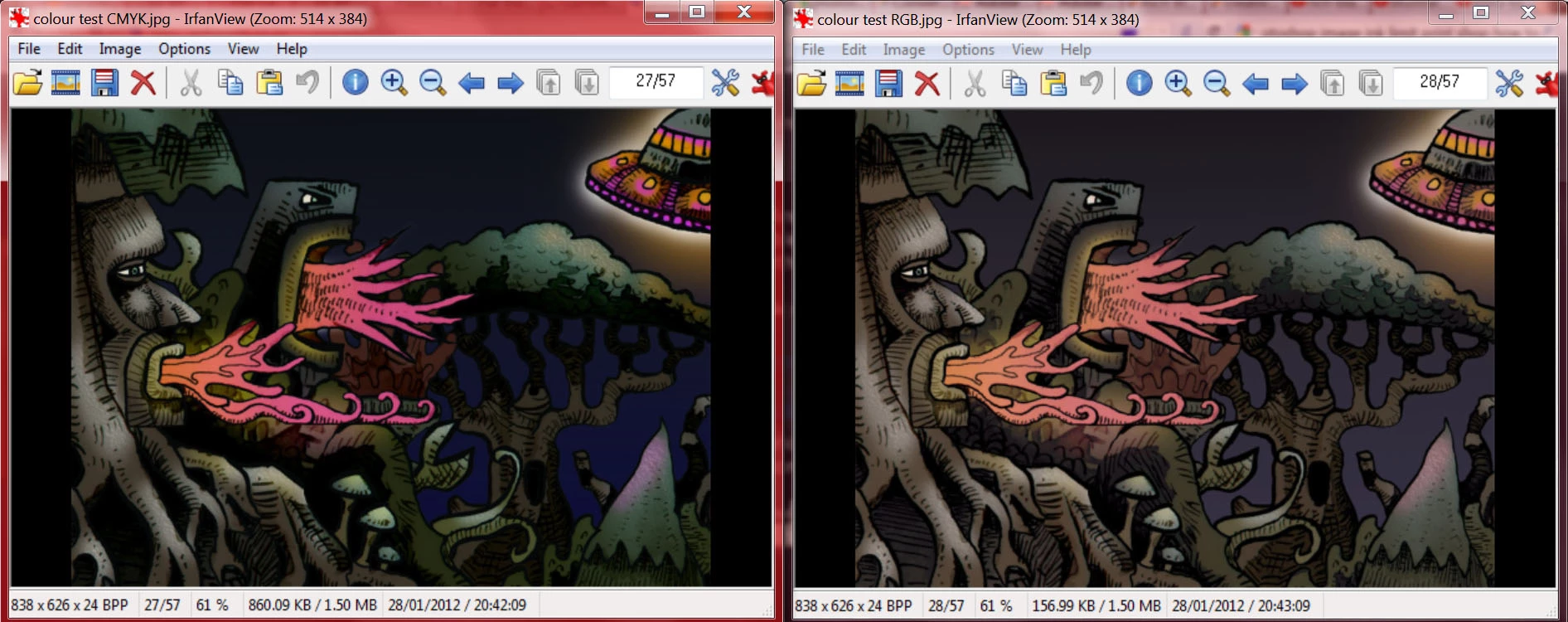
here you can see the image on the left is what happens when I save out directly from my CMYK file in photoshop. there is a big loss in detail in the darker areas and colours are over saturated. the image on the right is what I get if I convert to mode>RGB and then save the JPG. .. . .this is what I want it to look like....

my problem is the print shop requests the image in CMYK, but I want them to print like it looks in the RGB version
any help would be greatfully appreciated! Thankyou!

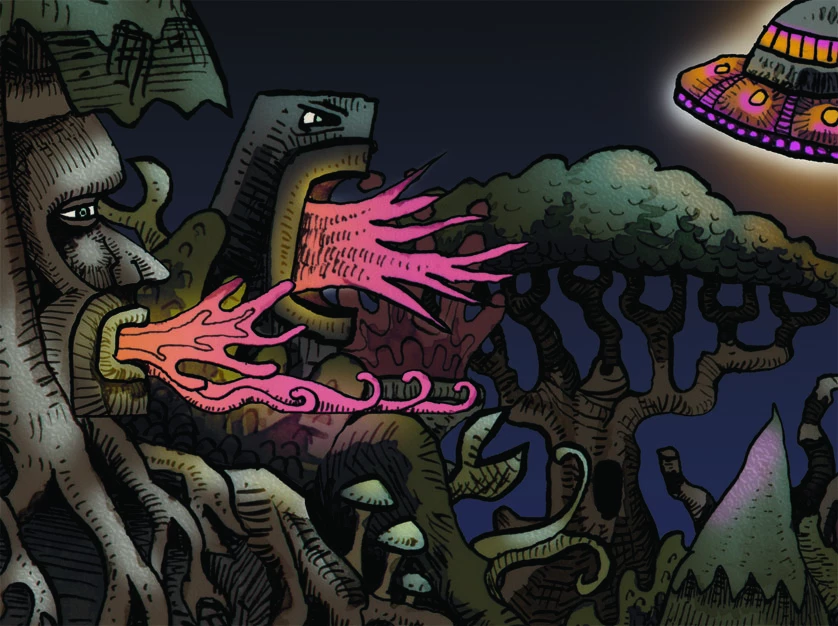
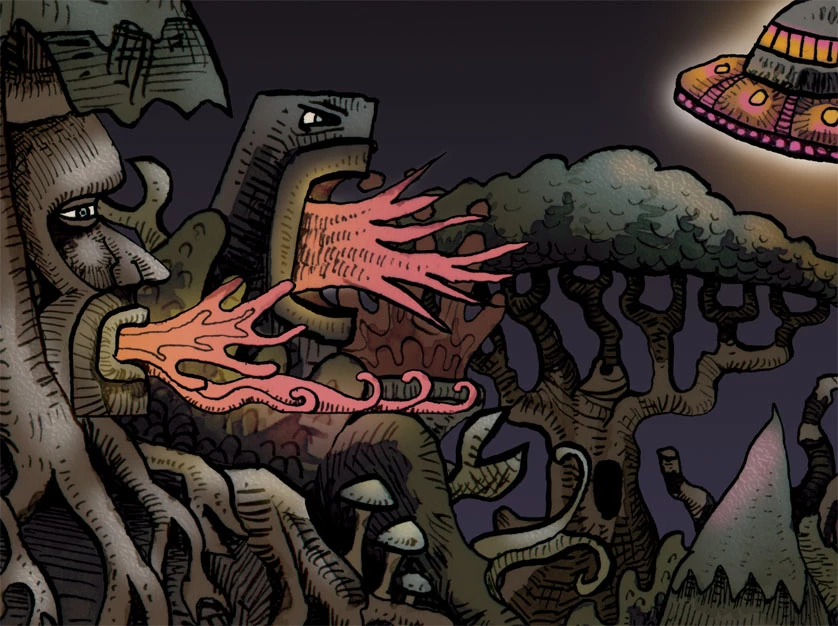
also here are the actual .jpegs as saved from photoshop

the CMYK version:
and the RGB version:
edit: I don't know too much about colour profiles, and the print shop hasn't provided one on their site, so I picked the default one - Working CMYK, U.S WebCoated (SWOP v2)

edit: these are the file formats the printers say they take on their site:
PDF - 300 dpi - (preferred), Tiff, Highest resolution JPG, EPS

I don't really have any experience with the other formats but I presume I would get the same colour results

17 replies

Bob_Hallam
Legend
October 4, 2022

First, I would ask your print shop which CMYK profile is the correct one for their print process.  The one you chose is in what Adobe calls "North American prepress defaults" color settings but unfortunately probably has nothing to do with most printers' printing process unless you are printing a magazine.    Something like GraCol 2013 would probably be more appropriate and not lose so much contrast and detail.  Not all CMYK is the same.  Each is created based on a different printing process and has a different gamut size.  


The most interesting thing about your post to me is that your RGB and CMYK screenshots do not match.  Telling me you have an issue in your workflow.  When converted (Except for saturated, out-of-gamut RGB colors, the conversion should appear close on a calibrated monitor.  

ICC programmer and developer, Photographer, artist and color management expert, Print standards and process expert.
TheDigitalDog
Inspiring
October 4, 2022
quote

The most interesting thing about your post to me is that your RGB and CMYK screenshots do not match.  Telling me you have an issue in your workflow.  When converted (Except for saturated, out-of-gamut RGB colors, the conversion should appear close on a calibrated monitor.  


By @Bob_Hallam


That is an issue with his screen captures and where they were applied, NOT the actual images. Open both in Photoshop, the CMYK is tagged and looks very, very close to the sRGB image:


The OP writes (10 years ago):
"everything looks fine in photoshop, but when I save out to a JPG the whole thing gets dark and colours get horribly over saturated".


Yes, Photoshop is doing the preview correctly, as seen above. The JPEG viewed somewhere else, likely without color management, looks awful; that's the big issue here. But considering when the OP asked.....

Author “Color Management for Photographers" & "Photoshop CC Color Management/pluralsight"
Participant
October 3, 2022

RGB will look like RGB on a monitor.  CMYK will look like CMYK on a print.  Neither will look like entirely like itself in the other's medium.  Usign a design app in CMYK mode is the closest you're going to get to seeing CMYK on a screen and once you screenshot or save it you will be looking at a conversion (different formats & viewers will display different types of images with different color profiles differently...).  Learning to process colors for print is an artform like learning to color grade a film knowing that it will be shown on a variety of different monitors from LED projectors to maybe even an old 20" CRT.  It takes some trial, a decent amount of error, and tons of observation.

D Fosse
Community Expert
Community Expert
October 3, 2022

To get a reliable preview of how something will print, calibrate your monitor to a white and black point that visually matches the paper and print process. For offset print, that means a black point as high as perhaps 1.2 cd/m², which is very much higher than any monitor's native black point (normally 0.1-0.3).


The importance of the black point is underrated. It has a huge impact on the overall look of the image. Unless you match monitor black to max ink, you will almost certainly be disappointed when you see the final printed result.

TheDigitalDog
Inspiring
October 3, 2022

Yes; the importance of black:

http://digitaldog.net/files/BlackisBack.pdf

Author “Color Management for Photographers" & "Photoshop CC Color Management/pluralsight"
NB, colourmanagement
Community Expert
Community Expert
May 30, 2020

Hi

D.Fosse wrote: Increasing inks after conversion is risky! Make sure you're not exceeding TAC (total ink limit) anywhere.

That’s right, its very risky. And hard to control, CMYK colour correction isn't impossible, but its highly skilled and super risky.

Work in RGB, get the right CMYK ICC profile from your printshop, convert at after all colour correction is done, That’s the safe way. 


I hope this helps

if so, please "like" my reply

neil barstow, colourmanagement.net :: adobe forum volunteer

[please do not use the reply button on a message in the thread, only use the one at the top of the page, to maintain the thread title and the chronological order]

Participant
May 29, 2020

I've found this workflow to work best for most images that look washed out after CMYK conversion:

  1. Convert color profile to CMYK
  2. Levels Adjustment - "Increase Contrast 1" Preset (Adjust to taste)
  3. Add Selective Color Adjustment
    • Select Blacks from dropdown, then move black +10-20%,
    • Select Neutrals and move black slider +5-12%
  4. Flatten then Export to the file type you need.


I've felt that the issue is mainly contrast. 

Colors won't be same as RGB, but if you get the contrast right, the image at least doesn't look flat/washed out.


D Fosse
Community Expert
Community Expert
May 29, 2020

Increasing inks after conversion is risky! Make sure you're not exceeding TAC (total ink limit) anywhere.


A better way is to work in RGB, and calibrate your monitor to a black level that visually matches max ink for that process. A test print of anything will work, as long as you have full black in it.


Then you can see how it works in real time, what you see is what you get, and you don't risk exceeding TAC.

D Fosse
Community Expert
Community Expert
March 13, 2020

In addition, most standard image viewers have no CMYK support at all. It may display, but with unpredictably scrambled colors.


If it looks good in Photoshop (and the CMYK profile is the correct one!), trust that. As Neil points out, take extreme care to not exceed the total ink limit for that particular profile. That will cause ink smearing and drying problems.

NB, colourmanagement
Community Expert
Community Expert
March 13, 2020

Hi

CMYK has a reduced gamut and tonal range compared to most RGB colourspaces, so many would agree with your decision to work on your design in CMYK -  

But that’s only a good idea if you are very careful with saturation and total density and that can be quite hard to grasp and easy to get wrong.

Working inside a CMYK colourspace its pretty easy to break the total inklimit rules and make a file that's awful when printed. 

The CMYK print process may only be targeted for files with a max ink of, say 280. If in any area of he image your total breaks that limit, your image when printed is toast.


Working in RGB but with View / proof setup / custom : choose CMYK profile, Relative Colrimetric [with black point compensation] - also check 'ink black' is far safer. Gamut warning will help you too, try to avoid creating areas that are out of gamut.

why?

when you convert from RGB to CMYK then the ink levels are calculated to stay within the limits prescribed.


You mention the image looks fine in Photoshop - then saving as a Jpeg and that’s when the tonal issues arise,

how are you viewing the Jpeg?

If its viewed in a non colour managed application like Windows Images then there's the problem. 
If Photoshop [which has good colour management] shows your file is fine [on a properly calibrated screen], it IS fine 


I hope this helps

if so, please "like" my reply and if you're OK now, please mark it as "correct", so that others who have similar issues can see the solution

thanks

neil barstow, colourmanagement.net :: adobe forum volunteer

[please do not use the reply button on a message in the thread, only use the one at the top of the page, to maintain chronological order]


Participant
March 12, 2020

hi dear,

           exactly the same problem i am facing right now dont know what to do


davescm
Community Expert
Community Expert
March 13, 2020

First and foremost - find out from your print shop exactly which CMYK color profile they want from you. There is no generic CMYK.  If they cannot tell you then find another print shop as they don't know what they are doing.

If they can tell you then you can convert to that specific profile in Photoshop but you may (likely will) find some colours that are available in RGB that are just not printable in CMYK i.e they are outside the gamut of colours available in that CMYK color space. You can preview this before converting by using View Proof Set up and View Proof Colours. You can also turn on and off the gamut warning as an indication of where to look for changes. That way you can make adjustments to those colours and control the inevitable colour change if you are image contains out of gamut colours.


Dave

Participant
October 21, 2018

I work at printer center. And the problem (as I see)

Is/was your image viewer.

Those image viewers don't support cmyk (even if its a tiff), and the colors get over saturated when seen in screen and sometimes even changing the levels of the colors if sent to print with that image viewer.
I recommend just a jpeg at hi-res cmyk or pdf o any type (whiles its in cmyk the files itself)

If you had problem viewing the file in pdf it must be some other problem.
But looks like a normal not supporting CMYK program.

You can try it sometimes with your phone, they normally don't accept cmyk files and they show an error or a over saturated image.

hope it helps

Arnold France
Known Participant
September 7, 2018

Calibrate your monitor for surprise, switch to ICC for printers from DNG to CMJ(N). If the settings do not suit you, go to Photoshop and the Camera Raw filter.

ahmedyu_uf547694
Participant
September 5, 2018

Hello

I have the same problem. I think it's all about the JPEG format which can read cmyk colors. I saved the file as PDF and there was no problem with the colours. so maybe try to send the file as PDF.