
Participating Frequently
Nov 19, 2026 10:49 AM UTC
Question

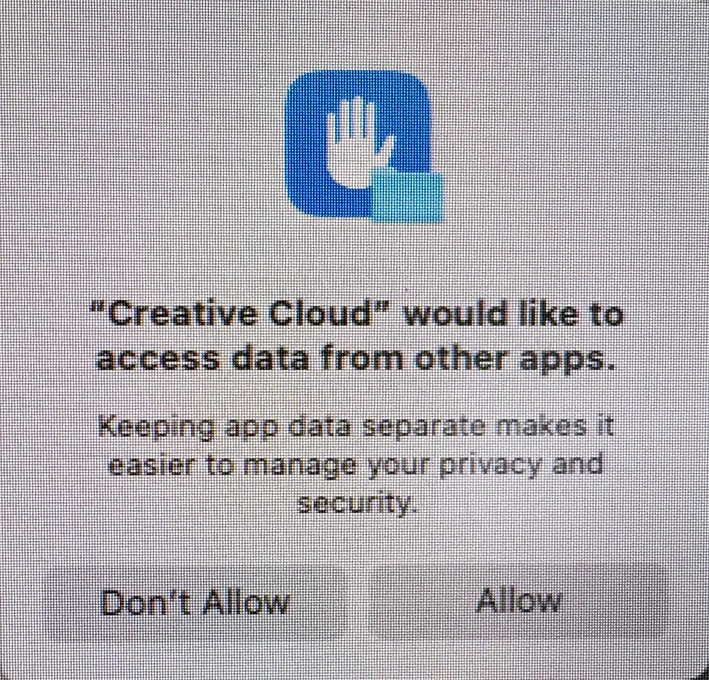
Access to data from other apps pop-up

I keep getting an annoying pop-up appearing saying “”Creative Cloud” would like to access data from other apps.” and I can’t stop it popping up whenever I start-up my mac or open Photoshop. The options given are “Don’t Allow” and “Allow” and I keep clicking don’t allow but it’s never remembered as my preferred choice.

I’ve tried to find a solution to this and haven’t had any luck so far, can anybody help me to stop this pop-up permanently please?


    9 replies

    Jeff_A_Wright
    Community Manager
    Community Manager
    Nov 19, 2026 6:10 PM UTC

    Thank you for posting, ​@Paul A. Brown.


    I can see how disruptive this would be, particularly when you've already selected Don’t Allow and reasonably expect that choice to be remembered rather than being asked again each time you start your Mac or Photoshop.


    ​@kglad has offered a good next step. Please quit Photoshop and the Creative Cloud desktop app, then check System Settings > Privacy & Security > Full Disk Access and make sure the affected Adobe applications have the appropriate permissions before reopening them.


    Additional information on macOS application permissions can be found here:

    https://helpx.adobe.com/lightroom-classic/desktop/technical-support/performance-guidelines/allow-permissions.html


    I hope that helps put a stop to the repeated prompt, ​@Paul A. Brown. If you're still seeing it afterward, please let us know, and we can continue from there.

    Translate
    Participating Frequently
    Nov 21, 2026 5:22 PM UTC

    I tried that and thought it had worked but just started up my Mac and there it was again, the pop-up asking about access to data. I had the setting as I wanted it in the Full Disk Access part of system settings but I switched it on then off to see if that made a difference but it didn’t. I’m tempted to click to allow full disk access just to get rid of the thing but really don’t want to.

    Translate
    kglad
    Community Expert
    Community Expert
    Nov 22, 2026 1:48 PM UTC

    ​@Paul A. Brown 


    is your computer maintaining the setting giving the cc desktop app full disc access after a restart?

    Translate
    kglad
    Community Expert
    Community Expert
    Nov 19, 2026 1:20 PM UTC

    How to Stop the Recurring Prompt

    • Quit the Adobe app completely before changing permissions.
    • Open System Settings (Apple menu > System Settings).
    • Go to Privacy & Security > Full Disk Access.
    • Toggle on the affected Creative Cloud app if it is listed, or click the + button, select the app from Applications, and toggle it on (enter your Mac password if prompted).
    • Relaunch the app. [1, 2, 3]
    Translate
    Participating Frequently
    Nov 21, 2026 5:23 PM UTC

    I tried that and thought it had worked but just started up my Mac and there it was again, the pop-up asking about access to data. I had the setting as I wanted it in the Full Disk Access part of system settings but I switched it on then off to see if that made a difference but it didn’t. I’m tempted to click to allow full disk access just to get rid of the thing but really don’t want to

    Translate