


StargateMS
Inspiring
May 8, 2024
Answered

Creative Cloud Red Alert Icons - menu bar and Cloud activity icon

  • May 8, 2024
  • 1 reply
  • 1441 views

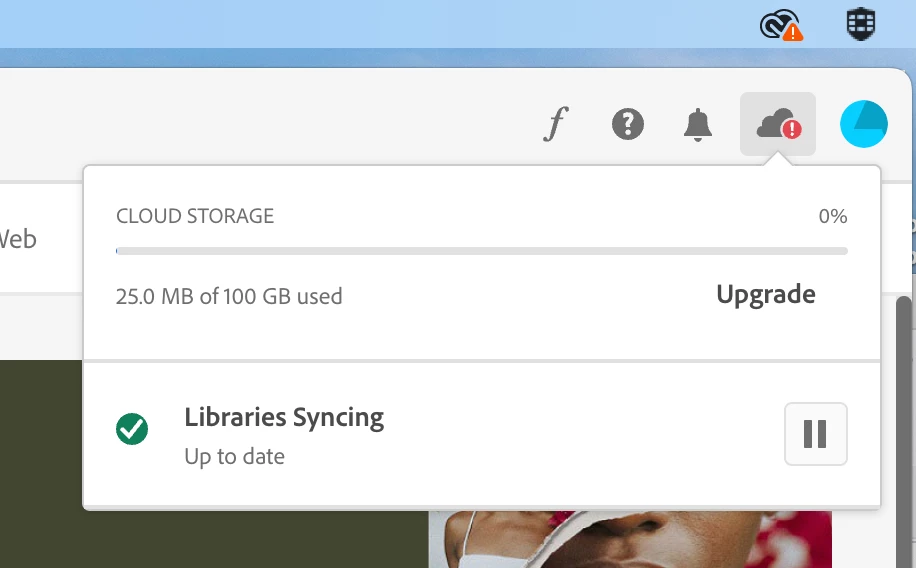
I've seen a couple of threads about people constantly seeing red alerts on the Creative Cloud icons. I'm having the same issue, and the repeated suggestion to reset via Command + Option + R is not solving this issue for me.


The key takeaway for me is that it's not just the Creative Cloud icon in the macOS menu bar but also the Cloud activity icon within the Creative Cloud app itself. There is no explanation of what is actually "wrong" to cause the alert. I'd really like this to go away. (For the record, I've never consciously used the Adobe cloud storage features; any storing there has been by Adobe apps on their own initiative.)
 

Correct answer StargateMS

use a browser. there are several tabs and link to check:


https://assets.adobe.com

https://lightroom.adobe.com

https://documentcloud.adobe.com

https://spark.adobe.com


if there are any files delete them and then empty the deleted folder.


I've found the actual source of the problem and solved it myself. You should note this and provide these suggestions to other people having the same problem.


First of all, it turns out Adobe has discontinued Creative Cloud synced files:

https://helpx.adobe.com/creative-cloud/kb/eol-creative-cloud-synced-files.html 


Based on that information, I was able to discover that I had TWO different sync directories:


Creative Cloud Files
Creative Cloud Files Personal Account [EMAIL_ADDRESS] [ID_NUMBER]@AdobeID


The second folder is the one CC renamed after February 1, 2024 in order to stop syncing. But original folder still existed, which means the Creative Cloud app was still trying to sync with it (which it can't because the service has been discontinued).


After I deleted the "Creative Cloud Files" folder (original one), all of the alerts stopped.


This should be one of your suggestions to others. However, it's still annoying that the Creative Cloud app itself has no information or guidance about this. Bad marks for Adobe on this one.

1 reply

kglad
Community Expert
Community Expert
May 8, 2024

i know the first step fails for you, but there are several other steps to try:


reset the cc desktop app by making sure it's in the foreground, then press:

Win: Ctrl + Alt + R
Mac: Cmd + Opt + R


if that fails, repair per https://helpx.adobe.com/download-install/kb/creative-cloud-install-stuck.html


if that fails and you have windows, open your control panel > add/remove programs > cc desktop app > repair

if that fails, uninstall using the correct uninstaller from https://helpx.adobe.com/creative-cloud/help/uninstall-creative-cloud-desktop-app.html#sa_src=web-messaging and then reinstall using*


if that fails, do a clean cc install carefully following each applicable step:

uninstall every cc app including preferences per https://helpx.adobe.com/creative-cloud/help/uninstall-remove-app.html

then uninstall the cc desktop app, again using the correct uninstaller per https://helpx.adobe.com/creative-cloud/help/uninstall-creative-cloud-desktop-app.html#sa_src=web-messaging

clean your computer of cc files per http://www.adobe.com/support/contact/cscleanertool.html

check for, and if available, update your os

if windows is your os, repair all ms visual c++ versions that can be repaired (use google if you don't know how to do this)

if windows is your os update your ms visual c++, if it can be updated (use google if you don't know how to do this)

restart your computer (don't skip this)

reinstall the cc desktop app using the "alternative download links" at the bottom of the page at https://helpx.adobe.com/download-install/kb/creative-cloud-desktop-app-download.html

use the desktop app to install your cc programs/trials>

if that fails, you probably have a corrupt user account. google your os and how to create a new one.

StargateMS
Inspiring
May 8, 2024

I downloaded the Creative Cloud Uninstaller and ran the "Repair" option. When that was done I restarted Creative Cloud and the icon persists. However, this time macOS displayed an alert notification briefly stating "Error enabling sync". It disappeared before I could screen capture it.


That at least provides some explanation, but it bothers me that the Creative Cloud app itself is not providing the same explanation, just a red alert icon.

kglad
Community Expert
Community Expert
May 8, 2024

after that message, restart at the top with the reset.