Participant
February 18, 2024
Answered

Löschen von alten Cloud-Ordnern im Explorer

  • February 18, 2024
  • 1 reply
  • 800 views

Hallo zusammen


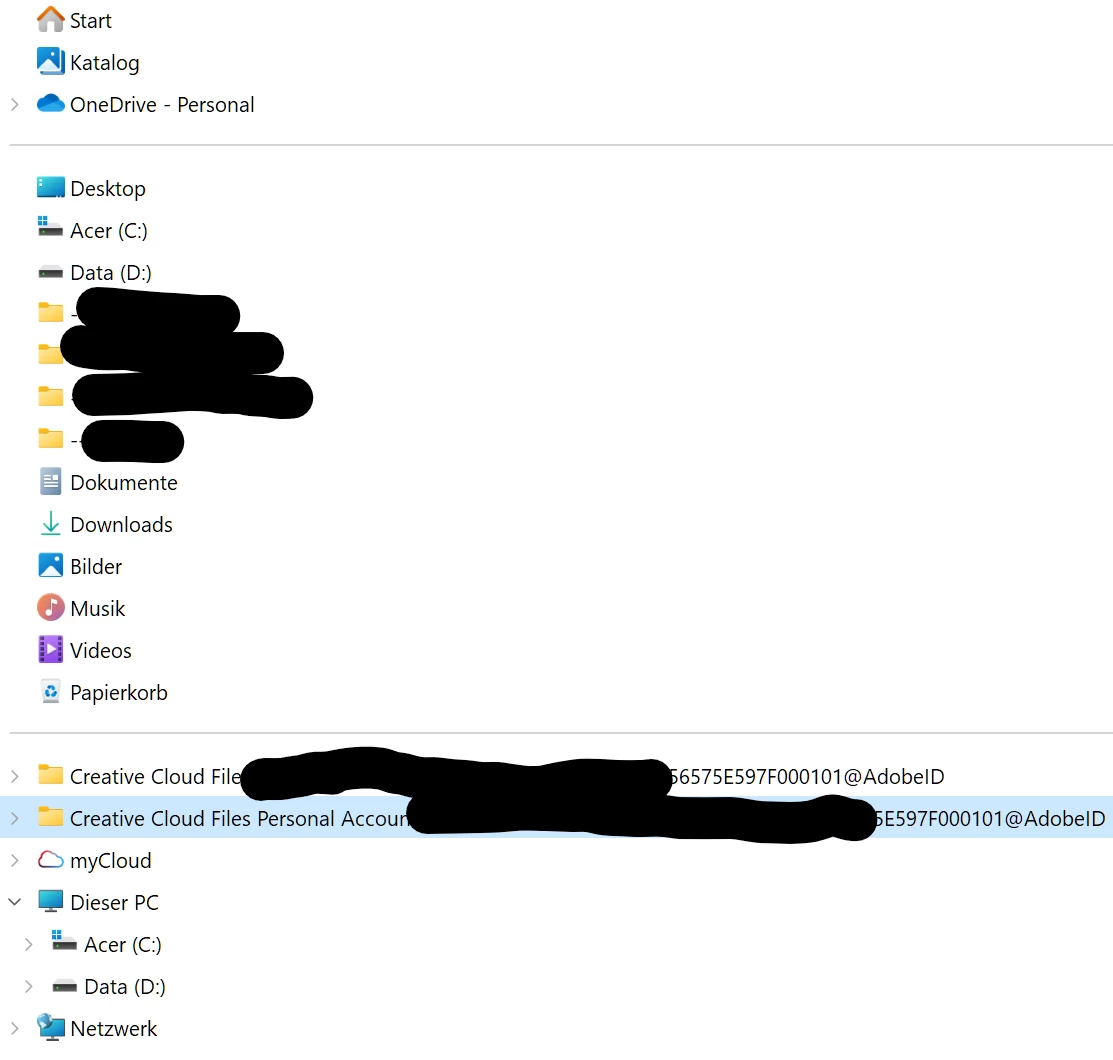
Ich nerve mich seit Wochen über das Chaos, welches die Cloud-File-Synchronisation (welche ich nie verwendet hab) bei mir im Win11 Explorer hinterlassen hat. Das Problem ist simpel: Ich habe seit einigen Wochen zwei persönliche und generische "Cloud-File"-Verknüpfungen im unteren(!) Teil der Explorer-Seitenleiste. Es geht also NICHT um die Entfernung des Haupt-Links ("Creative Cloud Files") im oberen Teil. Dies ist längst weg (und ich kenne das Thema der eingestellten Dienste, by the way. Da ich es aufgeräumt mag, möchte ich diese beiden Folders weghaben, aber der obere Link erzeugt eine Fehlermeldung (Pfad nicht vorhanden), der untere Link führt zu einem leeren Ordner.

Kann mir jemand helfen? Reparatur der Creative Cloud Desktop App hat nicht geholfen 😞

Danke im Voraus!
 

This topic has been closed for replies.
Correct answer kglad

mac:

copy any important file to another folder and then delete Creative Cloud Files + <account type> + <profile_name> + <email> + <GUID> (for example: Creative Cloud Files Personal Account email@abc.com ####@AdobeID).


default location, Mac HD/Users/<Username>/Creative Cloud Files


windows:

Open the registry editor (regedit.exe) & naviagate to: HKEY_CURRENT_USER\Software\Microsoft\Windows\CurrentVersion\Explorer\Desktop\NameSpace You'll probably have two sub-keys. OneDrive's sub-key will be nameed '{018D5C66-4533-4307-9B53-224DE2ED1FE6}' Delete the other one, that will be Creative Cloud.

1 reply

kglad
Community Expert
kgladCommunity ExpertCorrect answer
Community Expert
April 11, 2024

mac:

copy any important file to another folder and then delete Creative Cloud Files + <account type> + <profile_name> + <email> + <GUID> (for example: Creative Cloud Files Personal Account email@abc.com ####@AdobeID).


default location, Mac HD/Users/<Username>/Creative Cloud Files


windows:

Open the registry editor (regedit.exe) & naviagate to: HKEY_CURRENT_USER\Software\Microsoft\Windows\CurrentVersion\Explorer\Desktop\NameSpace You'll probably have two sub-keys. OneDrive's sub-key will be nameed '{018D5C66-4533-4307-9B53-224DE2ED1FE6}' Delete the other one, that will be Creative Cloud.

LeeVeeOAuthor
Participant
April 12, 2024

Thanks a lot - has worked immediatley! Cool to have a clean explorer view now. merci!

kglad
Community Expert
Community Expert
April 12, 2024

de rien.