


Known Participant
June 23, 2024
Question

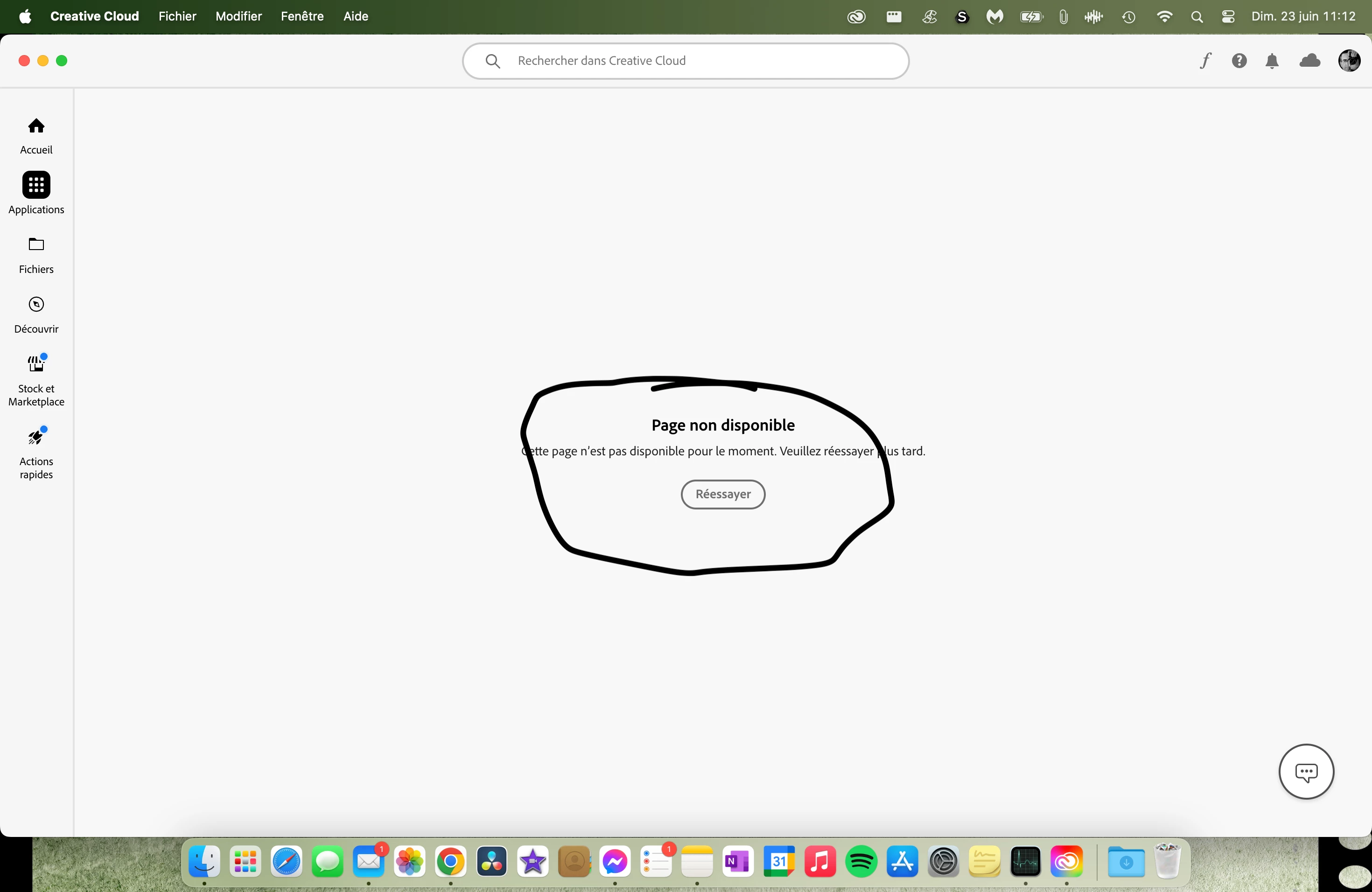
Problem with the "Application" section of Creative Cloud

  • June 23, 2024
  • 2 replies
  • 362 views

The "Application" section of Creative Cloud is not working.  Yesterday a tech took control of my Mac and solved the problem.  He said there was a corrupted file somewhere.  This morning the problem is back.  Because of this I cannot manage my application, I cannot do any upgrade.  For some reason when my Mac is set in french, I have the problem.  But when it is set to english, everything is fine!


What's going on?
This topic has been closed for replies.

2 replies

Ruchika Wadhawan
Adobe Employee
Adobe Employee
June 24, 2024

Hi @georgespaquin To investigate this, could you please follow the below steps to collect and share the Creative cloud logs:

1. Quit Creative Cloud from File menu.

2. Open activity monitor and kill 'Creative Cloud Core Service'

3. From the finder menu items, navigate to 'Go -> Go to folder' and type in '~/Library/Logs/CreativeCloud'.

4. Rename 'ACC' folder.

5. Set machine language to French and relaunch Creative cloud.

6. From Creative cloud menu items, go to -> Help -> 'Create log file' and follow the steps to collect and share the log file name with us.

7. Perform the same set of steps from 1 to 6 with English language and again collect the logs and share with us.


Regards,

Ruchika Wadhawan 

Known Participant
June 24, 2024

I did everything you said.  Your instructions are "advance user level" so I hope I didn't make any mistake.  I had to install a little program (Log Collector), you're supposed to have receive my log files.


I hope you can help me cause it's very anoying having to switch my computer in english do to my update.


That problem appeared out of nowhere.  I haven't done any change in my settings.

I'm with MacBook Air M2, 16G RAM, MasOS Sonoma v14.5


kglad
Community Expert
Community Expert
June 24, 2024

then work on the cc app per my suggestion.

kglad
Community Expert
Community Expert
June 23, 2024

reset the cc desktop app by making sure it's in the foreground, then press:

Win: Ctrl + Alt + R
Mac: Cmd + Opt + R


if that fails, repair per https://helpx.adobe.com/download-install/kb/creative-cloud-install-stuck.html


if that fails and you have windows, open your control panel > add/remove programs > cc desktop app > repair

if that fails, uninstall using the correct uninstaller from https://helpx.adobe.com/creative-cloud/help/uninstall-creative-cloud-desktop-app.html#sa_src=web-messaging and then reinstall using*


if that fails, do a clean cc install carefully following each applicable step:

uninstall every cc app including preferences per https://helpx.adobe.com/creative-cloud/help/uninstall-remove-app.html

then uninstall the cc desktop app, again using the correct uninstaller per https://helpx.adobe.com/creative-cloud/help/uninstall-creative-cloud-desktop-app.html#sa_src=web-messaging

clean your computer of cc files per http://www.adobe.com/support/contact/cscleanertool.html

check for, and if available, update your os

if windows is your os, repair all ms visual c++ versions that can be repaired (use google if you don't know how to do this)

if windows is your os update your ms visual c++, if it can be updated (use google if you don't know how to do this)

restart your computer (don't skip this)

reinstall the cc desktop app using the "alternative download links" at the bottom of the page at https://helpx.adobe.com/download-install/kb/creative-cloud-desktop-app-download.html

use the desktop app to install your cc programs/trials>

if that fails, you probably have a corrupt user account. google your os and how to create a new one.