


Participant
April 30, 2023
Question

Synchronization folder

  • April 30, 2023
  • 3 replies
  • 987 views

I'm on a Win 11 PC and I can't use CC Desktop yet. In preferenze dialog I can't change the synch folder. Probably this is the reaso why I can't use Lightroom and Photoshop correctly that I must run ad adimistrator privileges.
When I click on cloud icon, app is permanently waiting as you can see in the screenshoot.
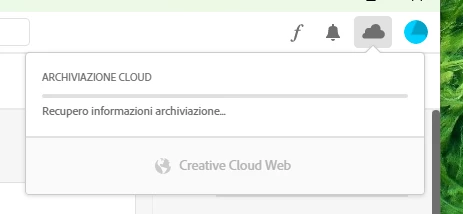
 

Can sameone help me?


This topic has been closed for replies.

3 replies

kglad
Community Expert
Community Expert
April 30, 2023

follow the steps in my previous suggestion.


<moved from cc desktop bugs>

Participant
May 1, 2023
kglad
Community Expert
Community Expert
May 1, 2023

@Mario Luigi296441085z2k 


continue with the steps. ie, if there's nothing cc on your computer that you can uninstall:


clean your computer of cc files per http://www.adobe.com/support/contact/cscleanertool.html

check for, and if available, update your os

if windows is your os, repair all ms visual c++ versions that can be repaired (use google if you don't know how to do this)

if windows is your os update your ms visual c++, if it can be updated (use google if you don't know how to do this)

restart your computer (don't skip this)

reinstall the cc desktop app using the "alternative download links" at the bottom of the page at https://helpx.adobe.com/download-install/kb/creative-cloud-desktop-app-download.html

use the desktop app to install your cc programs/trials

NOTE: win 11 users that have trouble with the latest win 10 installer often have success with the older win 10 installer.

Participant
April 30, 2023

Never worked! I'm not able to start tyring adobe product lile Phostoshop e Lightroom.

kglad
Community Expert
Community Expert
April 30, 2023

assuming your cc app previously worked and only recently has had a problem:


reset the cc desktop app by making sure it's in the foreground, then press:

Win: Ctrl + Alt + R
Mac: Cmd + Opt + R


if that fails, repair per https://helpx.adobe.com/download-install/kb/creative-cloud-install-stuck.html


if that fails, uninstall using the correct uninstaller from https://helpx.adobe.com/creative-cloud/help/uninstall-creative-cloud-desktop-app.html#sa_src=web-messaging and then reinstall using*


if that fails, do a clean cc install carefully following each applicable step:

uninstall every cc app including preferences per https://helpx.adobe.com/creative-cloud/help/uninstall-remove-app.html

then uninstall the cc desktop app, again using the correct uninstaller per https://helpx.adobe.com/creative-cloud/help/uninstall-creative-cloud-desktop-app.html#sa_src=web-messaging

clean your computer of cc files per http://www.adobe.com/support/contact/cscleanertool.html

check for, and if available, update your os

if windows is your os, repair all ms visual c++ versions that can be repaired (use google if you don't know how to do this)

if windows is your os update your ms visual c++, if it can be updated (use google if you don't know how to do this)

restart your computer (don't skip this)

reinstall the cc desktop app using the "alternative download links" at the bottom of the page at https://helpx.adobe.com/download-install/kb/creative-cloud-desktop-app-download.html

use the desktop app to install your cc programs/trials

NOTE: win 11 users that have trouble with the latest win 10 installer often have success with the older win 10 installer.