
juanf11638638
Inspiring
July 31, 2015
Answered

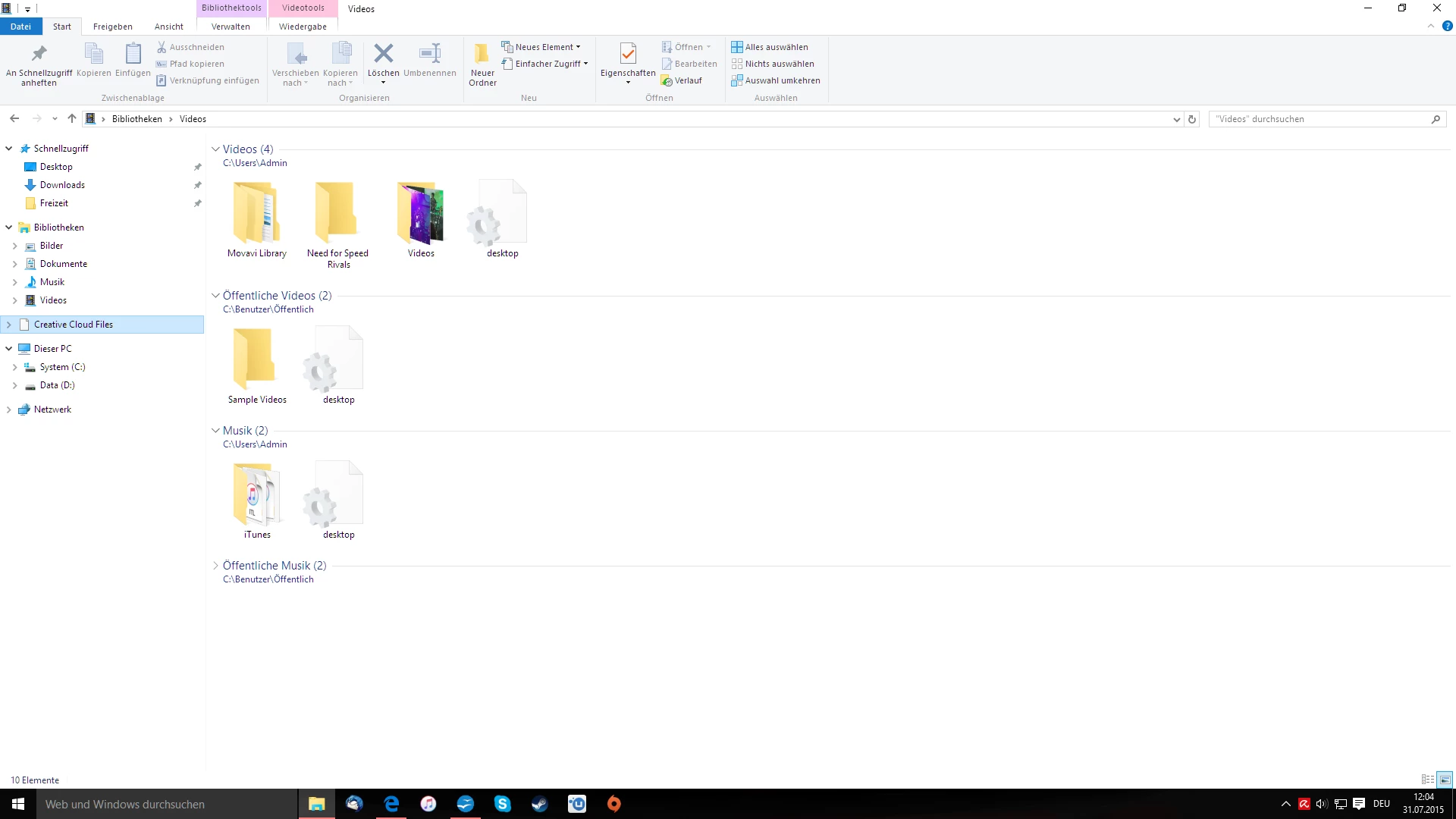
Can not remove Creative Cloud Files folder in Explorer under Win 10

  • July 31, 2015
  • 7 replies
  • 4352 views

Hello Community,

I have got the problem that after the uninstall of the creative cloud I have this folder left an I want to remove it but I dont know how.

I alredy tried to remove all the remaining files from my system and have used the AdobeCreativeCloudCleanerTool but it didnt work for me.

The system I am using is Windows 10 Home x64. I hope somebody can help me ?
This topic has been closed for replies.
Correct answer juanf11638638

‌i mean I find the actual suite incredibly useful for my profession and field and will continue to use it through thick and thin... But yea there are a few usability and functionality quirks where I'm just thinking who the heck came up with that one and how did he/she get a job at Adobe...? lol


now i could finally remove the shitty creative cloud files folder from Adobe !!!

After downgrading to Windows 7, detach the folder from the favorites in the explorer and following upgrading back to Windows 10 the folder was not there anymore!!!

This procedure took me the hole day and now i am sure that i will NEVER use Adobe products again, thank you Adobe

I am very happy now with deleting all the Adobe shit from my computer and i am pretty sure that it will stay like this,

thank you Adobe ò__ó !!!!!!

7 replies

January 8, 2021

Years later and this is still a problem! I was cleaning out an old machine that had it installed. Ended up looking up the folder name in the regisyry, copying its uuid ({0E270DAA-1BE6-48F2-AC49-43C673CC2542}) and removing every trace of it from the registry.


I expect this from malware, not commercial software. Hopefully this is the last trace of Adobe products I own, glad to of switched to Affinity products.

Participant
September 19, 2015

Yes, I had the same issue... Uninstalled Creative Cloud but the folder remains in Explorer.

Went here to get the basics:

http://www.tekrevue.com/tip/remove-onedrive-file-explorer-sidebar-windows-10/

Then, did a search in regedit for Creative Cloud Files. Found it and changed the System.IsPinnedToNameSpaceTree value to 0 (zero). This immediately removed the folder without the need for restart. Sorry you had to go the reinstall route! Been there, done that on other issues. Seriously Adobe should fix this. Personally, I love Adobe but this is very annoying and Adobe needs to address it!

Participant
August 17, 2015

I found this as anoying as you, so here's the hint:

How to Remove OneDrive from File Explorer in Windows 10

The Key in Question is: HKEY_CLASSES_ROOT\CLSID\{0E270DAA-1BE6-48F2-AC49-C8B25FB89F8F}

Set System.IsPinnedToNameSpaceTree to 0.

Participant
July 31, 2015

Would very much like a solution to this.... Or at least a way to have the "Creative Cloud Files" directory only appear in "Quick Access" or outside of that hierarchy. There's no logical reason to have two copies of the same shortcut, and honestly I'd prefer for cleanliness sake to be able to have it just inside the Quick Access group as that can be collapsed.

Running:

Windows 10 Pro - Release

CC July 2015

juanf11638638
Inspiring
August 1, 2015

I dont understand, why this problem isnt known because Windows 10 builds for testing the Adobe software are alredy years available.

Adobe did a very bad job there and I dont think that i will use Adobe products again if problems like this cant be solved without a new Windows installation

Participant
August 1, 2015

‌i mean I find the actual suite incredibly useful for my profession and field and will continue to use it through thick and thin... But yea there are a few usability and functionality quirks where I'm just thinking who the heck came up with that one and how did he/she get a job at Adobe...? lol

Megha Rawat
Community Manager
Community Manager
July 31, 2015

Hi Juan,

Is creative cloud installed on your machine ?

Regards

Megha Rawat

juanf11638638
Inspiring
July 31, 2015

not anymore, I uninstalled it and hoped that the folder disappears

I think it can be solved with a change in the registry, but I dont know where

Megha Rawat
Community Manager
Community Manager
July 31, 2015

Hi Juan,

Please make sure that you have saved  all data before following the below steps.

You wont be able to rename these folders until you close all adobe processes from task manager.

End a process - Windows Help

Go to C> Users > Your user profile> creative cloud files and delete the folder.

Refer this to display  hidden folders: Show hidden files - Windows Help

Go to C> Users> user profile> Appdata > Roaming > coresync.

Rename coresync  folder.

Hope this helps.

Regards

Megha Rawat

juanf11638638
Inspiring
July 31, 2015

Hi Megha,

I checked these Locations and these folders arent there, I think I have alredy deleted them, but this didnt helped.

Hope you can help me with that

I think it has got to do with the registry

Megha Rawat
Community Manager
Community Manager
July 31, 2015

Hi Juan,

Please refer: https://helpx.adobe.com/creative-cloud/help/sync-files.html

Hope this helps.

Regards

Megha Rawat

juanf11638638
Inspiring
July 31, 2015

thank you Megha for your reply, but on this website is not explained how to remove the Sync folder itself, only the files in the folder, this didnt solved the problem.

Juan