Participant
April 27, 2022
Answered

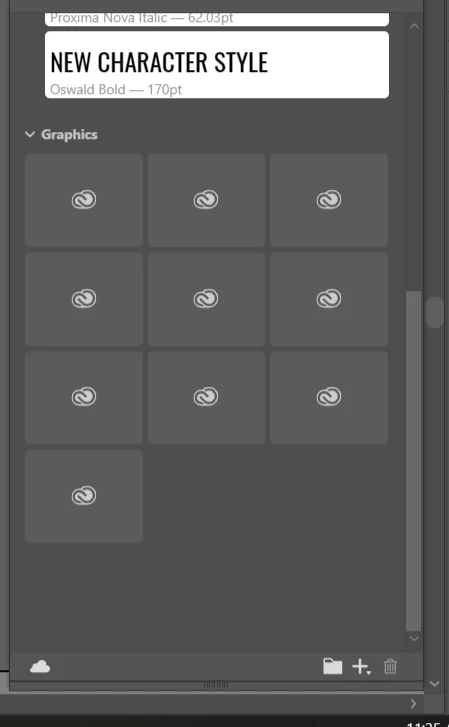
CC Library not showing graphic preview

  • April 27, 2022
  • 4 replies
  • 8124 views

I'm working on my CC libraries and was wondering why are my libraries not showing the preview of the graphics and it just shows CC logo? if I double click on them or drag them, they do open the correct graphic is just you can se what you're dragging in since it doesn't show the preview.

I read in this forum I had to log out then delete the library I had the error on  (I dont know which one was it) so I erased My personal library and is still not showing preview and now I lost personal library.


    This topic has been closed for replies.
    Correct answer mollyd619740817406769

    Hello everyone, thank you for your patience as we have been working on fixing this issue. Please follow the following steps to see your thumbnails repaired: 

    1. Download the latest Creative Cloud Libraries installer from the link below in Step 1, and double-click the file to begin the installation.

    https://helpx.adobe.com/creative-cloud/kb/libraries-panel-not-working.html


    2. Then remove the contents of the renditions folder at the two following locations in your file explorer:

    • %appdata%\Adobe\Creative Cloud Libraries\LIBS\<userID>\collaborated\renditions
    • %appdata%\Adobe\Creative Cloud Libraries\LIBS\<userID>\creative_cloud\renditions

    For example: the final path will be something like C:\Users\<username>\AppData\Roaming\Adobe\Creative Cloud Libraries\LIBS\88F71D2E6239FBCC0A666666_3b796a535f99c1570a4666666\creative_cloud\renditions\. 


    Note: you may have only one of these folders, depending on if you have libraries both libraries that have been shared with you, or if just have private libraries. This is fine!  


    3. Finally, kill CCLibrary Process from Task Manager and restart all Adobe products such Photoshop, Illustrator, etc


    This should repair all the thumbnails back to their previous state.

    @Maggie D. @Santiago5CA9 @Lexsz 

    4 replies

    mollyd619740817406769Correct answer
    Adobe Employee
    May 19, 2022

    Hello everyone, thank you for your patience as we have been working on fixing this issue. Please follow the following steps to see your thumbnails repaired: 

    1. Download the latest Creative Cloud Libraries installer from the link below in Step 1, and double-click the file to begin the installation.

    https://helpx.adobe.com/creative-cloud/kb/libraries-panel-not-working.html


    2. Then remove the contents of the renditions folder at the two following locations in your file explorer:

    • %appdata%\Adobe\Creative Cloud Libraries\LIBS\<userID>\collaborated\renditions
    • %appdata%\Adobe\Creative Cloud Libraries\LIBS\<userID>\creative_cloud\renditions

    For example: the final path will be something like C:\Users\<username>\AppData\Roaming\Adobe\Creative Cloud Libraries\LIBS\88F71D2E6239FBCC0A666666_3b796a535f99c1570a4666666\creative_cloud\renditions\. 


    Note: you may have only one of these folders, depending on if you have libraries both libraries that have been shared with you, or if just have private libraries. This is fine!  


    3. Finally, kill CCLibrary Process from Task Manager and restart all Adobe products such Photoshop, Illustrator, etc


    This should repair all the thumbnails back to their previous state.

    @Maggie D. @Santiago5CA9 @Lexsz 
    Participant
    May 19, 2022

    These solve the problem for me! Thank you!

    Participant
    May 10, 2022

    I have the same issues, it's very frustrating. My collegues are alsoo dealing with this problem! I think it started with one of the latest updates. Never had this before.

    Known Participant
    May 3, 2022

    This issue happens to me too. Many preview thumbnails do not show up - either in Photoshop or on the Creative Cloud desktop.

    I did all the steps and also got my Log files. I have uploaded the log files here:

    https://drive.google.com/file/d/1pUKPslLIc3Ks4BSaMk1RMYLWoiaD8Mgu/view?usp=sharing


    Please help me fix this issue.

    Adobe Employee
    May 4, 2022

    Hello Maggie, sorry to hear that you're having issues seeing your thumbnails. Can you share what types of files you've added to your libraries that are not showing thumbnails? Have you edited the library elements at all, or did the issue appear when you simply open the library? Also, please share which application name and version you are using. Thank you for your help, we're trying to nail down this issue quickly. 

    -CC Libraries team 

    Known Participant
    May 4, 2022

    I am using Photoshop 23.3.1. The types of files I added to my Library are all PSD documents created in Photoshop. Many of the files contain only shape layers (all vector) not sure if this info will help?

    When I open the library elements, they open the correct graphic. But not being able to see a thumbnail really makes everything very cumbersome!

    Thank you for your help.

    Tarun Saini
    Community Manager
    Community Manager
    April 27, 2022

    Hi there,


    We're sorry to hear about your difficulties. Would you mind telling us the exact version of the operating system you are using? Make sure you are using the updated version of the Creative Cloud application. Did you try logging out from the Creative Cloud Desktop application, rebooting the computer and then logging in again to check if that makes any difference? Also, could you please try killing the CC Library process from the Task Manager/ Activity Monitor?


    You may try the steps mentioned below:-

    • Close any open Adobe products that use Libraries.

    • Open the Creative Cloud desktop app. 
    • Use the following keyboard shortcuts:
    • Windows: Ctrl+Alt+R
    • Mac: Mac: Cmd + Opt + R


    This relaunches Creative Cloud and all its supporting processes, including the Creative Cloud Libraries & relaunch the Creative Cloud app.


    Also, please share the log files with us? Please use this link to collect the logs and upload the logs to your creative cloud and share the link with us. Here is the link: https://helpx.adobe.com/creative-cloud/kb/cc-log-collector.html


    Regards,

    Tarun

    Participant
    April 27, 2022

    This is what I got from the Log- Collector
    AdobeLogs_20220427_113328_171-win-GS.zxp

    Tarun Saini
    Community Manager
    Community Manager
    April 28, 2022

    Thanks for your response. Please share the .ZXP folder with us by uploading the folder to your Creative Cloud & share the link with us.