
Participant
February 27, 2018
Question

Creative Cloud Not Syncing, no errors - Tried multiple solutions, nothing worked

  • February 27, 2018
  • 15 replies
  • 14675 views

Hi there,

I've been pouring over forum posts looking for a solution and could not find one. I'd appreciate some help.

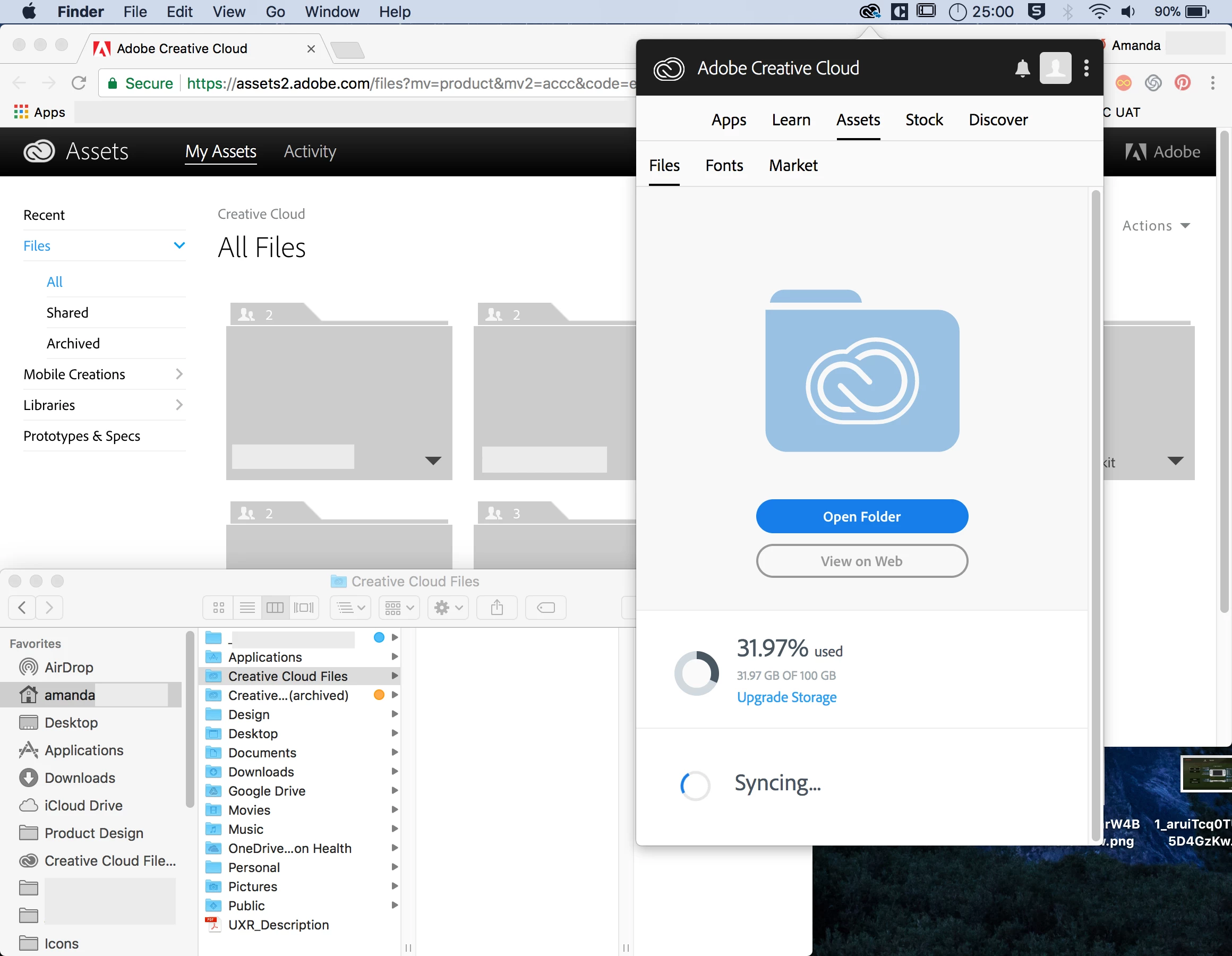
My team shares files via Creative Cloud, which worked successfully and quickly in the past year+. We all use the desktop application on various Macbooks so that we can access files via Finder. A few months ago a team member was reorganizing files (deleting, renaming, uploading) but none of those changes were reflected in my files at all. My file sync has been “syncing” with loading circle for at least 5 months without updating or downloading any files onto my computer. We are constantly on WiFi at corporate internet speeds and all other team members are able to see the files except me. I have never seen a "failed to sync" message or anything. The loading circle just keeps spinning...

Yesterday my existing (old, not updated) Creative Cloud sync folder changed its name to "Creative Cloud Files (archived)" - the new CC folder that was automatically created is completely empty. I'm still able to see the new files in my browser. In applications such as AI or PS, I’m able to sync fonts and access shared Libraries from my team. It’s just the files to my desktop that don’t sync. Still a huge problem since at least 4 folders have been added since the last time I've been able to access the shared files...

Things I have tried so far without success - all following directions posted by staff on the forums:

  1. Pausing/resuming file sync via CC desktop options
  2. Turning file sync on and off and on again
  3. Quitting CC and doing the above
  4. Logging out and into my Adobe account
  5. Force quit everything Adobe in Activity Monitor, uninstalling CC following forum directions to delete multiple files, using the cleaner tool, and reinstalling CC
  6. Removing CoreSync/options.tix file
  7. Deleting CoreSync db files and restarting everything.
  8. Restarting my computer after attempts

Computer/Creative Cloud Details:

MacBook Pro Mid 2015

macOS High Sierra

Version 10.13.3 (17D102)

Memory 16GB 1600 MHz DDR3

Storage 500GB (373 GB available)

Creative Cloud for teams

31.97 GB / 100 GB available (none synced to my desktop, but available on web)
This topic has been closed for replies.

15 replies

Participating Frequently
February 2, 2022

It is now 2022 and this is STILL a problem. We are paying premium money monthly for a product that doesn't work. WHAT. THE. HELL, Adobe?

Participant
April 20, 2020

Hi,

I'm having the same problem, any news?

Participating Frequently
October 4, 2021

I had this problem on my Mac, and tried everything that had been recommended.


What finally worked for me was:

- Navigate to your libraby folder (Finder>Go>Go To Folder: ~/Library/)

- Open Application Support folder

- Right-click on the Adobe folder, and click 'Get Info'.

- Click the 'lock' icon in the bottom right, and enter in your computer password.

- Under 'Sharing & Permissions' change all to "Read & Write".


Only System was on "Read & Write", and once I changed the remaining from "Read" to "Read & Write" Creative Cloud instantly started syncing. Hope this helps!

Participating Frequently
August 31, 2018

I switch from FCP to windows Adobe in Nov. 2015
Had sync issues since then... I just did a fresh install on new drive two days ago, minimal software installed and every time I click the save button in Premiere Pro I get an "Unable to Sync" notice. Because this is a new clean install I was wondering if it's a problem with windows defender?

David__B
Adobe Employee
Adobe Employee
September 1, 2018

Hi Afreeman,

Sorry to hear about your difficulties. Could you share a screen shot of the error?

I'm wondering if this is related to the app attempting to sync preferences. I'd try updating to the latest version of Premiere and see if the issue persists.

Best,

- Dave

Participating Frequently
September 4, 2018

Hey Dave,

I'm always on the latest updates. And this is with a brand new install of both windows and Adobe.
Just clicked save and got this notice.

Participant
July 9, 2018

I would like to pile on to this thread. I've been having issues for months. Clean wipes and reinstalls have occasionally bought me a bit of time but mostly it's a week or less. I'm now in a state of constant sync-fail-resync-fail-reresync etc, and after a prolonged period of this (about an hour) my internet connection becomes entirely interrupted by the CoreSync and no other traffic up or down can get through unless I restart and pause syncing.

i have a team of 8 people and we pass this problem back and forth like a plague. Everyone has a full CC license. We no longer actively work from the cloud sync folder and only drag copies back and forth to prevent the issue from spiraling out of control. I would really like Adobe to address this fully (it's so obvious from multiple searches that this is not some user error--it's a huge bug in the sync software) or offer my team a dropbox subscription at equivalent size. I also use dropbox daily (personally) and it carries no less than twice the file load, and hasn't had these kinds of problems for years. Adobe, please help us get this working. It's a huge productivity inhibitor.

Participating Frequently
July 8, 2018

I uninstalled all my adobe apps then unistalled adobe CC, then ran the adobe creative cloud cleaner tool. then reinstalled adobe CC

and it works now. But now I have to re-install all my apps. bit of a drag, but least its working now.

Participant
June 20, 2018

Same problem here, any official solution from Adobe ?

SeidiJr
Participant
June 20, 2018

I have problems with several files in Adobe Creative Cloud too.

Yesterday I've done some experiments so, maybe this would help:

June 19th:

1. Open Adobe XD on my DESKTOP and create file TEMP.XD;

2. Work on it.

3. Save the file, at 21h55 with final size of 1.062KB;

3. Adobe Creative Cloud syncs the file with no issues;

June 20th:

1. Turn on my LAPTOP and wait the Adobe Creative Cloud sync;

2. Open the file TEMP.XD (size: 1.062KB) and work on it;

3. Save the TEMP.XD file at 15h48 with final size of 2.061KB;

4. Adobe Creative Cloud syncs the file with no issues;

5. Turn on the DESKTOP and wait for the sync;

6. Adobe Creative Cloud Client shows no files to sync;

7. DESKTOP folder shows the TEMP.XD file modified at June 19th, 21h55, and size of 1.062KB;

8. Back to the LAPTOP, created a copy of the file named as TEMP2.XD and waited for the sync;

9. Adobe Creative Cloud syncs the copy with no issues;

10. On the DESKTOP, Adobe Creative Cloud Client started to sync.

11. On the DESKTOP now  there are 2 files: TEMP.XD (modified at June 19th, 21h55, and size of 1.062KB) and TEMP2.XD  (modified at June 20th, 15h48, and size of 2.061KB);

12. Opened the Adobe Creative Cloud in the browser on DESKTOP;

13. The webservice interface shows 2 files: TEMP.XD (modified at June 19th, 21h55, and size of 6.1MB) and TEMP2.XD  (modified at June 20th, 15h48, and size of 6.1MB);

14. On the LAPTOP, renamed TEMP.XD to TEMP1.XD;

15. Adobe Creative Cloud syncs again;

16. On the DESKTOP, now there are 3 files: TEMP.XD (modified at June 19th, 21h55, and size of 1.062KB), TEMP1.XD  (modified at June 20th, 15h48, and size of 2.061KB) and TEMP2.XD  (modified at June 20th, 15h48, and size of 2.061KB);

17. Adobe Creative Cloud syncs again on LAPTOP;

18. On the LAPTOP, now there are 3 files: TEMP.XD (modified at June 19th, 21h55, and size of 1.062KB), TEMP1.XD  (modified at June 20th, 15h48, and size of 2.061KB) and TEMP2.XD  (modified at June 20th, 15h48, and size of 2.061KB);

19. The webservice interface now shows 3 files: TEMP.XD (modified at June 19th, 21h55, and size of 2.5MB), TEMP1.XD  (modified at June 20th, 15h48, and size of 6.1MB) and TEMP2.XD  (modified at June 20th, 15h48, and size of 6.1MB).

Inspiring
June 19, 2018

I hate to say it, but I think it may be time to start a class action against Adobe.

they’ve been remarkably silent and this is a core strategy to selling people subscriptions To their software platform.

anyone ever initiated a class action lawsuit before?

Participating Frequently
May 28, 2018

Again Adobe !!!!
I was thinking working with confidence but nooooo !!!!
My files are only on my computer for 13 days !

I officially ask you a refund for the third time !

(I will call the service center as soon as it is opened)

Incredible

Adobe Employee
May 11, 2018

Hi Amavii,

Thanks for reporting the issue. Sorry to hear that you are still facing the issue after a fresh install.

Would you be able to collect and upload log files from your system?

Here is a link to an article about the tool with a link to download it.

Log Collector Tool

The tool will create a zip file on the desktop of all the log files. Please could you send us your logs (punaggar@adobe.com) using the tool.

Also, can you please share your folder location specified in the Creative Cloud files folder in the Preferences.

Thanks,

Puneet Aggarwal

Participant
June 19, 2018

Did you find a solution? unfortunately mine doesn`t work now either...

Participating Frequently
June 19, 2018

No !

And now, no more option to call Adobe Help desk because i am "just" one client!

The richer they are the poorer the service!

And here nobody from Adobe reacting for one month.

The price to pay to be dependent...

Now, each time I save a file from InDesign, I copy it on an external drive.

Means, I don't use anymore the supposed 100 Go included in the price...

I am shocked and disappointed because it is not the idea I had from customer service attention from the USA.

And the worst : I lost confidence.

I will officially write (again) to Adobe.