



mintyh
Known Participant
July 16, 2021
Answered

Endless "loading Adobe fonts" in the Creative Cloud app? Possible solution below.

  • July 16, 2021
  • 3 replies
  • 24365 views

After migrating from an intel iMac to a new M1 iMac, I had the spinning/never loading fonts issue in the Font section of the Creative Cloud app.


I tried using the web version of Adobe's font management to deactivate all fonts. (That didn't solve it, but I mention it in case it's part of the solution.)


What eventually solved it was going and getting Adobe's Cleaner Tool: 

https://helpx.adobe.com/creative-cloud/kb/cc-cleaner-tool-installation-problems.html
and removing old versions of Adobe programmes. (Turns out there were some remnants going as far back as Creative Suite 4!).


I had the luxury of not worrying about losing older versions because they're still on the Intel iMac, but if you're wanting to keep more recent ones, you *may* only need to delete the much older versions.

For instance, Illustrator 2021 is glacial on the Intel but 2020 is good, so I was mostly working in 2020, hoping that at some point 2021 would get an update that would make it less of a dog. (FWIW, 2021 running M1 native seems pretty damn smooth!)


After using the cleaner tool, I downloaded the latest Creative Cloud desktop app from: https://creativecloud.adobe.com/apps/download/creative-cloud


And ran the installer, which I assume overwrote the Creative Cloud app I had.


That was the point where the fonts panel was actually working again. There is an option there to activate "previously active" fonts. So it was pretty easy to restore them (and probably not a bad thing to cull some of the 380+ fonts), or just activate as needed if updating old projects with certain fonts.


Hope this helps someone.
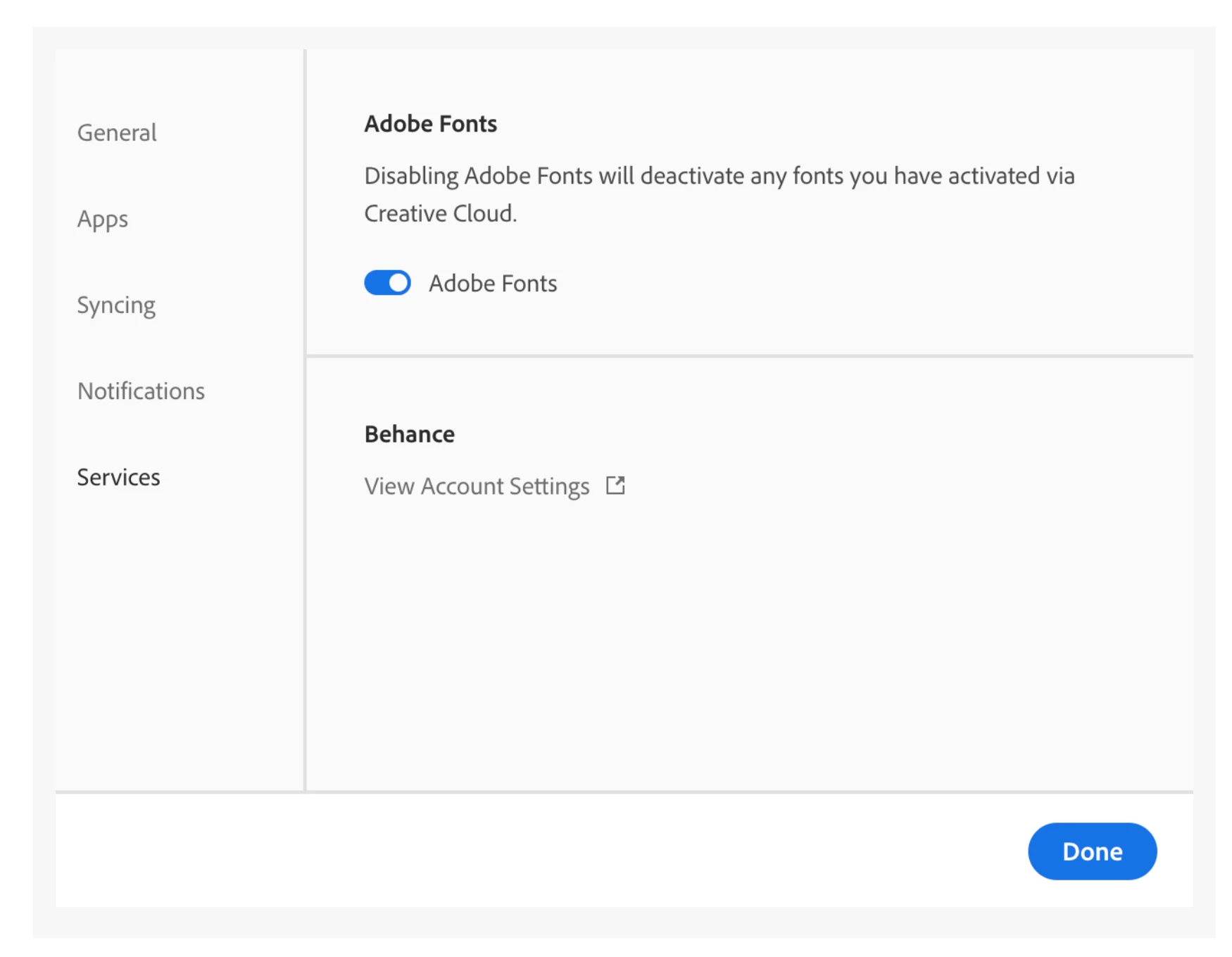
Correct answer navaa75944619

This is what I did to get it to work for me:

Toggle the Adobe Fonts setting

If the fonts are not active, try turning off the font option in Creative Cloud (preferences dialog box - services in the left nav), toggle Adobe Fonts to turn it off then close out the preferences. 


Re-open the Creative Cloud preferences dialog box and then toggle Adobe Fonts to turn it back on. 


3 replies

Inspiring
June 18, 2025

Thank you! the reinstall did it for me, I selected uninstall and they gave me the option to repair the installation and that did the trick!!!

Participant
October 3, 2025

Four years later, and still the same bugs popping up - classic Adobe! Glad I could help 🙂

Tarun Saini
Community Manager
Community Manager
October 6, 2025

Hi @loyal_Galaxy5291,


Welcome to the community! We're sorry to hear about this. Could you please let us know which operating system and version you're using? Have you tried aby troublshooting steps so far? If so, can you let us know here?


We are here to help, just need some info.


Regards,

Tarun

Participant
November 17, 2021

Thank you so much! This is exactly what I had, and I had no idea anymore what to do. Many, many thanks!

navaa75944619Correct answer
Participant
March 29, 2022

This is what I did to get it to work for me:

Toggle the Adobe Fonts setting

If the fonts are not active, try turning off the font option in Creative Cloud (preferences dialog box - services in the left nav), toggle Adobe Fonts to turn it off then close out the preferences. 


Re-open the Creative Cloud preferences dialog box and then toggle Adobe Fonts to turn it back on. 


Friendly_Odyssey15C3
Participating Frequently
September 6, 2022

The toggle solution worked for me a while back, pre-M1 chip.  This time around I had to scrape the MacBookPro of all things Adobe before things would work correctly again.

Participant
November 5, 2021

THIS.


Thank you SO much for posting this. I recently bought the new M1 chip Macbook Pro 14" and I was going through the same issue with the activated fonts and cloud files not loading. I tried everything I found online but every solution seemed to be targeted toward older Mac models. I was literally about to give up and on the verge of calling Adobe help desk until I found your post.


If anyone else bought the new Macbook with the M1 chip and have migrated your files from your old computer, make sure you use the Adobe's Cleaner Tool to get rid of ALL older versions and download the latest versions from a clean slate.


Participating Frequently
November 6, 2021

Was hoping this would resolve it for me, but no luck.. I dont have a core sync extension, from what I have read once I uninstalled and reinstalled Adobe CC desktop it should prompt me to install the extension but it never does.. 


Hoping if I update to 12.01 that allows things to work?


any other suggestions would be super helpful


mintyh
mintyhAuthor
Known Participant
November 6, 2021

Hey @doooooobin 

It's frustrating, definitely. So... you're using an M1 Mac and have the endless "loading Adobe fonts" in the Creative Cloud app, right? And you followed all the instructions above with the CC Cleaner tool?

But still you have the same issue?