
Ken Nielsen
Legend
September 6, 2014
Answered

How do I access Creative cloud from my computer?

  • September 6, 2014
  • 1 reply
  • 1125 views

I have had CC for a few years now but do not know how to access the 20G of cloud space available. Does it show up as a drive on my desktop? or, Can I make it that way? That would be most convenient but my main question is 'where is it?' and 'how do I get to it?'
This topic has been closed for replies.
Correct answer Ken G. Rice

Any items (files and / or folders) you place in the Creative Cloud Files folder will by synced up to the cloud storage. (You can also Upload files just using a browser at the Files page at https://creative.adobe.com/files).

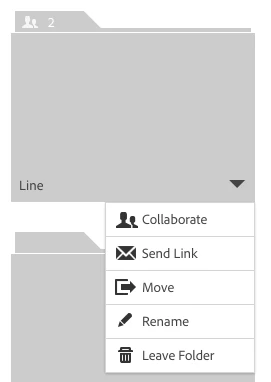
Once you have items uploaded you can do a read-only share from the Files page using Send Link. Or you can allow others to update the folder by using Collaborate.

If you use Send Link the person does not need an Adobe ID. Collaborate does require a free Adobe ID.

Some help links:

1 reply

Ken G. Rice
Participating Frequently
September 6, 2014

After installing the Creative Cloud desktop application (which you use to install the desktop applications), there should be a Creative Cloud Files folder on your computer.

Open the Creative Cloud desktop application and go to the Assets tab. From the Files sub-tab there should be a blue button to Open Folder which will open the folder in Windows Explorer or Mac OS X Finder.

Help article: Creative Cloud Help | Manage and Sync files

Ken Nielsen
Legend
September 6, 2014

I guess I'm asking then, does this folder send it's contents to the cloud? How would a non-cloud member client of mine access the files from the cloud or would that be possible?

Ken G. Rice
Ken G. RiceCorrect answer
Participating Frequently
September 6, 2014

Any items (files and / or folders) you place in the Creative Cloud Files folder will by synced up to the cloud storage. (You can also Upload files just using a browser at the Files page at https://creative.adobe.com/files).

Once you have items uploaded you can do a read-only share from the Files page using Send Link. Or you can allow others to update the folder by using Collaborate.

If you use Send Link the person does not need an Adobe ID. Collaborate does require a free Adobe ID.

Some help links: