
Wildyorkshire
Inspiring
October 1, 2022
Answered

How do I stop Lightroom CC syncing - I've run out of storage

  • October 1, 2022
  • 1 reply
  • 642 views

I've permanently deleted everything in 'My Files' in Creative Cloud, also several years of photographs from Lightroom but I'm still over my limit for storage (100GB). These deleted photographs will be available for the next 60 days, so perhaps they are still showing up in total storage.


My problem is that even when they're gone I suspect that Lightroom will set about syncing my photographs all over again.


I no longer use Lightroom Classic as it was doing something similar on my hard disk, collecting images and, I think, generating thumbnails of them.

So perhaps it would be possible to still use Lightroom CC but somehow prevent it rounding up all my photographs from my hard disk?

I know this question has been asked before but I haven't so far found a solution in the various discussions. I guess I'm trying to stop Lightroom doing what it's designed to do.
    This topic has been closed for replies.
    Correct answer kglad

    In order to free up storage, you have to disable the photoshop presets feature as described here (chose NO when asked to keep the data in the cloud): https://helpx.adobe.com/ie/photoshop/using/sync-presets.html


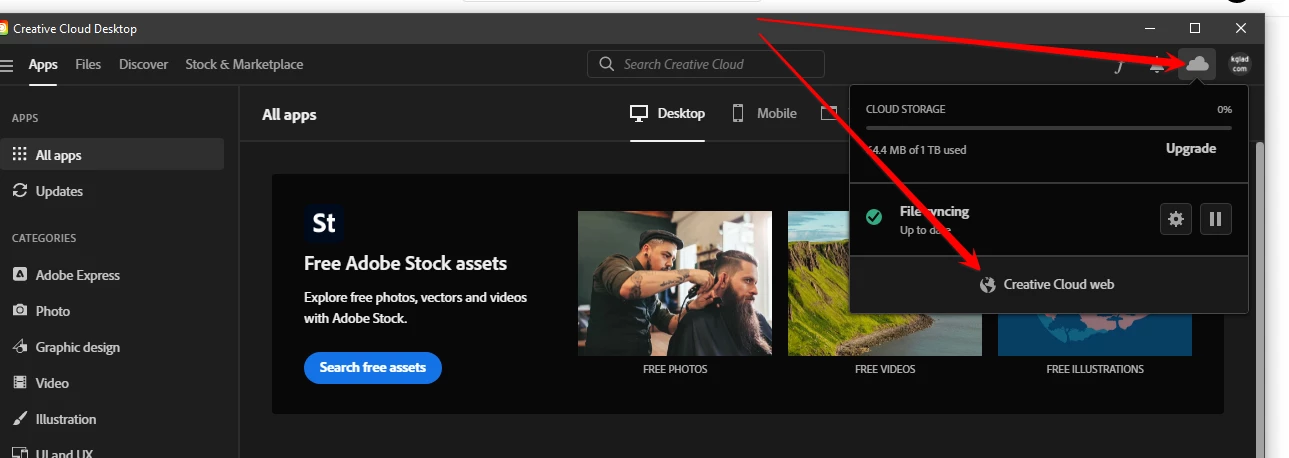
    go to your cc web site by opening cc desktop app>clicking cloud icon>cc web


    empty all 8 folders (using top and left side menus)


    click the lightroom and link at bottom left and delete those files


    lastly, delete from your deleted folder


    <moved from using the community>

    1 reply

    kglad
    Community Expert
    kgladCommunity ExpertCorrect answer
    Community Expert
    October 1, 2022

    In order to free up storage, you have to disable the photoshop presets feature as described here (chose NO when asked to keep the data in the cloud): https://helpx.adobe.com/ie/photoshop/using/sync-presets.html


    go to your cc web site by opening cc desktop app>clicking cloud icon>cc web


    empty all 8 folders (using top and left side menus)


    click the lightroom and link at bottom left and delete those files


    lastly, delete from your deleted folder


    <moved from using the community>

    Wildyorkshire
    Inspiring
    October 5, 2022

    @kglad  Thank you so much for talking me through that. I followed your instructions very carefully and I've now got 100GB of freespace (with just 640Mb taken up).

    It took a long time because in Lightroom alone I had 26,273 images. Always quite scary pressing that 'Delete Permanently' button!

    kglad
    Community Expert
    Community Expert
    October 5, 2022

    you're welcome.


    (and other than the sync folder, deleting from your https://assets.adobe.com/files doesn't delete your local content.)