
Participant
July 30, 2015
Question

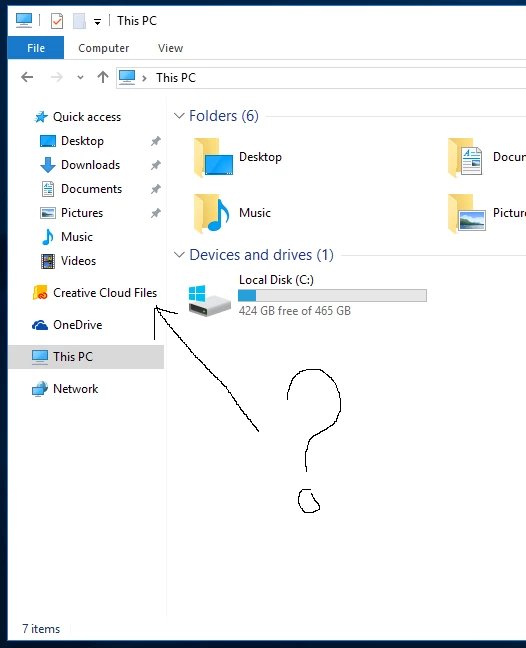
How to remove "Creative Cloud Files" from Navigation Pane?

  • July 30, 2015
  • 3 replies
  • 3803 views

I don't use "Creative Cloud Files" - I have sync turned off in my app settings. How can I remove the "Creative Cloud Files" folder from my navigation pane?

Shouldn't there be an option to remove it instead of forcing it on everybody?
Thanks,

This topic has been closed for replies.

3 replies

Participant
August 1, 2015

In case someone else is looking for an answer.

This helped me fix the problem

https://forums.adobe.com/message/7641573#7641573

Even though its a hack, it works. Adobe need to find a way to let us disable it in the settings and not to force it on us.

PaulDash
Participant
July 30, 2015

This is created as a special system folder.

You can edit the system Registry (run regedit) and locate the key:

HKEY_CURRENT_USER\SOFTWARE\Classes\CLSID\{0E270DAA-1BE6-48F2-AC49-8880DA67C722}

Edit the value System.IsPinnedToNameSpaceTree from 1 to 0

Registry editing is done at your own risk. This worked for me.

Participant
July 31, 2015

This registry method works! Except, the folder comes back when I restart the system. When I go back to the registry, I see that it reverts back to 1.

btw, my key path is a bit different than yours. I found mine under HKEY_CURRENT_USER\SOFTWARE\Classes\CLSID\{0E270DAA-1BE6-48F2-AC49-35B1307206BB}. I guess its different number for each computer.

Any help is greatly appreciated.

Atul_Saini
Legend
July 30, 2015

You may delete Creative Cloud file under: C:\Users\(username).

Participant
July 30, 2015

Unfortunately that doesn't get rid of the folder showing up in the navigation pane. If I do that, the navigation pane folder stays there and only shows an error with something along the lines that it cant link to "C:\users\username" because the folder doesn't exist.

Also, when deleting the folder under C:\users\username, it comes back after a log off/on or reboot.

Atul_Saini
Legend
July 30, 2015