JasonSIPlay
Participant
December 4, 2017
Answered

Inconsistencies of available CC space.

  • December 4, 2017
  • 1 reply
  • 1196 views

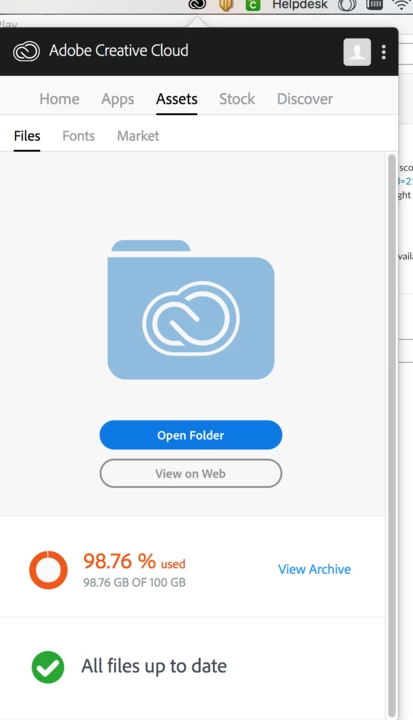
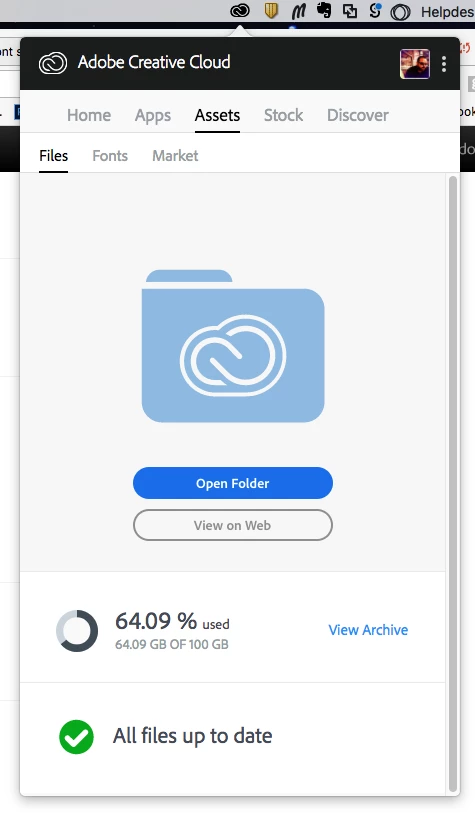
Each team member shows a different amount of available CC space. Perhaps I misunderstand how this works.

a) I assume there is 100GB of shared space available on CC.

b) All combined synced files, between my team members, add to the deficit of file space.

c) Our local file space used will potentially vary assuming we don't all keep local versions of all files living on CC.

d) The amount available space should be the same for all of us at all times.

These screenshots represent what each one of us is seeing at the same time today. Can someone explain?
This topic has been closed for replies.
Correct answer Ken G. Rice

1. Each person on the team has their own 100 GB of storage. It is not 100 GB shared amongst the team.

2. Any unshared files only take up storage for the individual who placed them in their Creative Cloud Files folder.

3. Any collaborated folders do use up storage for each person who is a member of the collaboration. For example person A and person B collaborate. Person A created the folder but it will also use person B's storage. Further person A and person C could have a collaboration which would not affect person B since they are not part of this particular folder collaboration.

4. Finally there are public links. You can view the file or folder via the CC Assets web application but none of your storage is used. If you decide to download the files (if Allow Download is enabled) then you have your own copy now.

1 reply

Ken G. Rice
Community Manager
Ken G. RiceCommunity ManagerCorrect answer
Community Manager
December 4, 2017

1. Each person on the team has their own 100 GB of storage. It is not 100 GB shared amongst the team.

2. Any unshared files only take up storage for the individual who placed them in their Creative Cloud Files folder.

3. Any collaborated folders do use up storage for each person who is a member of the collaboration. For example person A and person B collaborate. Person A created the folder but it will also use person B's storage. Further person A and person C could have a collaboration which would not affect person B since they are not part of this particular folder collaboration.

4. Finally there are public links. You can view the file or folder via the CC Assets web application but none of your storage is used. If you decide to download the files (if Allow Download is enabled) then you have your own copy now.

JasonSIPlay
Participant
December 4, 2017

Ahh. Thanks so much for the response. I assumed, becasue we are all on the same account, that we are sharing a single block of storage. If we upgrade our storage to 1TB, does that therefore mean we each get a terabyte of storage space?

Ken G. Rice
Community Manager
Community Manager
December 5, 2017

Not exactly sure what is meant by "same account." Looks like you have a team plan with an Administrator who assigns Paid Seats to individual users each who each have a different Adobe ID (email address).

I was not aware of 1TB of storage being available for the Creative Cloud yet, but may have missed that announcement. I know that 1TB is available for Lightroom, but this photo storage is different from the general Creative Cloud storage. But regardless of the storage quota (amount of storage) each user will have their own storage, not a common pool of shared storage.

And yes I do wish that all the options were a bit easier to understand. Thank you for your questions.