
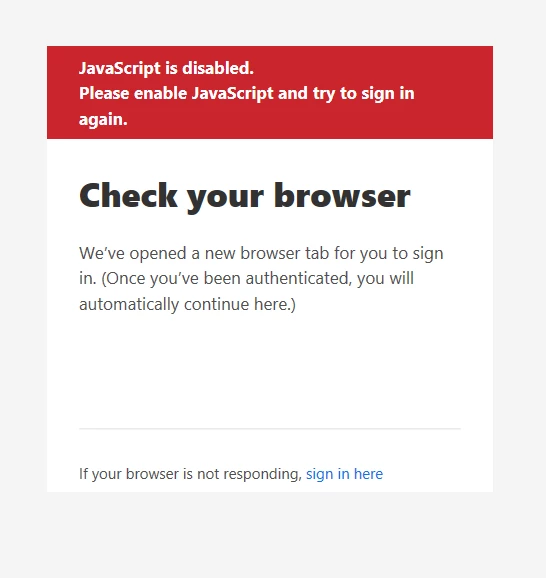
JavaScript is disable
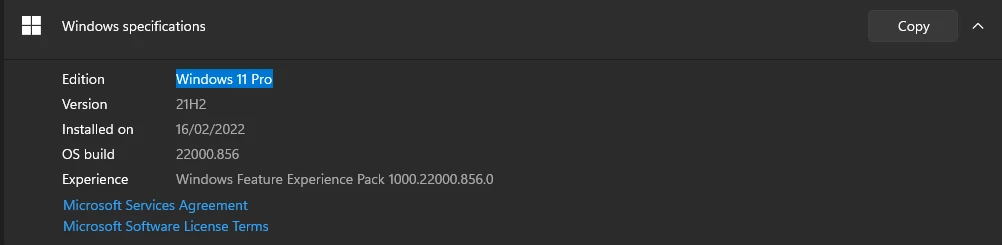
I'm on Windows 11 Pro Version 21H2.
I bought the full package of Adobe Creative Cloud.
Issue:
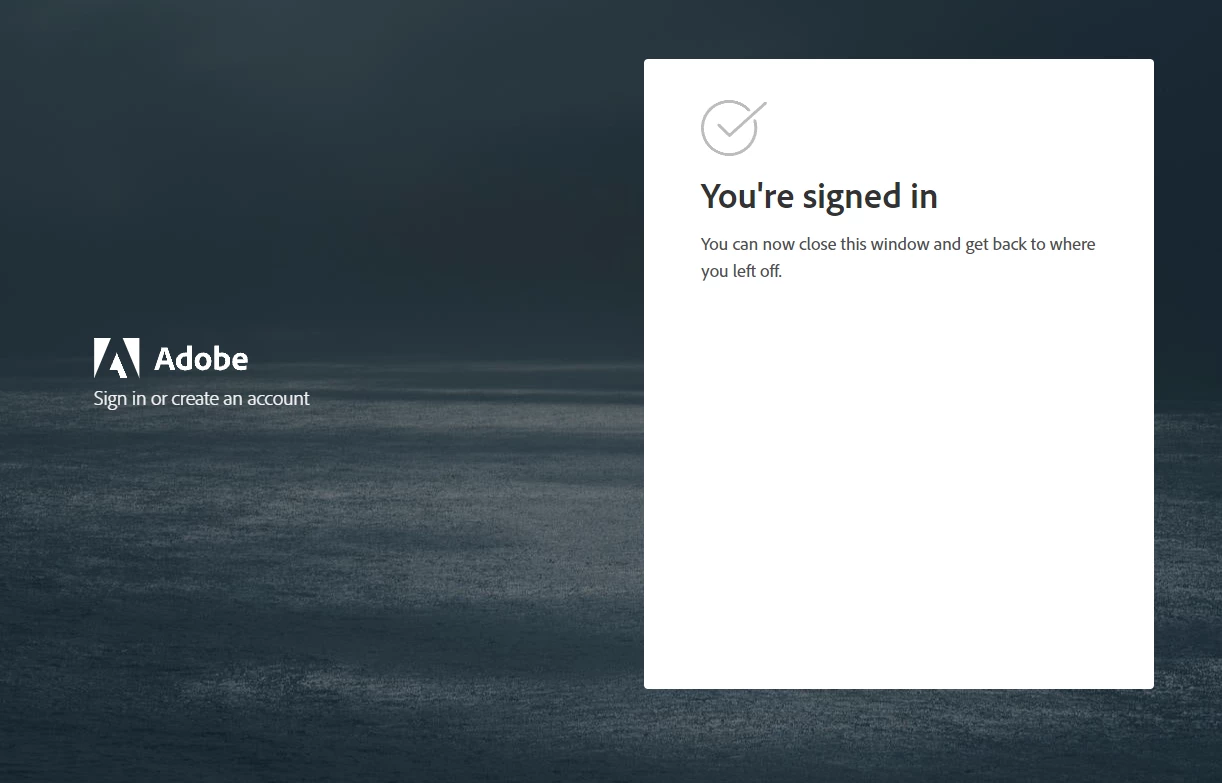
I launched the Adobe Creative Cloud installer, after i pressed to continue on the ''Install creative cloud'' step, which opened a browser page and i signed in, after i received this page and i'm stuck on this page.
I tried every solution on adobe forums,
- Update windows, Chrome, IE, Java app, and allow javascript on them.
- Tried install the installer from, Chrome, Firefox, IE
- tried to download the installer from the links suggested by Adobe employees community.
https://support.microsoft.com/en-us/help/3135465/how-to-enable-javascript-in-windows
https://helpx.adobe.com/x-productkb/multi/enable-javascript.html
https://helpx.adobe.com/download-install/kb/creative-cloud-desktop-app-download.html.
https://helpx.adobe.com/contact.html
https://helpx.adobe.com/download-install/kb/os-support-for-cc-2019-apps.html
I checked if my software is the problem, but a lot of people on youtube had windows 11 and that's work.
I tried every thing, every solution but nothing worked.
what do I have to do?


 AdChoices