(Update 4-8-2021: This is now fixed in the latest version of the Creative Cloud desktop app, version 5.4.3.544 or later when installing, however it will not remove the folder automatically if it was created by a prior installation. Please follow the steps below to delete the folder after which it will not reappear after rebooting the system. Additionally, please follow the steps described here to update to the latest version version of the Creative Cloud desktop app if needed.) https://helpx.adobe.com/creative-cloud/help/creative-cloud-updates.html#Checkforlatestupdates
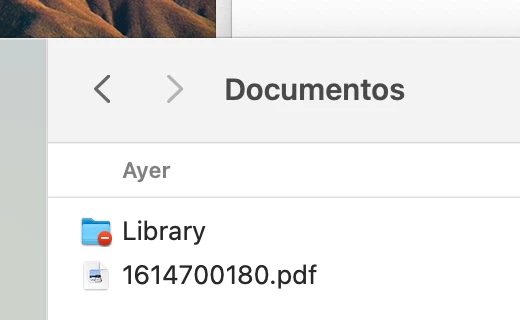
Sorry for the inconvenience regarding this. After inquiring with our developers, we learned that the creation of this folder was an oversight related to testing. The folder is harmless and doesn’t impact the system in any way. It will be removed with a future Creative Cloud update but can also be deleted manually in the meantime if you want.
To delete the folder manually please use one of the following options
Option 1
- Open the Documents folder
- Cntrl/Right click the Library folder and choose the option to Move to Trash
- Type in the system password when prompted
Option 2
- Open terminal from HD> Applications > Utilities
- In the terminal window type sudo chown -R <current user> <path to user Documents/Library>
Note: the current user should be listed in terminal when you open it and you can drag and drop the folder into the terminal window to get its path.
On my system the terminal window looked like this
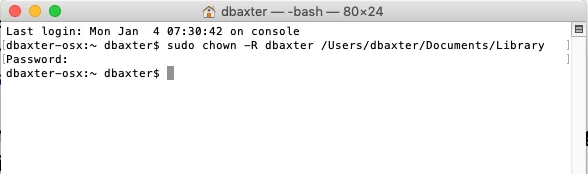
After typing in the command press Return, it should then prompt for your Mac password. Type this and press Return again. If you completed the process successfully the warning symbol should be removed from the folder. From there simply delete the folder.
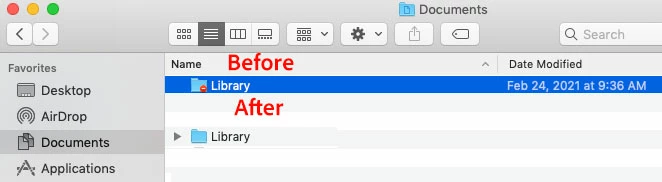
In some instances, the folder may reappear after reboot, should this occur, simply repeat one of the above options.
In addition to the solutions above engineerings has also released this kb article related to the issue
https://helpx.adobe.com/download-install/kb/library-folder-created-on-macos.html
This article has a link to an installer for Creative Cloud desktop in which the issue is resolved.
https://creativecloud.adobe.com/apps/download/creative-cloud





 AdChoices