

ilustrebob
Inspiring
June 14, 2015
Answered

Silly Creative Cloud trying to sync files that no longer exist

  • June 14, 2015
  • 3 replies
  • 3008 views

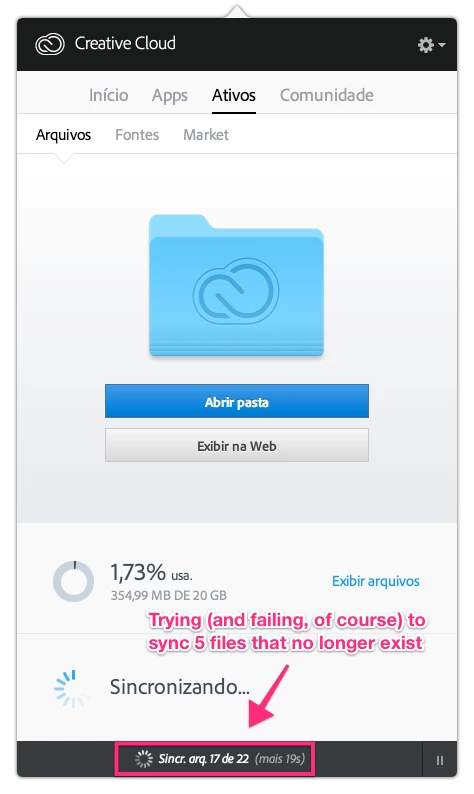
I’m getting an annoying failed sync error on Creative Cloud (v. 2.1.1.110). It fails to sync 5 files that weren’t supposed to be synced in the first place, since they’re all old files that no longer exist. I mean, I’ve consciously deleted these files from Creative Cloud long ago. They’re not on my Mac. They’re not on Creative Cloud website (not even as archived). The app is trying to sync them anyway — which prompts the error.
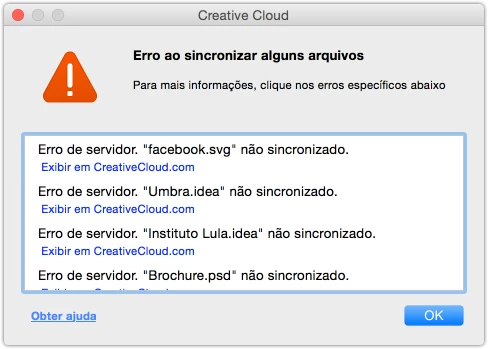


I’ve tried deleting the “Creative Cloud Files” folder from my Mac and restoring it from Creative Cloud just to make sure these 5 ghost files weren’t on my Mac. Like I predicted, the app tried to sync 5 files more than I actually have on the cloud during restore. I think that’s proof enough that there the ghost files are on Adobe servers.


This topic has been closed for replies.
Correct answer ilustrebob

I've got an email from Adobe Support that solved the issue:

Hi Bruno,

We pushed an update on Sunday (V 2.1.1.110) that should fix the issue.  If not, please try deleting the db files following these steps:


1) Quit Creative Cloud Desktop App then the CoreSync and Adobe Desktop Service processes using Activity Monitor (Mac) or Task Manager (Win)

2) Navigate to:

MAC: <Mac Hard Drive>/Users/<username>/Library/Application Support/Adobe/CoreSync on Mac OS X

Note: The Users Library user folder is hidden on starting with 10.7 or later, see http://helpx.adobe.com/x-productkb/global/access-hidden-user-library-files.html

WIN: C:\Users\<username>\AppData\Roaming\CoreSync on Windows

Note: The AppData folder is hidden by default this doc shows how to show it if needed, http://helpx.adobe.com/x-productkb/global/show-hidden-files-folders-extensions.html

3) Then delete any file that end in .db,.db-shm or db.wal, and re start Creative Cloud (There should be 3 or 4 files, but could be more if you have multiple accounts signing into CreativeCloud)

4) Restart Creative Cloud Desktop

3 replies

ilustrebob
ilustrebobAuthorCorrect answer
Inspiring
July 8, 2015

I've got an email from Adobe Support that solved the issue:

Hi Bruno,

We pushed an update on Sunday (V 2.1.1.110) that should fix the issue.  If not, please try deleting the db files following these steps:


1) Quit Creative Cloud Desktop App then the CoreSync and Adobe Desktop Service processes using Activity Monitor (Mac) or Task Manager (Win)

2) Navigate to:

MAC: <Mac Hard Drive>/Users/<username>/Library/Application Support/Adobe/CoreSync on Mac OS X

Note: The Users Library user folder is hidden on starting with 10.7 or later, see http://helpx.adobe.com/x-productkb/global/access-hidden-user-library-files.html

WIN: C:\Users\<username>\AppData\Roaming\CoreSync on Windows

Note: The AppData folder is hidden by default this doc shows how to show it if needed, http://helpx.adobe.com/x-productkb/global/show-hidden-files-folders-extensions.html

3) Then delete any file that end in .db,.db-shm or db.wal, and re start Creative Cloud (There should be 3 or 4 files, but could be more if you have multiple accounts signing into CreativeCloud)

4) Restart Creative Cloud Desktop

wharress
Community Manager
Community Manager
June 15, 2015

Hi Bruno,

So we can investigate this further please zip up everything is the directory "CoreSync" which is located at the following locations.

Mac:

The log file can be found here:

<Mac Hard Drive>/Users/<username>/Library/Application Support/Adobe/CoreSyncSync

(where YYYY-MM-DD indicate the date of the last log)

Note: The Users Library user folder is hidden on starting with 10.7 or later

see http://helpx.adobe.com/x-productkb/global/access-hidden-user-library-files.html

Windows:

The log file can be found here:

C:\Users\<username>\AppData\Roaming\CoreSync

(where YYYY-MM-DD indicate the date of the last log)

Note: The AppData folder is hidden by default this doc shows how to show it if needed

http://helpx.adobe.com/x-productkb/global/show-hidden-files-folders-extensions.html


Please zip them up and send them to SyncForum-Communication@adobe.com with this forum URL in the email.

ilustrebob
Inspiring
June 15, 2015

Done. I've just sent you guys an email with the log files. I hope you find the reason this issue is happening.

June 15, 2015

Same problems. Creative Cloud wants to synchronise old files who are deleted and not archived...