
Tutorial: How to build a PWA in Adobe Experience Manager
Hi Adobe community,
I have been working on setting up a Progressive Web App (PWA) in AEM recently and since I didn't found any documentation on this process, I thought it might be useful for others to read about how I did it....not claiming it is the perfect way to do so, but it is definitely working 🙂
--------------------------------------------------
Setup
The following post describes how to build a PWA in AEM.
Prerequisites:
- Working instance of “Adobe Experience Manager 6.4.0”.
- Installed demo webapp “weretail” (this is part of AEM default installation).
- SSL setup for host completed, i.e. the “weretail” webapp can be reached via https.
Please make sure that you can access the demo webapp “weretail” and the admin interface of AEM accordingly. For the rest of this post I assume the following URLs:
- Admin interface: https://example.com:8443/aem/start
- Digital Asset Manager (DAM) interface: https://example.com:8443/damadmin#/
- Weretail webapp: https://example.com:8443/content/we-retail/us/en/experience/arctic-surfing-in-lofoten.html
Adjust the URLs as needed for your own system.
Start
Open the “weretail” webapp in the browser. https://example.com:8443/content/we-retail/us/en/experience/arctic-surfing-in-lofoten.html
It should look like this:
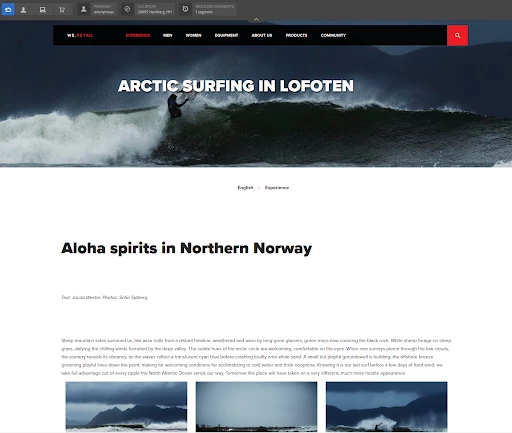
Test the website with Lighthouse (e.g. use the built-in “Audit” function in Chrome’s DevTools). The “weretail” webapp does not pass the “PWA” audit.
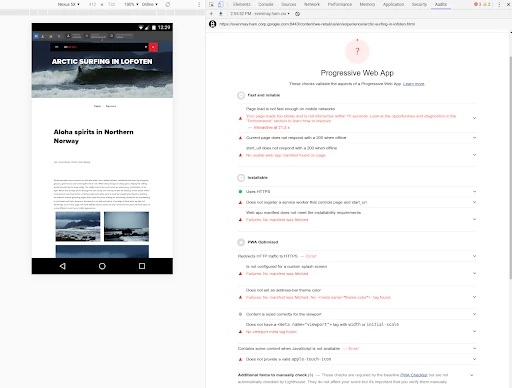
Turn “weretail” webapp into a PWA
Progressive Web Apps are user experiences that have the reach of the web, and are:
- Reliable - Load instantly and never show the downasaur, even in uncertain network conditions.
- Fast - Respond quickly to user interactions with silky smooth animations and no janky scrolling.
- Engaging - Feel like a natural app on the device, with an immersive user experience.
From a technical point of view every website can be turned into a PWA if the following additional resources are added:
- The Service Worker, a JS script that your browser runs in the background, separate from a web page, opening the door to features that don't need a web page or user interaction.
- The Web App Manifest, a simple JSON file that tells the browser about your web application and how it should behave when 'installed' on the user's mobile device or desktop.
- The “offline” webpage, a simple HTML page that will be shown to the user when no network connection is available.
- A set of icons, these icons are used in places like the home screen, app launcher, task switcher, splash screen, etc.
The Service Worker
In the following example we are using a very simple Service Worker, based on Workbox.js, that offers the following PWA features:
- Basic caching
- Basic offline mode
- Push Notifications
Content of the file “sw.js”:
importScripts('https://storage.googleapis.com/workbox-cdn/releases/4.3.0/workbox-sw.js');

const offlinePage = '/content/dam/we-retail/en/experiences/48-hours-of-wilderness/offline.html';

const offlineImage = '/content/dam/we-retail/en/experiences/48-hours-of-wilderness/offline.svg';

/**
 * Pages to precache
 */
workbox.precaching.precacheAndRoute([
  offlinePage,
  offlineImage,
]);

/**
* Enable navigation preload.
*/

workbox.navigationPreload.enable();

/**
 * Basic caching for HTML pages, CSS+JS (caching max. 1 week).
 */
workbox.routing.registerRoute(
  /\.(?:html|htm|js|css)$/,
  new workbox.strategies.NetworkFirst({
    networkTimeoutSeconds: 5,
    cacheName: 'html_css_js',
    plugins: [
      new workbox.expiration.Plugin({
        // Cache files for a week
        maxAgeSeconds: 7 * 24 * 60 * 60,
        // Only cache 30 files.
        maxEntries: 30,
      }),
    ],
  })
);

/**
 * Basic caching for JSON data (caching max. 1 day).
 */
workbox.routing.registerRoute(
  /\.json$/,
  new workbox.strategies.NetworkFirst({
    networkTimeoutSeconds: 30,
    cacheName: 'json',
    plugins: [
      new workbox.expiration.Plugin({
        // Cache pages for a day
        maxAgeSeconds: 24 * 60 * 60,
        // Only cache 10 files.
        maxEntries: 10,
      }),
    ],
  })
);

/**
 * Basic caching for max. 60 images (caching max. 30 days).
 */
workbox.routing.registerRoute(
  /\.(?:png|gif|jpg|jpeg|svg)$/,
  new workbox.strategies.CacheFirst({
    cacheName: 'images',
    plugins: [
      new workbox.expiration.Plugin({
        // Cache images for 30 days
        maxAgeSeconds: 30 * 24 * 60 * 60,
        // Only cache 60 images.
        maxEntries: 60,
      }),
    ],
  })
);

/**
 * Use a stale-while-revalidate strategy for all other requests.
 */
workbox.routing.setDefaultHandler(
  new workbox.strategies.StaleWhileRevalidate()
);

/**
 * Basic "offline page" support
 */
workbox.routing.setCatchHandler(({event}) => {
  switch (event.request.destination) {
    case 'document':
      // Only provide fallback for navigational requests
      if (event.request.mode === 'navigate')
        return caches.match(offlinePage);
      else
        return Response.error();
      break;
    case 'image':
      return caches.match(offlineImage);
      break;
    default:
      // If we don't have a fallback, just return an error response.
      return Response.error();
  }
});

/**
 * Basic "Push notification" functionality.
 */
self.addEventListener('push', (event) => {
  const title = 'Example push notification';
  const options = {
    body: event.data.text()
  };
  event.waitUntil(self.registration.showNotification(title, options));
});
The Web App Manifest
The Web App Manifest is needed for the “Add to homescreen” feature of a PWA. A very simple manifest.json file could look like this:
{
  "short_name": "weretail",
  "name": "WE.Retail demo webapp",
  "icons": [
    {
      "src": "/content/dam/we-retail/en/experiences/48-hours-of-wilderness/icons-192.png",
      "type": "image/png",
      "sizes": "192x192"
    },
    {
      "src": "/content/dam/we-retail/en/experiences/48-hours-of-wilderness/icons-512.png",
      "type": "image/png",
      "sizes": "512x512"
    }
  ],
  "start_url": "/content/we-retail/us/en/experience/arctic-surfing-in-lofoten.html",
  "background_color": "#3367D6",
  "display": "standalone",
  "scope": "/content/we-retail",
  "theme_color": "#3367D6"
}
The “offline” webpage
The “offline” webpage is shown to the user if the browser has no connection to the network. A very simple example webpage could look like this:
<!DOCTYPE html>
<html>
 <head>
  <meta charset="UTF-8">
  <title>Offline Page</title>
  <script>
      window.addEventListener('online', function(e) {
        location.reload();
      }, false);
  </script>
 </head>
 <body>
   <div style="text-align:center; margin-top:40px;">
     <img src="/content/dam/we-retail/en/experiences/48-hours-of-wilderness/offline.svg" height="80" />
     <p>You don't have an internet connection.</p>
     <p>Please check your network connection and try again.</p>
   <div>
  </body>
</html>
A set of icons
These icons are used in places like the home screen, app launcher, task switcher, splash screen, etc. At least two icons with a resolution of 192x192 pixel and 512x512 pixel are needed for a PWA.
Adding everything to AEM
The static resources like manifest.json, icons and the offline page could be uploaded via the “Digital Assets Manager”, e.g.
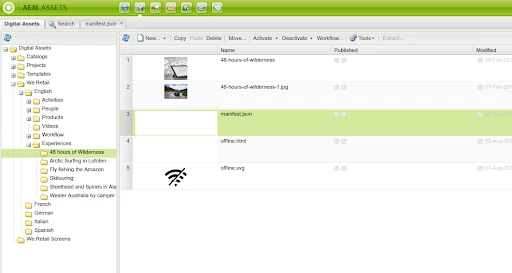
The Service Worker should live under “/content/we-retail”, if the Service Worker should control the entire webapp.
The Service Worker can technically be placed anywhere, but if the Service Worker is not living in the root of the website, then the PWA is limited to work only for a (sub)part of the website.
More details about the “scope” of the Service Worker can be found here: https://developers.google.com/web/ilt/pwa/introduction-to-service-worker#registration_and_scope
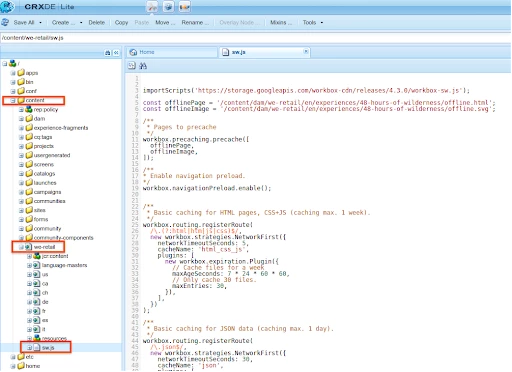
The last step is to include the sw.js file + manifest.json file into the webapp. In this very simple demo we just modify the file “/apps/weretail/components/structure/page/customheaderlibs.html”.
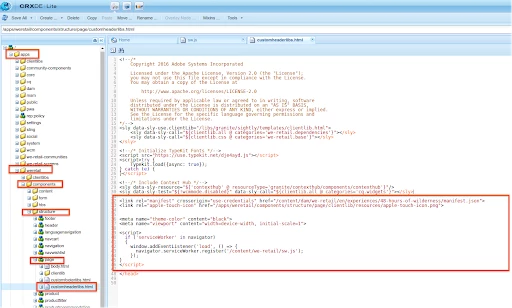
The following lines of code should be added to the file “customheaderlibs.html”:
<link rel="manifest" crossorigin="use-credentials" href="/content/dam/we-retail/en/experiences/48-hours-of-wilderness/manifest.json">

<link rel="apple-touch-icon" href="/apps/weretail/components/structure/page/clientlib/resources/apple-touch-icon.png">

<meta name="theme-color" content="black">
<meta name="viewport" content="width=device-width, initial-scale=1">

<script>
  if ('serviceWorker' in navigator)
  {
    window.addEventListener('load', () => {
      navigator.serviceWorker.register('/content/we-retail/sw.js');
    });
  }
</script>
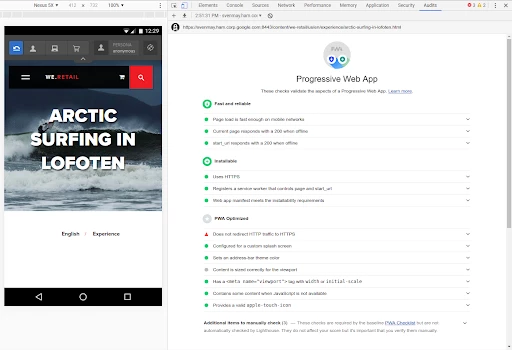
Save all changes and reload the webapp. If everything is correct, then the webapp has been turned into a PWA now. Verify the webapp again with Lighthouse. It should now look like this:


 AdChoices