Justaskingaquestion
Participant
May 5, 2018
Answered

Unable to find uploaded files on Creative Cloud Assets

  • May 5, 2018
  • 3 replies
  • 662 views

Hello,

I bought a monthly Lightroom CC subscription and I did not understand that every pictue that I imported into this Lightroom would be uploaded (I don't want this to happen). Seeing this, I paused the synchronisation in Lightroom and then uninstalled the whole thing and cancelled my subscription (i'll buy the standard Lightroom).

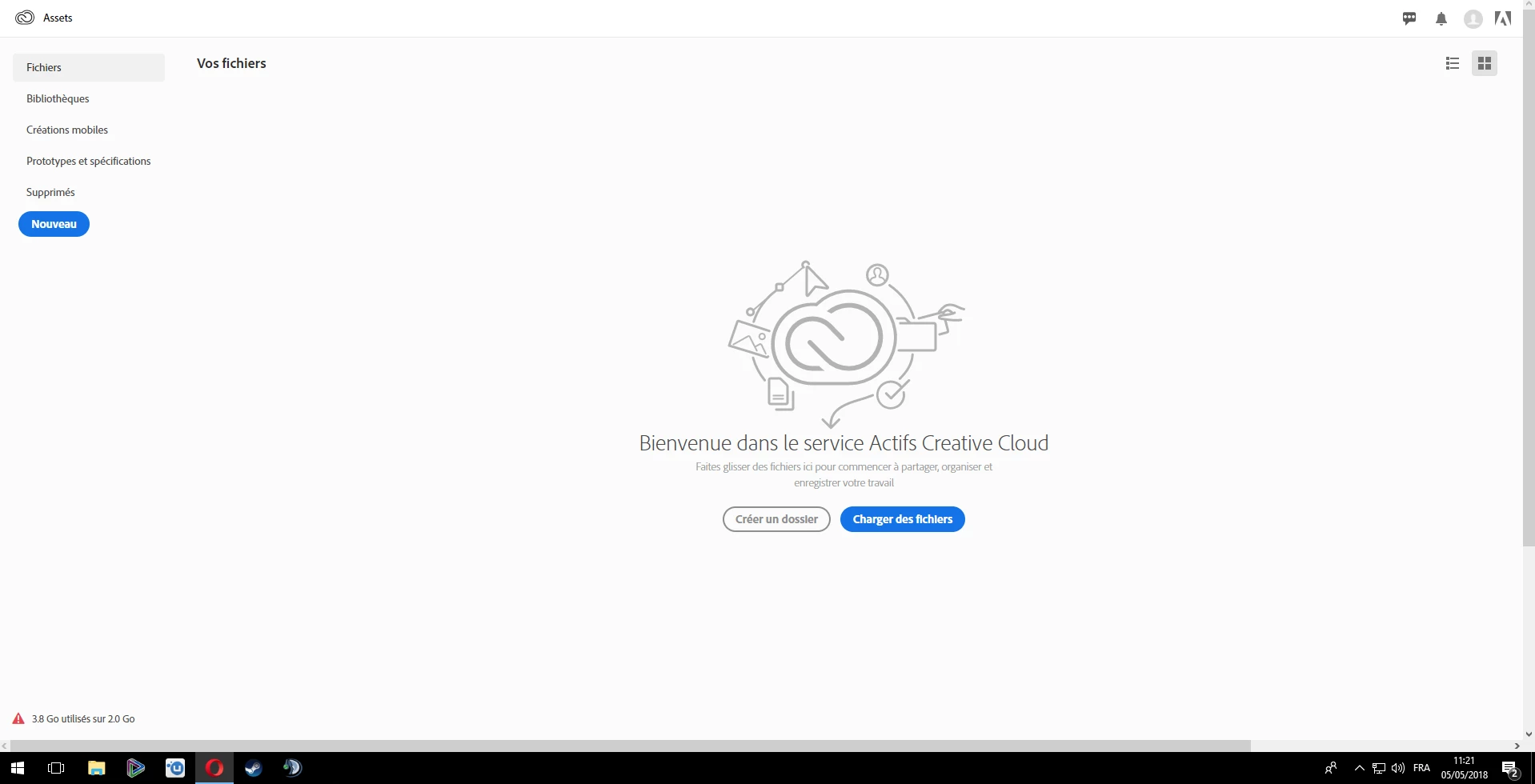
Now here's the problem, in the Adobe Creative Cloud Assets, I can't find any of my files (in any of the filters) but the storage capacity is 3.8Go/2Go (bottom left)...so my files are uploaded but I can't access nor delete it...anyone can help ?
This topic has been closed for replies.
Correct answer David__B

Hi Justaskingaquestion and Egor,

If you uploaded files to Lightroom online you would want to go here: Photo Editor | Online Photoshop Lightroom  and sign in with the Adobe ID associated with your membership.

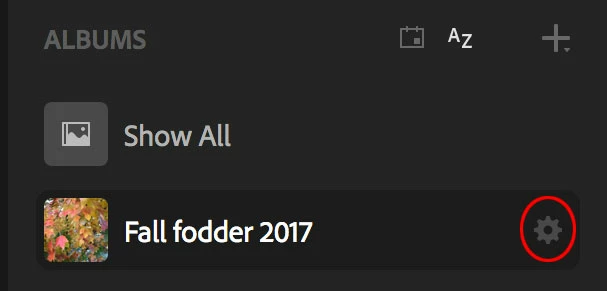
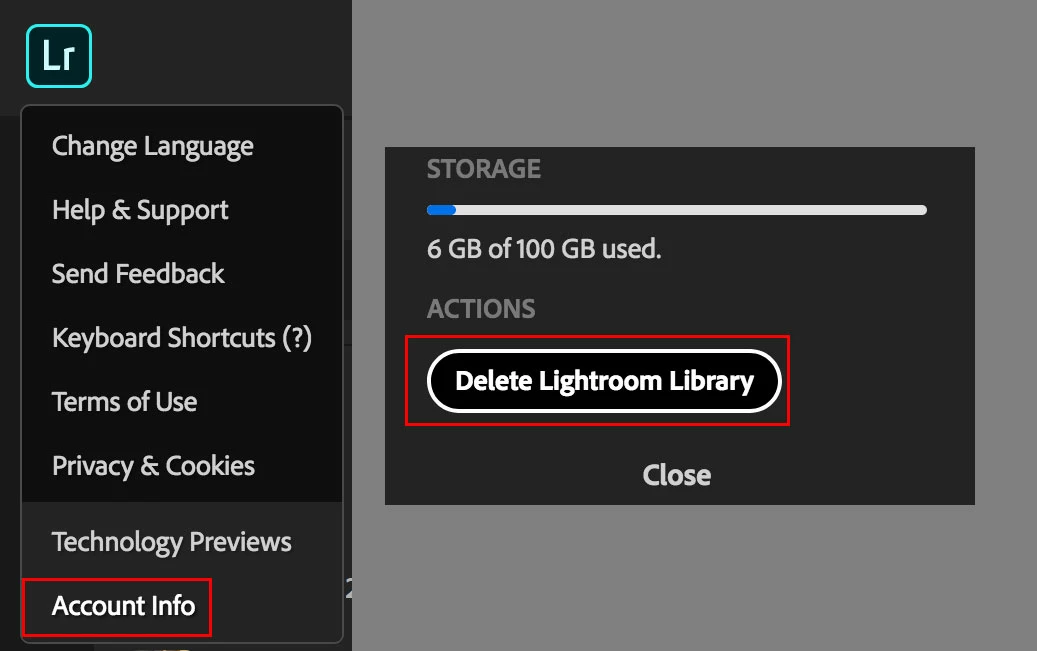
From there click the LR icon in the top left of the page to open a menu with the Account Info option at the bottom. When open Account Info you should see an option to Delete Library Library which should free the space and remove them. I think that's what you're looking for. Alternatively, you can also delete individual albums from the gear icon to the right of the name if you didn't want to delete everything.

or

Hope that helps,

- Dave

3 replies

David__B
Adobe Employee
David__BCorrect answer
Adobe Employee
June 15, 2018

Hi Justaskingaquestion and Egor,

If you uploaded files to Lightroom online you would want to go here: Photo Editor | Online Photoshop Lightroom  and sign in with the Adobe ID associated with your membership.

From there click the LR icon in the top left of the page to open a menu with the Account Info option at the bottom. When open Account Info you should see an option to Delete Library Library which should free the space and remove them. I think that's what you're looking for. Alternatively, you can also delete individual albums from the gear icon to the right of the name if you didn't want to delete everything.

or

Hope that helps,

- Dave

Participant
June 14, 2018

Still not resolved???

I have same problem.

kglad
Community Expert
Community Expert
May 5, 2018