
hazmee
Participant
June 12, 2015
Answered

Unable to load Sync Location

  • June 12, 2015
  • 5 replies
  • 5151 views

Hi guys,

I have been experiencing this problem with Adobe CC. It is not syncing on my iMac. I searched for solutions but to no avail.

1. Upon start up I get this error message. Clicking on Retry generated multiple blank Creative Cloud Files folders. Clicking the Restore button resulted in nothing.

2. Check my Asset Files status. Clicking on both buttons did nothing.
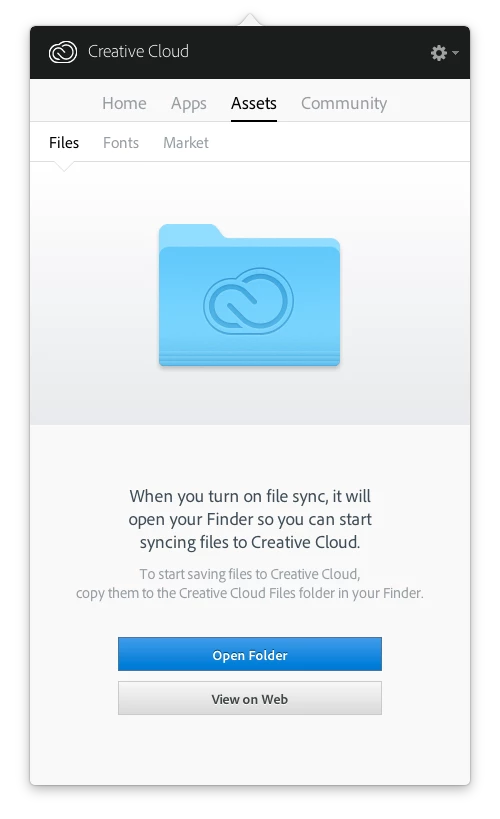
3. Checked my Creative Cloud File Status and clicking Reload Sync Location also did nothing.
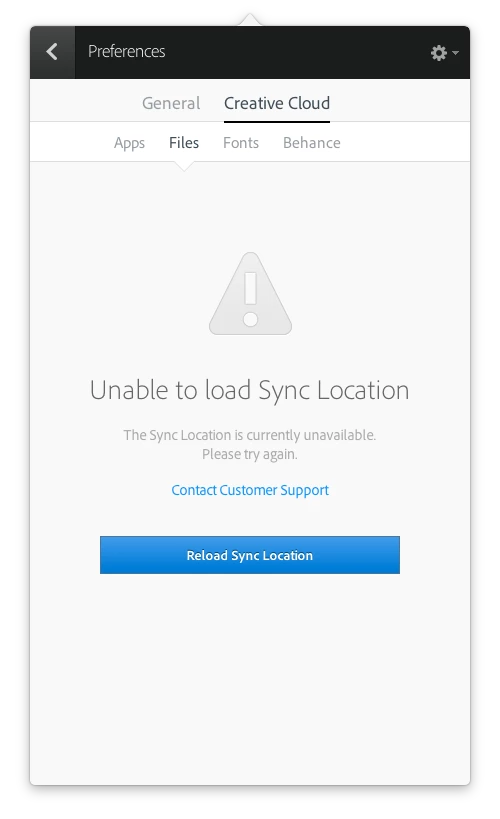
Any help given is much appreciated. Thanks.

This topic has been closed for replies.
Correct answer derekajack

Hi Noor,

You can resolve this issue by updating to the latest version. 

Please run the Creative Cloud desktop app uninstaller available at https://helpx.adobe.com/creative-cloud/help/uninstall-creative-cloud-desktop-app.html.  Then download the updated Creative Cloud desktop app here and install. https://creative.adobe.com/products/creative-cloud

You can find more details regarding the recent update in the release notes available at https://helpx.adobe.com/creative-cloud/release-note/cc-release-notes.html.

5 replies

Adobe Employee
June 13, 2015

Hi Noor

Our engineering team would like to look deeper into this issue. Could you collect the log files for this issue for us to review? Then once you have the logs files. Can you upload the files in a single zip file to your Creative Cloud account and share the link with us here?  Here is a link to show how to upload your files and share them. Creative Cloud Help | Share files and folders  & Online file storage and sharing | Creative Cloud Assets

They log files are located at;

Mac:

The log file can be found here:

<Mac Hard Drive>/Users/<username>/Library/Application Support/Adobe/CloudSync/CoreSync-YYYY-MM-DD.log

(where YYYY-MM-DD indicate the date of the last log)

Note: The Users Library user folder is hidden on starting with 10.7 or later

see http://helpx.adobe.com/x-productkb/global/access-hidden-user-library-f iles.html

Windows:

The log file can be found here:

C:\Users\<username>\AppData\Roaming\CloudSync\CoreSync-YYYY-MM-DD.log

(where YYYY-MM-DD indicate the date of the last log)

Note: The AppData folder is hidden by default this doc shows how to show it if needed

http://helpx.adobe.com/x-productkb/global/show-hidden-files-folders-extensions.html

Your help is appreciated.

Regards

Scott

hazmee
hazmeeAuthor
Participant
June 15, 2015
derekajackCorrect answer
Adobe Employee
June 15, 2015

Hi Noor,

You can resolve this issue by updating to the latest version. 

Please run the Creative Cloud desktop app uninstaller available at https://helpx.adobe.com/creative-cloud/help/uninstall-creative-cloud-desktop-app.html.  Then download the updated Creative Cloud desktop app here and install. https://creative.adobe.com/products/creative-cloud

You can find more details regarding the recent update in the release notes available at https://helpx.adobe.com/creative-cloud/release-note/cc-release-notes.html.

VanHeber
Participant
June 13, 2015

Adobe tell me to follow this suggestion:

Crash every minute or so after automatic update to 2.1.0.108 - Adobe Core Sync

Works to me! So logout from Creative Cloud (not only quit the app) before proceed!

dasherk
Participant
June 12, 2015

I'm here too... anyone have any ideas??

VanHeber
Participant
June 12, 2015

Same issue here!

Community Manager
June 12, 2015

Hi hazmee,

It looks like your Creative Cloud Files folder has been moved to a volume called 'Data'. Is that volume on removable media or a network share? Is 'Data' currently mounted and available?

hazmee
hazmeeAuthor
Participant
June 12, 2015

Hi Ben,

Data volume is my internal iMac hdd. It is mounted and working properly. I have been using this location for months without any problems until I updated my Creative Cloud app.