Participant
March 10, 2015
Answered

Why do I have 3 'Creative Cloud Files' folders?

  • March 10, 2015
  • 25 replies
  • 19797 views

Hello! I have a question about the Creative Cloud folder structure/syncing.

I installed the Creative Cloud Desktop application on my MacBook Pro and then installed the following programs: Lightroom, Photoshop, InDesign, Illustrator, Acrobat Pro.

Once I had done that I switched 'file sync' on in the Desktop Application bar.

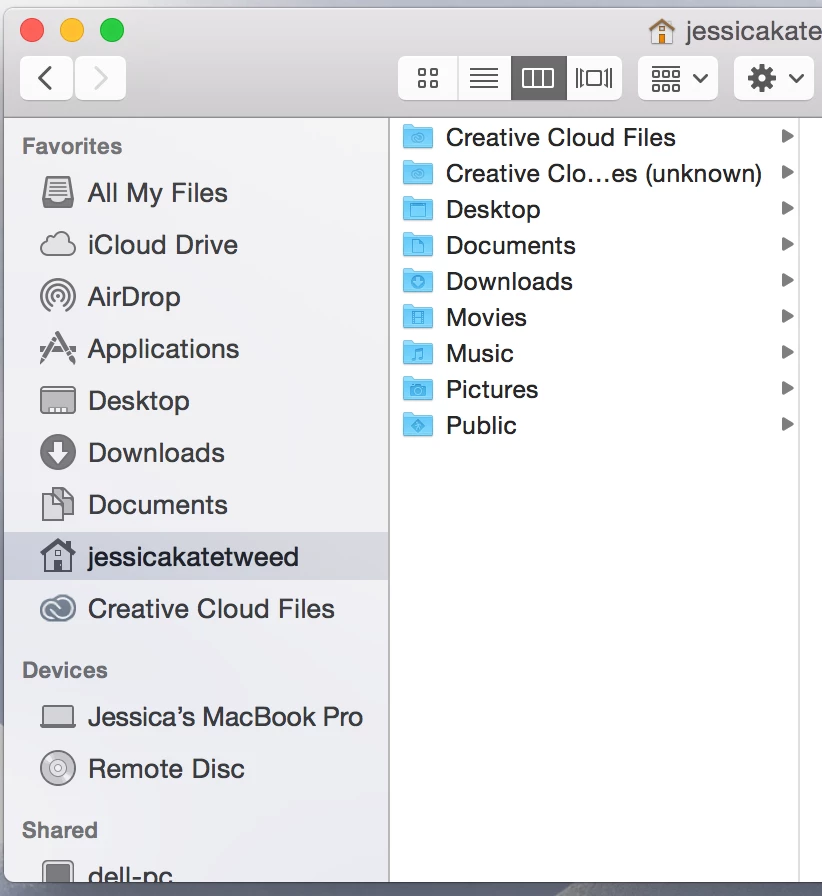
I noticed that I have three different areas called 'Creative Cloud Files' and one of these folders is called 'Creative Cloud Files Unknown' [see screenshot below].

Does anyone know why there are three separate locations? Which area am I supposed to save my files in so that I can sync them with the cloud? Can I delete the one that says 'unknown' in the file name? I assume that the folder listed in the Favourites Bar is the same place as the 'Creative Cloud Files' folder in my account?

This topic has been closed for replies.
Correct answer derekajack

With the recent update of the Creative Cloud Desktop app (1.9.1.474) we unfortunately introduced a bug which causes the creation of a new Creative Cloud Files folder, and re-sync of all content. This will only occur the first time the sync application runs after the update. This has caused understandable pain and confusion, for which we truly apologise.

We have taken steps to ensure we increase our focus on quality in this area to prevent a recurrence.

The Creative Cloud Files app contains logic that supports the use of multiple Adobe IDs. This allows you to sign out of one ID and in to another, but keeps your Creative Cloud content separate. When you sign out and change IDs, the app moves the previous Creative Cloud Files folder and it's contents and appends it with the previously signed in ID (User@AdobeID). It then creates a new main folder and starts to sync content of the new ID.

The bug which I mentioned previously occurs, as the app believes an ID switch has taken place and as such, moves the current Creative Cloud Files folder and tries to append the previously signed in ID. As no switch has actually taken place it manifests as (Unknown).  The app then creates a new main folder at syncs down the data.

Essentially what you end up with is a Creative Cloud Files folder with your newly sync'd data and a Creative Cloud Files (Unknown) folder that contains duplicate data.

This occurs once, after the last update completes.

The fix is to simply delete the Creative Cloud Files (Unknown) folder.

I would advise that you ensure you have no pending edits that you may have made offline and that you check the contents of the new, main Creative Cloud Files folder contains everything you expect it to.  If not, check the contents of the Creative Cloud Files (Unknown) folder.

If there is still a discrepancy with your data, you can check on creative.adobe.com to confirm your data is there.

If you have any further problems or questions about this particular issue please email syncforum-communication@adobe.com


Again, let me say we are sorry for any inconvenience caused

25 replies

Participant
May 8, 2017

Two years has passed and still annoying! You introduce a bug and you don't even care to fix it?

If I decide to sync folder X, then let me and stop creating an empty sub folder in that folder.

Participant
December 14, 2015

This just happened to me, same as allisonm75569386 described. All of my work disappeared and appeared in the archive folder.

Is this another bug?

allisonm75569386
Participant
December 2, 2015

Hi Everyone,

This just happened to me and it made an archive of all of my previous folders. All of your stuff should be safe and sound on your computer hard drive!

Participant
August 8, 2015

I don't see this happening after CC2015. They must have realised it was a bug and dealt with it. If you google around you see this was an old issue with CC.

Great software overall though... if only they would include GIT and update SVN support for DW.

Participant
June 16, 2015

On later version - 2.1.1.110 - Still having the same issue as this. Just filling up my hard drive with archive folders.

Thought this was supposed to be a lot like Drop Box, IE only one folder. The point of it being on the cloud isn't it that its backed up on the cloud and synched locally.

wharress
Community Manager
Community Manager
June 16, 2015

Hi,

Have you tried the following method?

1) Quit Creative Cloud Desktop App then the CoreSync and Adobe Desktop Service processes using Activity Monitor (Mac) or Task Manager (Win)


2) Navigate to:

MAC: <Mac Hard Drive>/Users/<username>/Library/Application Support/Adobe/CoreSync on Mac OS X

Note: The Users Library user folder is hidden on starting with 10.7 or later, see http://helpx.adobe.com/x-productkb/global/access-hidden-user-library-files.html

WIN: C:\Users\<username>\AppData\Roaming\CoreSync on Windows

Note: The AppData folder is hidden by default this doc shows how to show it if needed, http://helpx.adobe.com/x-productkb/global/show-hidden-files-folders-extensions.html


3) Then delete any file that end in .db,.db-shm or db.wal, and re start Creative Cloud (There should be 3 or 4 files, but could be more if you have multiple accounts signing into CreativeCloud)


4) Restart Creative Cloud Desktop

Participant
August 1, 2015

Hello Wharress,

By doing this, does one risk losing any files that is supposed to be syncing up to the cloud?

Nghia Pt
Participant
June 12, 2015

Same issue here. Company tech guy've just updated to the latest CC this morning and I wondered why the machine was too slow, then I saw Creative Cloud Files create on seconds basis. I have to quit Creative Cloud Apps. What the safest solution here? There are hundreds of such folders.

Nghia Pt
Participant
June 12, 2015

Update to my above reply. The folders are still created even after I quit Creative Cloud.

I had to force quit all "Adobe relate activities" (I didn't know which is which) from Activity Monitor. That's when the issue stop.

Artelles
Known Participant
June 12, 2015

I turned File Sync off - it stopped creation of new folders:

Artelles
Known Participant
June 12, 2015

Same issue. We have creative excess.

Participant
April 10, 2015

"The fix is to simply delete the Creative Cloud Files (Unknown) folder."

DO NOT DELETE the (unknown) folder for the sake of the heavens!

I'm a week before a deadline and was about to delete it, haven't I not looked into the files, I was about to delete the most recent files!!!

Now I know that the cloud can't be trusted, save your files on your local HD or else this could be undoable...

What's really unacceptable are 2 things :

1- to apologize

2- give bad fix solutions

Unless Adobe needs to apologize again.

wharress
Community Manager
Community Manager
April 10, 2015

Hi Naji,

let me just clarify some things related to your post above as I see some concerns in your message.

After upgrading to the latest version of Creative Cloud, your existing Creative Cloud folder will be renamed Creative Cloud Files (unknown), Creative Cloud will then create a new folder called Creative Cloud Files and re download all of your accounts data from Creative Cloud's.After this has completed you would have 2 folders.


One called Creative Cloud Files and another called Creative Cloud Files (unknown) both containing the same files after sync completes.


You would then be able to delete the Creative Cloud Files (unknown) once your satisfied that the 2 folders contain all of your data. Deleting the Creative Cloud Files (unknown)  is safe, however, if you wish to keep them for safe keeping that is entirely up to the end user.


You answered another use by saying "I was about to delete the most recent files!", were you fearful of losing these files?. It is very hard to lose any data from Creative Cloud as all your data is actually stored on Creative Cloud servers and requires you to manually visit the Creative Cloud website and delete files from your archive to premaritally delete them.


When files or folders are deleted from your desktop, they are placed into the Creative Cloud archive, all files are fully restorable from the Creative Cloud website.


Thanks

Warner


Participant
April 10, 2015

Thanks Warner for the heads up.

Of course I was fearful of losing these files!

Both folders didn't have the same files.

And "yes" I was able to retrieve the recent files in the "archived" folder on the cloud. But why did they get archived? I didn't ask to delete them.

Anyways I'm sure you can understand the confusion causing such panic; 2 creative clouds folders and recent files in the "Archives", not to mention the 4 Go of synchronisation all of a sudden with missing folders...

I insist on the fact that the Cloud is still unstable and for the mean time having an HD backup is safer.

An updating email from your side about this recent bug could've helped or put the community on guard.

I hope this bug will get fixed in the future.

And if by any means I can be of a help, just let me know.

Participant
April 9, 2015

Same issue on two machines. Very annoying. I can't work on my other machine now because it's syncing 46170 files...

brandonp40
Participant
April 9, 2015

Do you guys not beta test! This is ridiculous and unacceptable!