Participant
March 10, 2015
Answered

Why do I have 3 'Creative Cloud Files' folders?

  • March 10, 2015
  • 25 replies
  • 19797 views

Hello! I have a question about the Creative Cloud folder structure/syncing.

I installed the Creative Cloud Desktop application on my MacBook Pro and then installed the following programs: Lightroom, Photoshop, InDesign, Illustrator, Acrobat Pro.

Once I had done that I switched 'file sync' on in the Desktop Application bar.

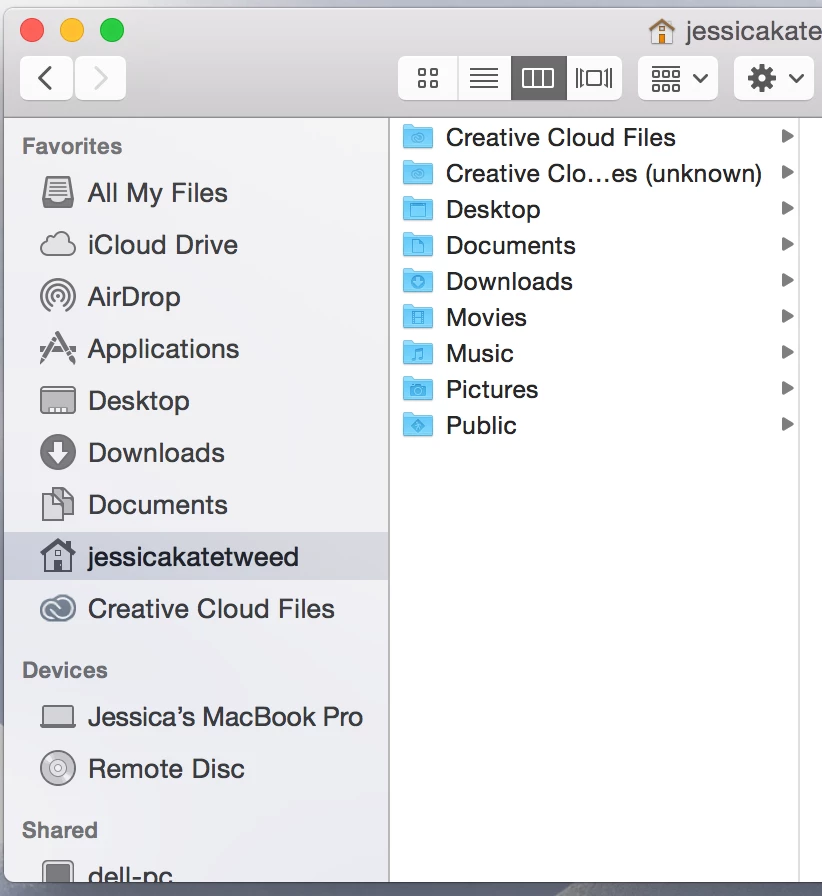
I noticed that I have three different areas called 'Creative Cloud Files' and one of these folders is called 'Creative Cloud Files Unknown' [see screenshot below].

Does anyone know why there are three separate locations? Which area am I supposed to save my files in so that I can sync them with the cloud? Can I delete the one that says 'unknown' in the file name? I assume that the folder listed in the Favourites Bar is the same place as the 'Creative Cloud Files' folder in my account?

This topic has been closed for replies.
Correct answer derekajack

With the recent update of the Creative Cloud Desktop app (1.9.1.474) we unfortunately introduced a bug which causes the creation of a new Creative Cloud Files folder, and re-sync of all content. This will only occur the first time the sync application runs after the update. This has caused understandable pain and confusion, for which we truly apologise.

We have taken steps to ensure we increase our focus on quality in this area to prevent a recurrence.

The Creative Cloud Files app contains logic that supports the use of multiple Adobe IDs. This allows you to sign out of one ID and in to another, but keeps your Creative Cloud content separate. When you sign out and change IDs, the app moves the previous Creative Cloud Files folder and it's contents and appends it with the previously signed in ID (User@AdobeID). It then creates a new main folder and starts to sync content of the new ID.

The bug which I mentioned previously occurs, as the app believes an ID switch has taken place and as such, moves the current Creative Cloud Files folder and tries to append the previously signed in ID. As no switch has actually taken place it manifests as (Unknown).  The app then creates a new main folder at syncs down the data.

Essentially what you end up with is a Creative Cloud Files folder with your newly sync'd data and a Creative Cloud Files (Unknown) folder that contains duplicate data.

This occurs once, after the last update completes.

The fix is to simply delete the Creative Cloud Files (Unknown) folder.

I would advise that you ensure you have no pending edits that you may have made offline and that you check the contents of the new, main Creative Cloud Files folder contains everything you expect it to.  If not, check the contents of the Creative Cloud Files (Unknown) folder.

If there is still a discrepancy with your data, you can check on creative.adobe.com to confirm your data is there.

If you have any further problems or questions about this particular issue please email syncforum-communication@adobe.com


Again, let me say we are sorry for any inconvenience caused

25 replies

Known Participant
April 7, 2015

This is a pain.

What is the easiest way to know which Creative Cloud folder contains my files? It seems that each folder contains some. I want to make sure that I don't screw up the linked files in all my indesign documents and have to manually relink all of them again.

Also, does this mean that all the links I have shared with others to access files are now broken?

Participant
April 7, 2015

That's really really bad of you Adobe. I had other problems when trying to move the folder to a new location (disk). It creates a new folder, looses the link with the previous one and wipes out all the content online content as the "new" folder is empty. Then I'm forced to reissue all weblinks to all my clients and suppliers. It happened twice...

I trust your syncing services less and less. Not to mention that, considering your exorbitant costs, you should be liable to cause such reckless disruption to your constumers.

Adobe Employee
April 6, 2015

The Creative Cloud Files app contains logic that supports the use of multiple Adobe IDs. This allows you to sign out of one ID and in to another, but keeps your Creative Cloud content separate. When you sign out and change IDs, the app moves the previous Creative Cloud Files folder and it's contents and appends it with the previously signed in ID (User@AdobeID). It then creates a new main folder and starts to sync content of the new ID.

The bug which I mentioned previously occurs, as the app believes an ID switch has taken place and as such, moves the current Creative Cloud Files folder and tries to append the previously signed in ID. As no switch has actually taken place it manifests as (Unknown).  The app then creates a new main folder at syncs down the data.

Essentially what you end up with is a Creative Cloud Files folder with your newly sync'd data and a Creative Cloud Files (Unknown) folder that contains duplicate data.

This occurs once, after the last update completes.

The fix is to simply delete the Creative Cloud Files (Unknown) folder.

I would advise that you ensure you have no pending edits that you may have made offline and that you check the contents of the new, main Creative Cloud Files folder contains everything you expect it to.  If not, check the contents of the Creative Cloud Files (Unknown) folder.

If there is still a discrepancy with your data, you can check on creative.adobe.com to confirm your data is there.

If you have any further problems or questions about this particular issue please email syncforum-communication@adobe.com

Participating Frequently
April 6, 2015

@derekajack - thanks for the explanation. It can be difficult to check for specific discrepancies when there's 17 GB + of files, and more than a dozen people using CC to stay in sync. It seems at least a few users in my group were working from the (Unknown) folder without realizing it.


Another concern is around convincing the team who was already less-than confident about using CC for file sync over dropbox/drive/etc that it's worth sticking with it.


Participant
April 3, 2015

Adobe could you provide detailed instructions on how to best handle this.  I have two macs that are down because there wasn't enough space to resync  the 68GB of files on the computers and now the hard rives are full before this duplication mess could complete.

derekajackCorrect answer
Adobe Employee
April 3, 2015

With the recent update of the Creative Cloud Desktop app (1.9.1.474) we unfortunately introduced a bug which causes the creation of a new Creative Cloud Files folder, and re-sync of all content. This will only occur the first time the sync application runs after the update. This has caused understandable pain and confusion, for which we truly apologise.

We have taken steps to ensure we increase our focus on quality in this area to prevent a recurrence.

The Creative Cloud Files app contains logic that supports the use of multiple Adobe IDs. This allows you to sign out of one ID and in to another, but keeps your Creative Cloud content separate. When you sign out and change IDs, the app moves the previous Creative Cloud Files folder and it's contents and appends it with the previously signed in ID (User@AdobeID). It then creates a new main folder and starts to sync content of the new ID.

The bug which I mentioned previously occurs, as the app believes an ID switch has taken place and as such, moves the current Creative Cloud Files folder and tries to append the previously signed in ID. As no switch has actually taken place it manifests as (Unknown).  The app then creates a new main folder at syncs down the data.

Essentially what you end up with is a Creative Cloud Files folder with your newly sync'd data and a Creative Cloud Files (Unknown) folder that contains duplicate data.

This occurs once, after the last update completes.

The fix is to simply delete the Creative Cloud Files (Unknown) folder.

I would advise that you ensure you have no pending edits that you may have made offline and that you check the contents of the new, main Creative Cloud Files folder contains everything you expect it to.  If not, check the contents of the Creative Cloud Files (Unknown) folder.

If there is still a discrepancy with your data, you can check on creative.adobe.com to confirm your data is there.

If you have any further problems or questions about this particular issue please email syncforum-communication@adobe.com


Again, let me say we are sorry for any inconvenience caused
Participant
April 3, 2015

Oops, be careful before deleting the (unknown) folder. For me, the files I've had opened since the CC app updated and created the (unknown) copy are all in the (unknown) folder. It sounds more like the bug created a copy of the CC Files folder, renamed the existing folder to (unknown), then switched syncing to the new folder—not the other way around. This left all my open files and folders OS X remembered to save and export into in the unsyncing (unknown) folder instead. If you've made any new files or edited existing files since the update, you could have your newest files in the (unknown) folder. It's like the bug kicked all my files out of the sync.

Participant
April 2, 2015

I had the same problem where the FORCED UPDATE (as simon_kok put it so well) created a duplicate of all my CC  sync files and called them "Creative Cloud Files (unknown)".  To make matters worse its all on my c-drive since Adobe CC FORCES YOU to put on C.

As for me, my C-drive is a 120GB SSD so the duplicate files syncing from my CC files overloaded my c-drive!!  I had to start deleting stuff and my system almost crashed.  Couldn't work.  Lost several hours on this today - just like the last CC update.

Adobe - think about it - if a user has 100 GB of CC files and another 50 GB of Adobe CC software then you sync a copy of all the CC synced files (100 GB) - that's 250 GB of CC data on your c-drive... ridiculous.


If you move the CC files to another drive come every update it will move all your files back over to C without warning...  It did just that to my biz partner today. 


Utterly bush league.

Stu

Participant
April 2, 2015

Hi there.

I currently have 30 users in my Adobe Creative Team account.

Two of my users experienced this just own (one on OSX and other on Windows 8).

It looks like the "Adobe Creative Cloud For Desktop" Utility was FORCED INSTALLED update today (not asked if the user wants to install it).

At this time, with that (Unknown) folder - do not copy the files back into the new folder.

If syncing is taking forever - the temporarly work around is to make a COPY of the file you need form the (Unknown) folder - place it on your desktop (outside of those folders) - do your work and wait for your folder to SYNC up.

I'll post a response/update in the next 24/48 hours per my CASE from Adobe.

I'm very disappointed on how this has impacted my creative team's schedule.

- Simon.

Memba
Participant
April 3, 2015

Same issue on Windows 8.1 with latest updates.

Adobe Creative Cloud Desktop app has updated without warning on Apr 2.

Since then all files have been transferred to "Creative Cloud Files (unknown)" and "Creative Cloud Files" is now empty.

Participating Frequently
April 2, 2015

Happened to two three separate users/computers in my office (mine included). One user in an entirely different location.

Brought our network to a crawl, as it immediately started re-downloading our entire CC directory.

Still downloading as we speak, as I had to lower download speed settings in preferences to relieve some bandwidth.

I considered just plopping everything from the "unknown" directory into the currently downloading one, but I can't imagine that would go smoothly...

wkrisay
Participant
April 2, 2015

Same issues here.  Would appreciate a response from adobe.  Same thing happened a few months ago but creative cloud created a 'archived' folder instead of 'unknown'.  Never received and answer or solution to the problem.

Participant
April 2, 2015

Same issue - just went to my Creative Cloud Files folder and all the folders are in there but no files within the folders. I thought all was lost until I found the Creative Cloud Files (unknown) folder which thank god had all my files. Leaves me with a very uneasy feeling though after that scare.