Participant
September 25, 2016
Answered

PLS HELP: Hours of work on this: E_ACT_NOT_READY

  • September 25, 2016
  • 2 replies
  • 596 views

It started with getting the error message:

Error getting License. License Server Communication Problem:

E_ACT_NOT_READY

So I thought: Maybe my Digital Editions is old. I downloaded the newest 4.5 Digital Editions. (I am also on Mac and Chrome 10.11.6.)

Then I read EVERY FORUM post in here about this problem. Literally for about two hours.

Everyone says to find that .Dat file in Users/Library and pull it to the trash, and/or to Deauthorize my account.

When I go to find the .Dat file, I can't even find the Digital Editions folder, let alone the .Dat file. It's not there.

And when I go to Erase Authorization my account, it says:

Unable to Erase Authorization. Please try after some time.  (Okay, vague.)

So I try to call Customer Service. THEY HAVE NO PHONE NUMBER, only a chat.

When I chat with "Rohit," he tells me:
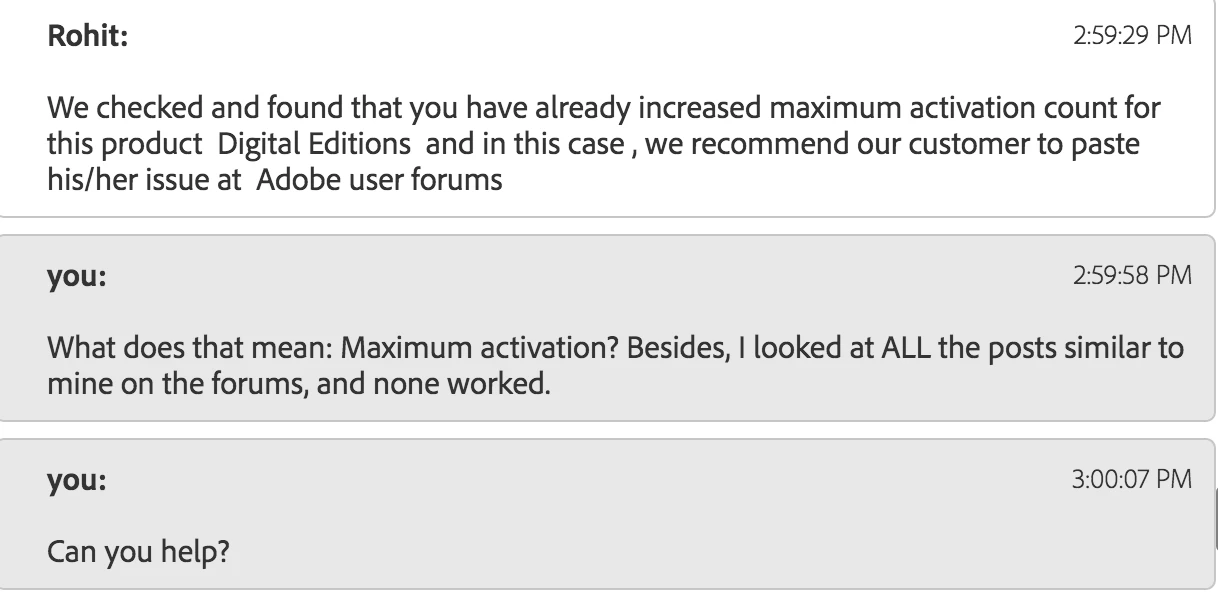
Oh, I've "increased' maximum activation, have I? Thanks Rohit, for a non-answer.

Can anyone else help? I'm just trying to read some darn library books!

    This topic has been closed for replies.
    Correct answer mayapapaya_1

    Hi guys, thanks for responding. Nanaky, what else do you do BESIDES respond to this question?! You are errrywhere.

    Anyhoo, this worked BUT the part that is missing from all of the explanations is this:

    “Go To Folder” is the Most Useful Mac OS X Keyboard Shortcut for Power Users

    I have NEVER used this button, and don't know many people who know about it, so when you said it before, I just kept going to Finder. This should clarify that for anyone who still can't figure it out.

    2 replies

    Adobe Employee
    September 26, 2016

    Hi,

    Please try the below steps and let me know if this helps:

    1. On your MAC, in the Finder, click Go > Go to Folder.

    2. In the Go To Folder dialog box, type   ~/Library

    3. Now navigate to -  Application Support ->> Adobe ->> Digital Editions

    4. Check if you see the "activation.dat" file here. Drag the activation.dat file to the trash.

    5. Now launch Adobe Digital Editions and try to authorize again.

    Regards,

    Sharad

    mayapapaya_1AuthorCorrect answer
    Participant
    September 26, 2016

    Hi guys, thanks for responding. Nanaky, what else do you do BESIDES respond to this question?! You are errrywhere.

    Anyhoo, this worked BUT the part that is missing from all of the explanations is this:

    “Go To Folder” is the Most Useful Mac OS X Keyboard Shortcut for Power Users

    I have NEVER used this button, and don't know many people who know about it, so when you said it before, I just kept going to Finder. This should clarify that for anyone who still can't figure it out.

    Nanaky
    Participating Frequently
    September 26, 2016

    Windows:

        Close all applications.

        Choose Start > Run.

        In the Open text box, type regedit and then press Enter. The Registry Editor opens.

        In the left pane of the Registry Editor, locate the following registry key: HKEY_CURRENT_USER\Software\Adobe\Adept

        Select the Adept key.

        Choose File > Export.

        In the Export Registry File dialog box, select Selected Branch under Export Range. Enter a name and location for the backup registry key, and then click Save.

        Right-click the Adept key and choose Delete.

        In the Confirm Key Delete dialog, click OK.

        Close the Registry Editor.

        Open Adobe Digital Editions and reauthorize.

    Macintosh:

        quit Adobe Digital Editions.

        Navigate to /Users//Library/Application Support/Adobe/Digital Editions and drag the activation.dat file to the trash.

        If you are using 10.7, see https://helpx.adobe.com/x-productkb/global/access-hidden-user-library-files.html

        Open Adobe Digital Editions and reauthorize.