Participant
September 20, 2016
Answered

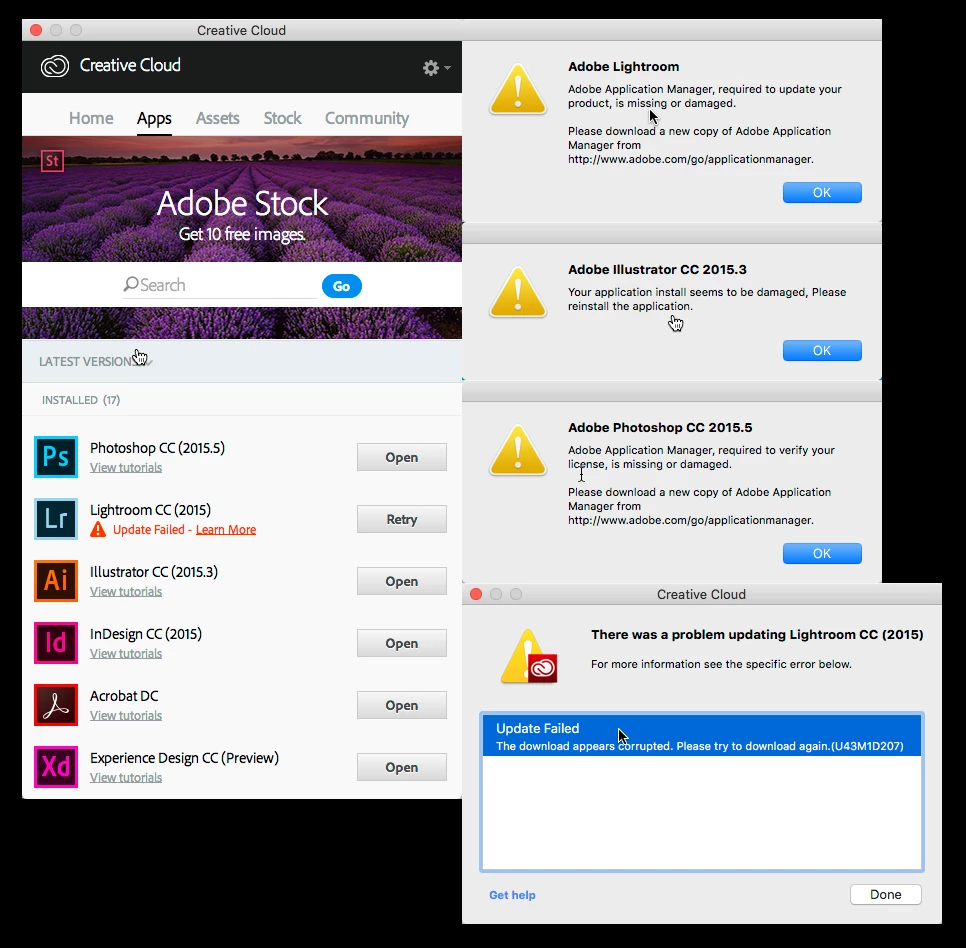
Adobe Application Manager, required to update your product, is missing or damaged.

  • September 20, 2016
  • 1 reply
  • 6688 views

Tried for hours to update Lightroom CC (2015), but still fails.

Installed and reinstalled "Adobe Application Manager" https://creative.adobe.com/products/download/creative-cloud?promoid=KSPDX

Removed folders from "Library" the troubleshooting guide Adobe provides, but nothing works.

Running OS X El Capitan v 10.11.6 (all updates).

This topic has been closed for replies.
Correct answer Govardhan.V

Try below steps and check :

Step 1)

Click on the Finder and look for the options listed next to Apple Icon located at the top left corner of the Desktop screen and click on "Go" menu button and select "Utilities" option.

(Applications>Utiliites)

Locate Adobe Creative Cloud and Adobe Application Manager folder under Utilities window and trash both folders.

Step 2)

Trash Adobe Creative Cloud folder from Applications as well.

Step 3)

1) Right click on Finder icon and  select "Go-ToFolder " option.

2) You will get a text box, type-in below command and then hit 'Return' key.( Do not miss ~ symbol)

~/library

3)Then navigate to Application Support>Adobe.

Open Adobe folder and trash folders named AAMUpdater and OOBE.

Step 4)

1) Right click on Finder icon and  select "Go-To" Folder option.

2) You will get a text box, type-in below command and then hit 'Return' key.

/library

3)Then navigate to Application Support>Adobe.

Open Adobe folder and trash folders named AAMUpdater ,Adobe Application Manager and OOBE.

Step 5)

Click on the below link and download & run Adobe Cleaner tool :

Select the option "Adobe Application Manager for Mac OS X 10.6" and then click on "Clean up Selected" .

http://download.macromedia.com/SupportTools/Cleaner/mac/AdobeCreativeCloudCleanerTool.dmg

Step 6 )

Click on the below link and download Adobe Application Manager and install the same :

http://download.adobe.com/pub/adobe/creativesuite/cc/mac/ApplicationManager10.0_all.dmg

Once the installation process is completed, installation box will disappear, then open Application folder and locate Adobe Application manager launch icon , double click on it and update .

Once the update is completed. It shud launch Adobe Creative Cloud app.

Then try to launch  Installed CC apps .

Still same ?? Let us know

1 reply

Atul_Saini
Community Manager
Community Manager
September 20, 2016

Hi Lyon%20N,

To update your application manager, I would request you to reinstall Creative Cloud application. 

Remove Creative Cloud app -

Install Creative Cloud app- https://helpx.adobe.com/creative-cloud/help/install-apps.html

For error U44M1D207, I would request you to try the steps mentioned on Error downloading or updating Creative Cloud apps​ and share the results.

Thanks.

Frankie LAuthor
Participant
September 20, 2016

Took me a while to get this working (almost) . Did everything according to your (Creative Cloud) links. Got this message this time: Error: U43M1D207.

Did everything all over but after using the application "Creative Cloud Uninstaller" I rebooted and ejected all external drivers. I checked the "Adobe download log":**File download complete.** but didn't contain errors...hmmm

PS: turning on/off firewall had no implication on the download or installation ! (never had an issue with this).

Finally got Lightroom installed !!!

Now the last problem is the "license" ?

Searched my HDD for "Adobe Application Manager:

Do I need to uninstall all my Adobe Apps and reinstall  everything ?

PS First time I ever had problems like this. !!!

Atul_Saini
Community Manager
Community Manager
September 20, 2016

Hi Lyon%20N,

I would like to understand the problem that you are facing with "license". Are you not able to activate it or you're getting "Adobe Application Manager is missing" message again?

Thanks.