
Participant
May 7, 2020
Question

Adobe CC not working on new MacBook Pro after migration

  • May 7, 2020
  • 1 reply
  • 988 views

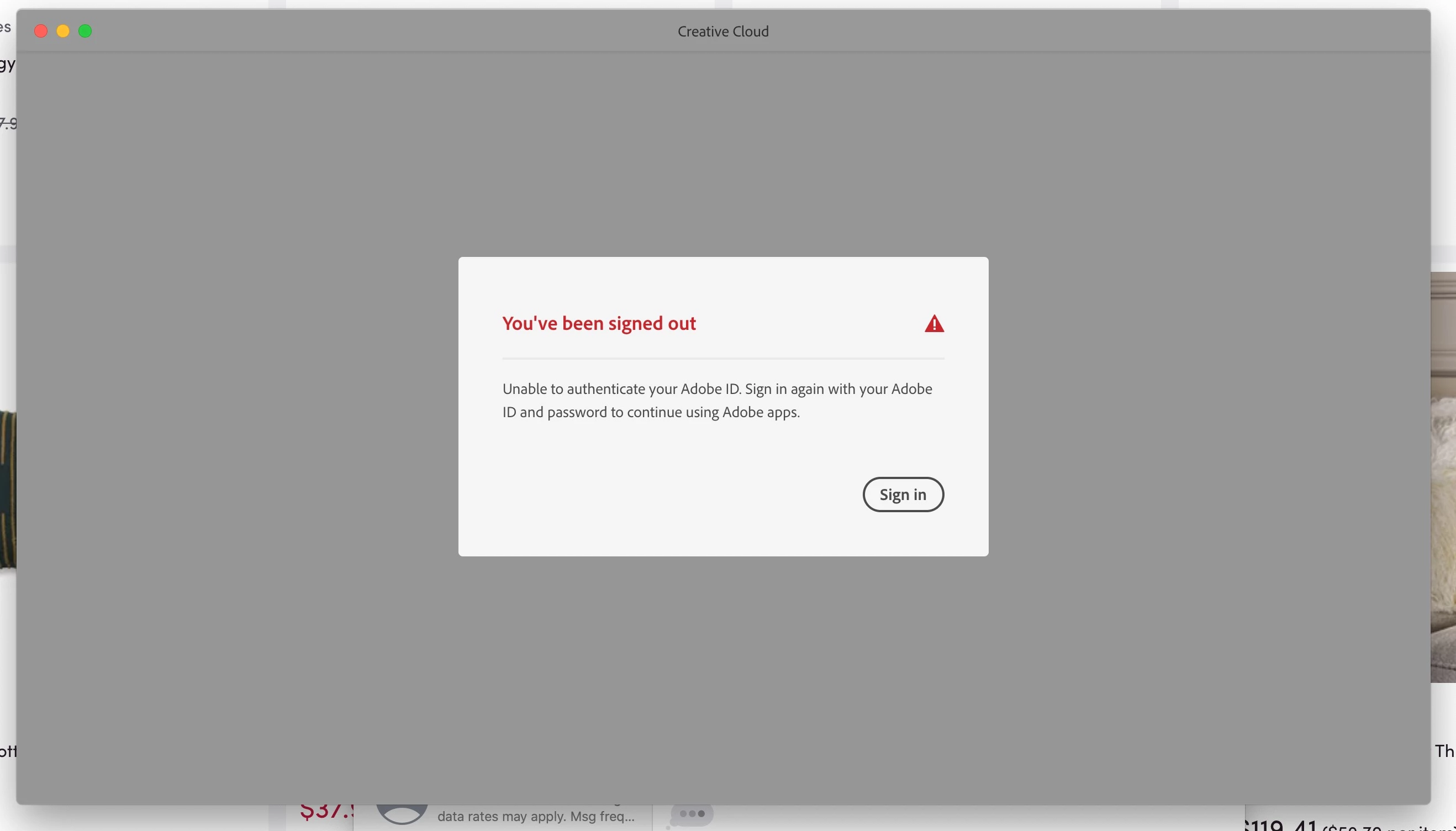
My daughter's old Mac died and she has a new Macbook Pro now. She was using Adobe CC Photography plan. When the new Macbook Pro first powered on, it migrated from a Time Machine backup of the old (failed) computer. Everything seems to be working except Adobe CC, which produces the error message "You've been signed out" and tells her to sign in but when she clicks that button the same message appears. She can sign in to the Adobe CC web site, so the username and password are ok. Does this mean she must uninstall everything, and then reinstall? If so, how should one proceed with that? Or if not, is there something else that is better?
 

This topic has been closed for replies.

1 reply

John T Smith
Community Expert
Community Expert
May 7, 2020

Tell everyone you know who owns a Mac, including Apple employees... Mac Migration and Time Machine DO NOT WORK properly with Adobe program activations due to hidden registration files that are not included when Migration or Time Machine make their copies
Sign out of your account... Uninstall... run the Cleaner...

-https://helpx.adobe.com/x-productkb/policy-pricing/activate-deactivate-products.html
-using the cleaner after uninstalling and before reinstalling is often needed
-https://helpx.adobe.com/creative-cloud/kb/cc-cleaner-tool-installation-problems.html
-Restart your computer... Sign in to your account... Reinstall

Participant
May 7, 2020

Thank you, and now we realize that using the Apple Migration tool does not properly migrate the Adobe CC programs. (She would have uninstalled first on the old Mac and then backed up if she could have gotten it to power up.)


So the correct order is (I need to make it easy for her as she is in a different city from me and in a little panic):

(1) Uninstall using Uninstaller that is in the Adobe Installers folder on the Mac (should she run Uninstallers for each program?)

(2) Download Cleaner from Adobe

(3) Run Cleaner, presumably on "ALL" in the drop down menu

(4) Restart computer

(5) log onto Adobe CC web site to download and install a fresh install of the desktop program and the Photography Plan programs


Thank you.