
Participating Frequently
November 30, 2017
Answered

Adobe CC Program Manager high CPU usage (also Adobe Genuine Software Integrity Service)

  • November 30, 2017
  • 2 replies
  • 3246 views

I have already searched other posts like this and tried the suggestions but have not found any solution so far.

System is Windows 10.

I have uninstalled all my Adobe Apps and uninstalled CC Program manager, run the CC cleaner tool, etc..

Aside from the high CPU usage mentioned in the title. At the moment I have no Adobe Apps installed, Only Adobe Program Manager installed and it seems to be stuck in the "Sync files to Creative Cloud" stage. Screenshot below:
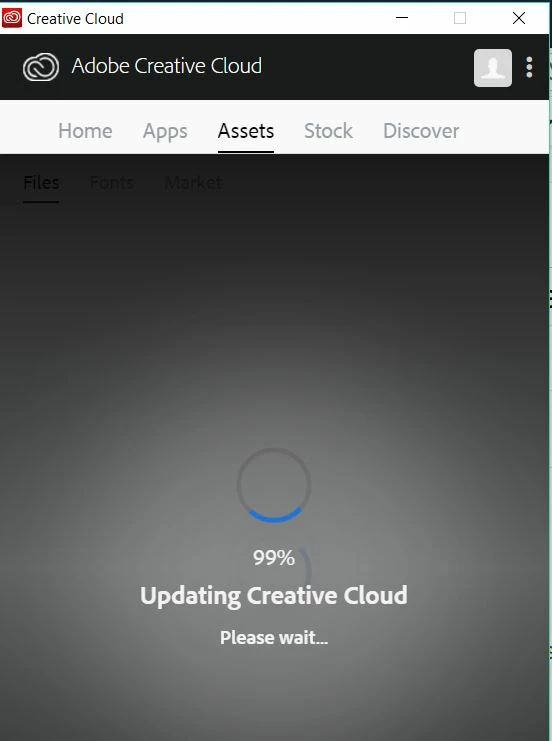
If anyone from Adobe is monitoring this can you please help? Or any other suggestions appreciated.

This topic has been closed for replies.
Correct answer kglad

I did have the CC 2017 versions InDesign and InCopy installed (but I had to uninstall them in order to uninstall the CC desktop app).

At the point of my earlier screenshot there were no Adobe Apps installed and I was only trying to install the CC 2014 version of InDesign.


using a browser that allows popups and cookies,  contact adobe support during pst business hours by clicking here and, when available, click 'chat', http://helpx.adobe.com/x-productkb/global/service-ccm.html

2 replies

Participant
November 9, 2020

How do I disable Adobe genuine software integrity service on Windows 10?

To remove adobe genuine software integrity service, you need to disable it, and this can be done by using the above-given method. If that doesn’t work for you, then you can take help from the below-mentioned method.

  • Go to the task manager by using your search option.
  • Here you will get a list find for “Adobe Genuine Software Integrity Service.”
  • Right-click on it and then open the file location.
  • Now open the AdobeGCIClient file and return to the task manager.
  • After this, click on the “End Task” button, from here you can delete the adobe folder, and that’s it.

Follow this simple approach to disable adobe genuine software integrity service windows 10.

kglad
Community Expert
Community Expert
November 30, 2017

disable sync'g and retest to see if you can isolate the issue to sync'g.

Participating Frequently
November 30, 2017

Unfortunately the Sync checkbox (if that is what you are referring to) is shown in the checked state but is disabled - so I can't change the state of it.

(Thanks for the suggestion anyway)

kglad
Community Expert
Community Expert
November 30, 2017

try a clean install (even though i know you've done most of this already, unless you've done it all in this order):

uninstall everything cc including preferences, https://helpx.adobe.com/creative-cloud/help/uninstall-remove-app.html

then uninstall the cc desktop app, https://helpx.adobe.com/creative-cloud/help/uninstall-creative-cloud-desktop-app.html

clean your computer of cc files per http://www.adobe.com/support/contact/cscleanertool.html

restart your computer (don't skip this)

reinstall the cc desktop app, https://creative.adobe.com/products/creative-cloud.

if you're unable to install the cc desktop app at this stage, use an administrator account (solution 3 here, https://helpx.adobe.com/creative-cloud/kb/creative-cloud-missing-damaged.html)

use the desktop app to install your cc programs/trials