


Participant
April 15, 2020
Question

Adobe Portfolio - Text Box Excess Space

  • April 15, 2020
  • 3 replies
  • 3733 views

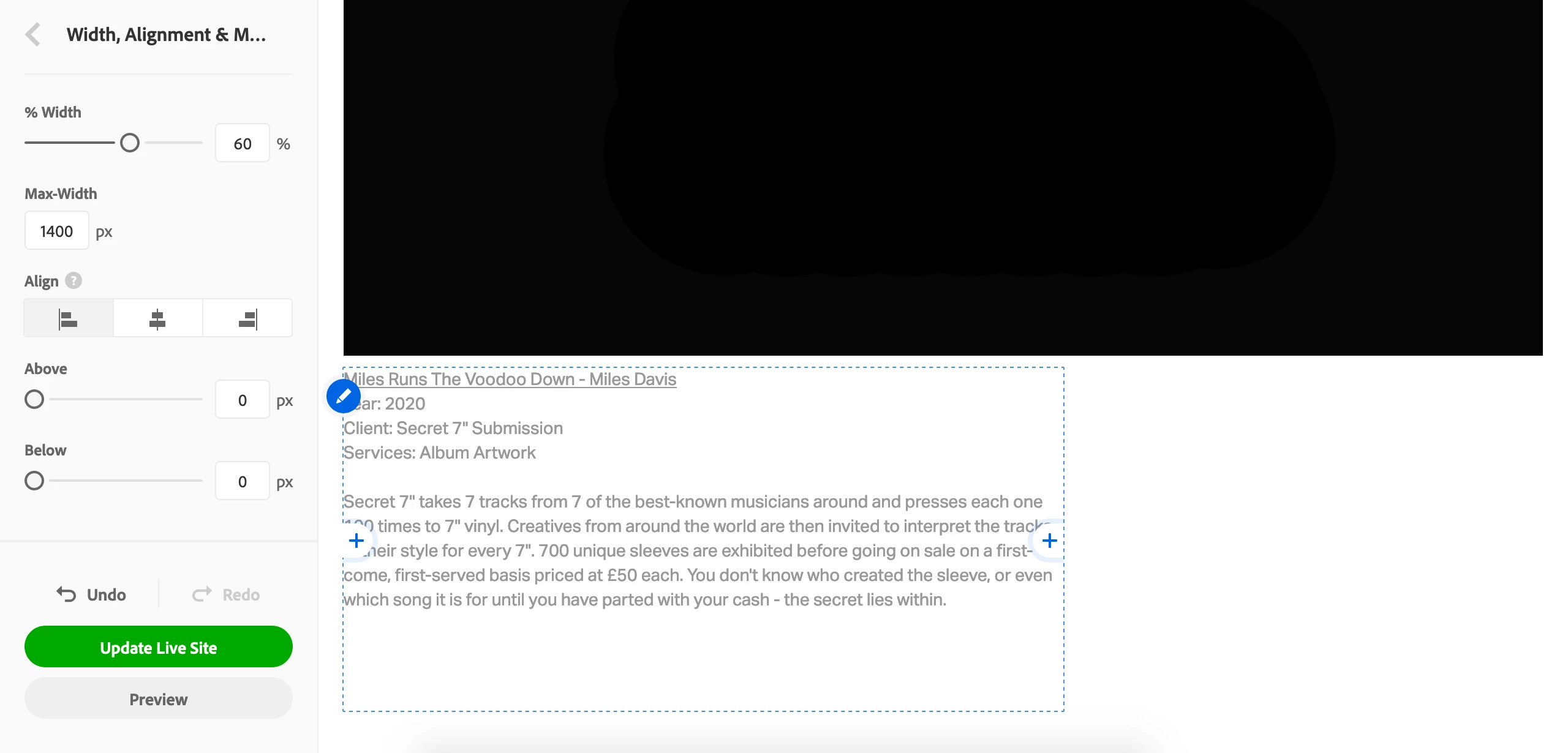
When using Adobe Portfolio text boxes there is always loads of excess space after the last line of type. I have looked in the text box settings and online for a solution but can't seem to find a way to remove the excess space. Is there a way to remove the space so that the gap between the last line of type and the bottom of the web page isn't so large?
 

This topic has been closed for replies.

3 replies

amalou
Participant
November 22, 2021

I'm having the same issue. There's about 5cm of excess space under my last line of text and the text box margins are set at zero. There's way too much space between my last line of text and the image below it. And yes, I checked the image margins and they're at zero too! Adobe Portfolio's text and spacing is glitchy. It's never worked properly. I'm surprised they haven't fixed it yet.

Nancy OShea
Community Expert
Community Expert
November 22, 2021

Centimeters have no relevance to screen sizes which are measured in pixels.

That said, if you continue to have technical difficulties, please reach out to Portfolio Support for assistance.


See links below.
- FAQ & Knowledgebase - https://help.myportfolio.com/hc/en-us
- Contact Portfolio Support Team - https://help.myportfolio.com/hc/en-us/requests/new?ticket_form_id=177168
- Adobe UserVoice for feedback & feature requests  - https://helpx.adobe.com/x-productkb/global/how-to-user-voice.html


Nancy O'Shea— Product User & Community Expert
amalou
Participant
November 22, 2021

Thanks for your reply.


I only said cm rather than pixels to give a rough idea of the space 'visually' between the text and the image (it's hard to visually imagine space in pixels).


I've added screenshots below to make it clearer to visualise. The space is also there when I preview and on the live website.


Thanks for the resource links. I'll check it out 🙂

Nancy OShea
Community Expert
Community Expert
April 15, 2020

1. Don't rely too much on what you see in the editing portal.  Evaluate your results in major browsers and mobile devices at various zoom settings after you publish online.  


2. Click on a text box pencil icon, select Width, Alignment & Margins.  In the left side menu, scroll down to margins Above & Below.  Adjust to suit.


Post back if you need more help.


Nancy O'Shea— Product User & Community Expert