



Question
⚠️Are your Installed Adobe apps unexpectedly prompt to reinstall?
Hi Adobe Community,
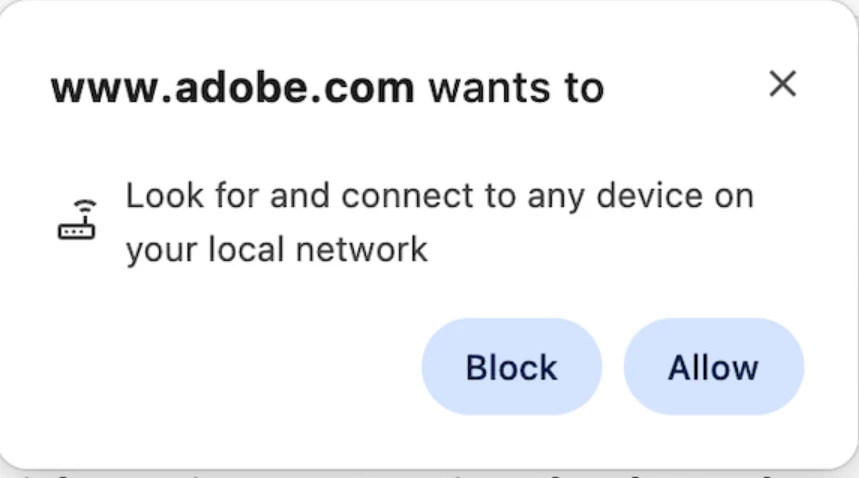
If you recently updated to newer versions of some browsers, such as Google Chrome (v142), Microsoft Edge (v143), or Mozilla Firefox (v146.0.1), you might see a security prompt when an Adobe webpage tries to open or update a desktop app.
 What causes this?
- Local Network Access (LNA) not granted to adobe.com, so Creative Cloud cannot complete the local checks.
- Per‑site permission set to “Block” (intentionally or by accident).
- Outdated browser or testing in a non‑secure context (permission is available only on https pages).
- Extensions (ad blockers, privacy tools) interfering with the site permissions.
Recommended solutions
Option A: Grant the permission (recommended)
- When prompted, click Allow.
- Refresh the page to resume normal detection and “Open in app” flows
.
Option B: You previously clicked Block? Reset per‑site permissions
FAQs
1. Is clicking “Allow” safe? What exactly are we permitting?
Yes! Allowing Local Network Access lets adobe.com make a short, permissioned call to apps running on your machine. This is used to detect installed apps and provide a smoother “Open/Launch” experience from the web.
2. Why don't I see the prompt?
- Make sure you’re on an https page (the permission is only available in secure contexts).
- If you previously blocked network access for adobe.com, use Option B above to reset.
3. Why am I being sent to a download/install page even though apps are installed?
Browser security change blocks some web features. Due to which, certain Adobe web features may not work as expected until permission is granted. You may notice:
- You’re prompted to reinstall an Adobe app that’s already installed.
- Adobe can’t detect your installed desktop apps.
- An Adobe webpage fails to open or update an app.
Have questions? Start a discussion.
 AdChoices