
Corsicaman
Known Participant
May 12, 2016
Answered

Can't uninstall (Adobe cleaner)

  • May 12, 2016
  • 1 reply
  • 1721 views

Hello,

I have some problems with creative cloud apps, so I'm trying to reinstall them. I tried using the creative cloud cleaner app but it doesn't seem to work.

I get stuck at the step 9 (OSX) "When you see the message “Adobe Creative Cloud Cleaner Tool completed successfully,” press Enter and restart your computer."

This message never appears, the cleaner just closes and when I re-open it, some files are apparently still there (@screenshot).
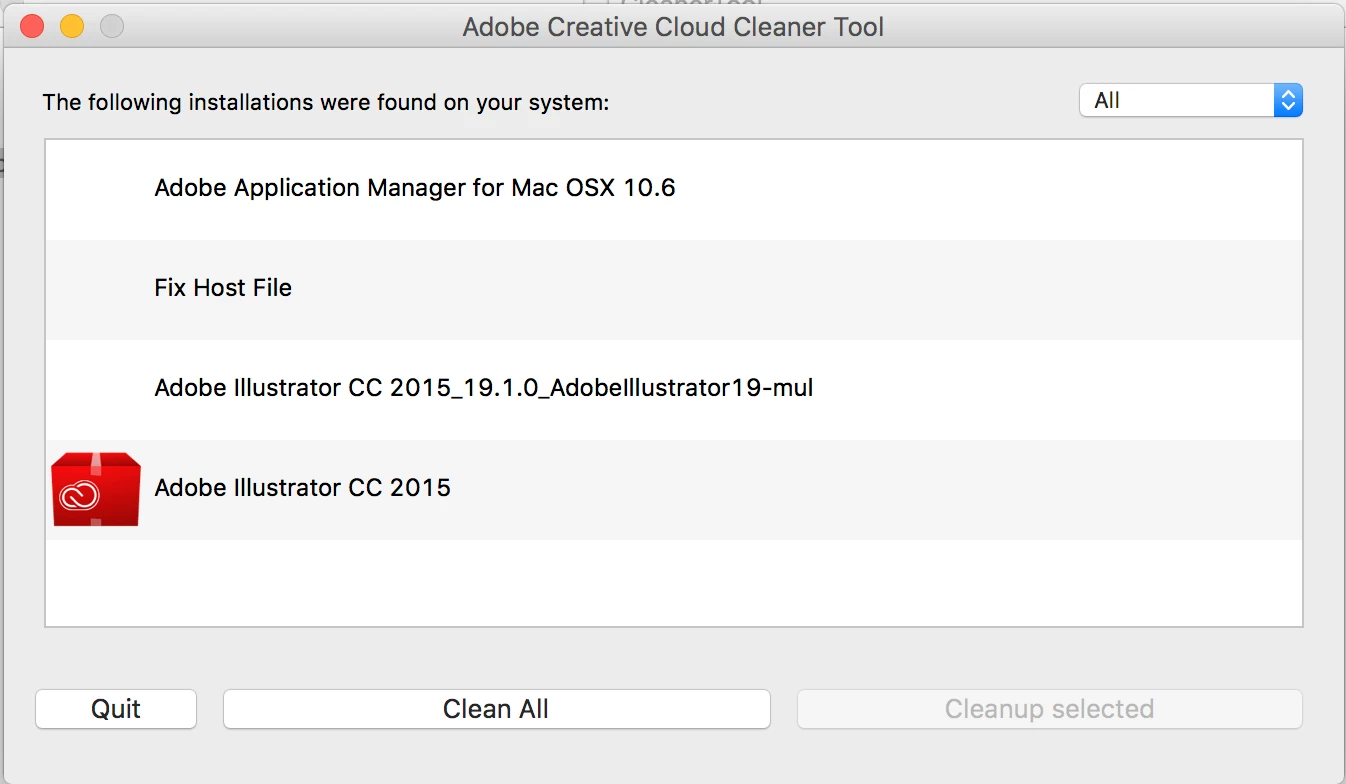
I tried deleting manually all the files about adobe illustrator but it doesn't seem to work either.

Any solutions? Thanks in advance.

EDIT: There is no file under the name of "Adobe Creative Cloud Cleaner Tool.log" on my computer.

    This topic has been closed for replies.
    Correct answer Bani Verma

    Please go to the below location and delete any folder that says "Illustrator 19" on it:

    You will get a text box, type-in below command and then hit 'Return' key.( " Do not miss ~ symbol " )

    ~/library ( It will open User Library folder. )

    Then navigate to Application Support>Adobe>Illustrator 19 ( Trash this )

    1 reply

    Bani Verma
    Legend
    May 12, 2016

    Hi Corsicaman,

    Kindly Uninstall the Adobe Creative Cloud desktop application and after that follow the below steps:

    1- Force Quit the below processes in the same sequence as mentioned below from Activity Monitor: see,Use Activity Monitor on your Mac - Apple Support

    • Creative Cloud
    • Core sync & Core sync Helper
    • CC library & CCX processes
    • Adobe Desktop Common
    • Adobe Update daemon
    • Adobe IPC Broker
    • After this anything that says adobe on it do a force quit for it

    2- Go To: Finder > Applications > Utilities > ( Delete these two folders - Adobe creative cloud and Adobe Application Manager )

    3- Right click on Finder icon and  select "Go-To" Folder option.

    4- You will get a text box, type-in below command and then hit 'Return' key.( " Do not miss ~ symbol " )

    ~/library ( It will open User Library folder. )

    5- Then navigate to Application Support>Adobe> trash OOBE folder, AAM Updater and Illustrator CC 2015 folder's

    6- Again > Right click on Finder icon and  select "Go-To" Folder option > You will get a text box, type-in below command and then hit 'Return' key.

    /library ( It will open System Library folder.)

    7- Then navigate to Application Support>Adobe> trash OOBE folder, Adobe Application Manager, Adobe Desktop Common and Illustrator CC 2015 folder's

    8- After this rename the file SL-STORE as SL-STORE_OLD

    9- Run Adobe Cleaner tool > If present Select the option "Adobe Application Manager for Mac OS X 10.6" and then click on "Clean up Selected"  Use the Adobe Creative Cloud Cleaner Tool to solve installation problems

    10- Restart the machine and then Click on the link to : Download Adobe Creative Cloud apps | Free Adobe Creative Cloud trial

    Let us know if this helps.

    Corsicaman
    Known Participant
    May 12, 2016

    Hi Bani, thank you for your help.

    What you said allowed me to get rid of the "Adobe Illustrator CC 2015", however this one remains:

    Do you know why? Does it matter?

    Thanks.

    Bani Verma
    Bani VermaCorrect answer
    Legend
    June 3, 2016

    Please go to the below location and delete any folder that says "Illustrator 19" on it:

    You will get a text box, type-in below command and then hit 'Return' key.( " Do not miss ~ symbol " )

    ~/library ( It will open User Library folder. )

    Then navigate to Application Support>Adobe>Illustrator 19 ( Trash this )