Participant
June 11, 2019
Answered

CC 2019 account confirmation problems, no offline allowed

  • June 11, 2019
  • 2 replies
  • 1129 views

I use Adobe cc products with a license from my school, and I was recently upgraded from cc 2018 to cc 2019. They explained that there was a new verification procedure that required everyone to be logged in with a personal Adobe account, which I have.

I have two issues:

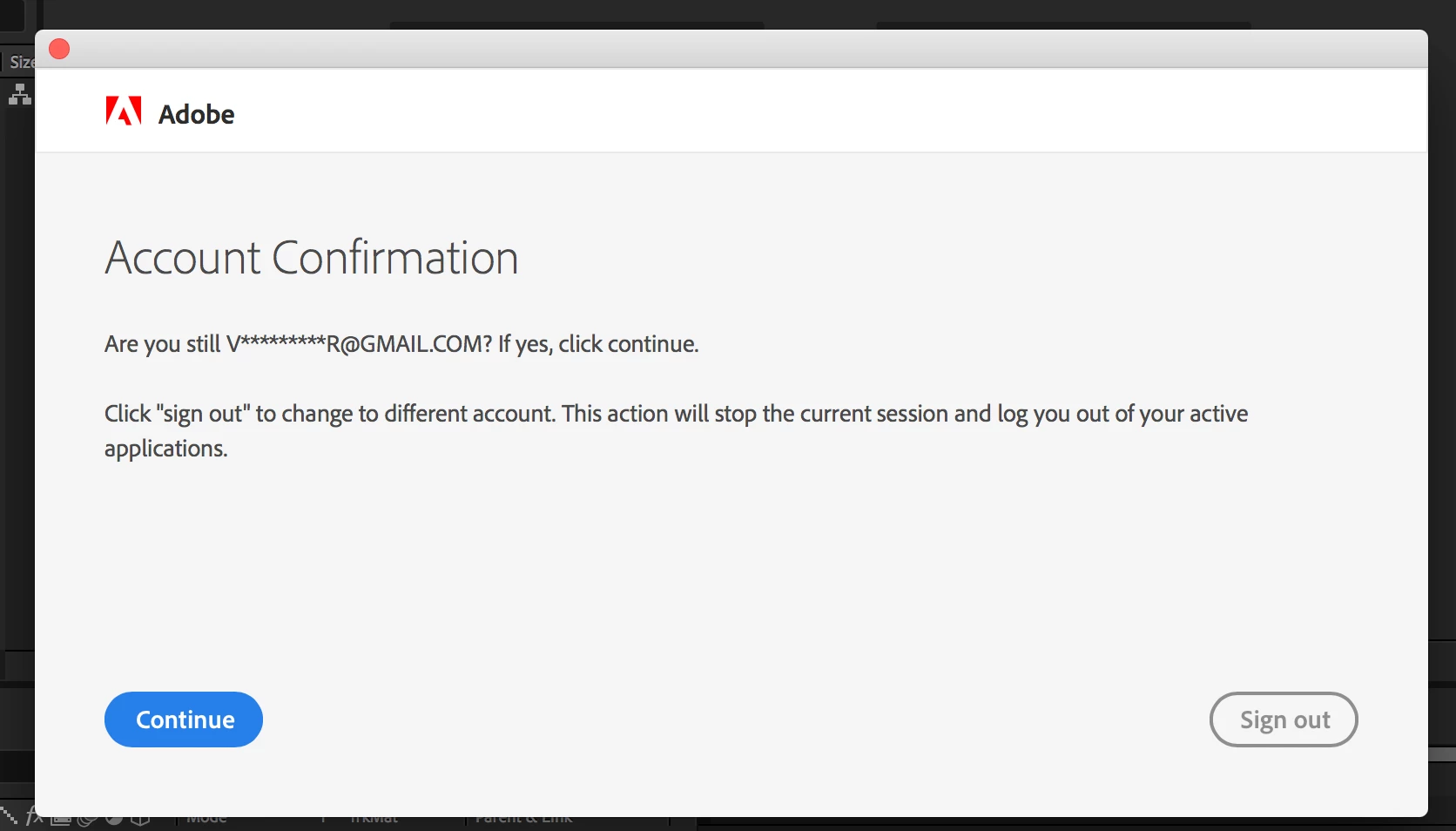
1. I have to "re-confirm" my account every couple of hours when I am using the software, or it threatens to shut me down. This is very annoying. As long as I am online, re-confirmation works, but if not online, I can't continue.
2. I can't open the apps offline at all. I haven't read anything about Adobe products now only being usable if you have an active Internet connection (it used to be you could be offline for 99 days), but now, even a temporary connection problem will throw this at me:
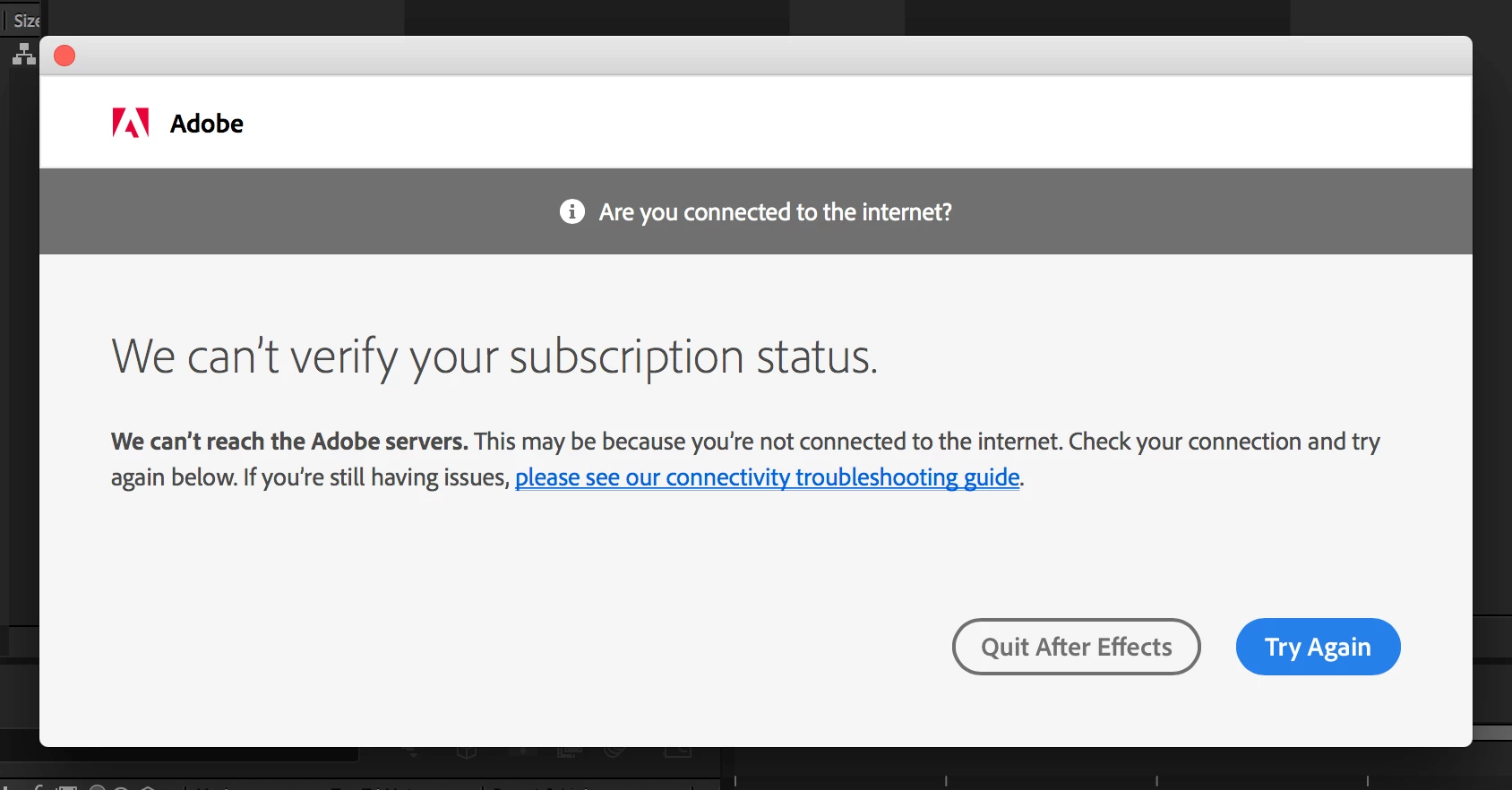
Of course, being offline, the suggestion to check their connectivity guide (on a webpage) is pretty absurd.

Is Adobe cc online-only now? Is this pester-ware screen a normal behavior?

Thanks,

Jon

This topic has been closed for replies.
Correct answer arij2010

Hi,

Try this :

1 -

Quits All Adobe background processes :

Go to Application > Utilities > Activity monitor .

Select the process and force quit

Adobe CEF Helper

Adobe Creative Cloud

Adobe IPC Broker

Adobe Genuine Software Integrity Service

CCLibraries

CCXProcess

Creative Cloud

CoreSync

2 - Rename The folders "SlStore" , "SlCache" and "OOBE" to "SlStore.old" , "SlCache.old" and "OOBE.old" in this location :

MAC HD/Users/<user folder>/Library/Application Support/Adobe/OOBE

MAC HD/Library/Application Support/Adobe/SlStore

MAC HD/Library/Application Support/Adobe/SlCache

3-

-> Give write and read permissions to Adobe these 2 Adobe folders :

MAC HD/Users/<user folder>/Library/Application Support

MAC HD/Library/Application Support/

2 replies

Participant
June 15, 2019

Non

arij2010
arij2010Correct answer
Inspiring
June 11, 2019

Hi,

Try this :

1 -

Quits All Adobe background processes :

Go to Application > Utilities > Activity monitor .

Select the process and force quit

Adobe CEF Helper

Adobe Creative Cloud

Adobe IPC Broker

Adobe Genuine Software Integrity Service

CCLibraries

CCXProcess

Creative Cloud

CoreSync

2 - Rename The folders "SlStore" , "SlCache" and "OOBE" to "SlStore.old" , "SlCache.old" and "OOBE.old" in this location :

MAC HD/Users/<user folder>/Library/Application Support/Adobe/OOBE

MAC HD/Library/Application Support/Adobe/SlStore

MAC HD/Library/Application Support/Adobe/SlCache

3-

-> Give write and read permissions to Adobe these 2 Adobe folders :

MAC HD/Users/<user folder>/Library/Application Support

MAC HD/Library/Application Support/

Participant
June 11, 2019

Thanks for the detailed response! It seemed to work.

I don't know how to do the third step (maybe Adobe already has it?), but I did the other two, and now, after one more verification and opening each app online, it seems I can open them offline and not have to verify every time. I'm hopeful that it will be a long-term solution.

I don't know if it's relevant, but I had two versions of SlStore (the second called SlStore_v1), so maybe that had something to do with it.

Also, sorry I didn't mention I was on a Mac, but I'm glad you figured it out.

arij2010
Inspiring
June 11, 2019

"SlStore_v1" is another folder that has nothing to do with the process .

The third step is not mandatory but can prevent future issues .