



Axis777
Participant
June 7, 2026
Question

Creative Cloud and Photoshop disappeared from my laptop and now Windows can't find them

  • June 7, 2026
  • 3 replies
  • 19 views

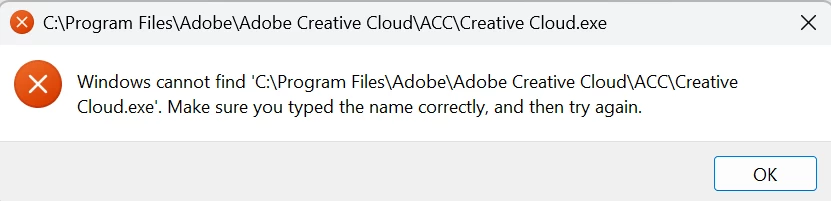
I’m a long-time Adobe user. I bought a new laptop and installed Creative Cloud, Acrobat, and Photoshop. All three ran fine for several weeks, then a few days ago I couldn’t open Creative Cloud or Photoshop (Acrobat is OK). Even when I click directly on the .exe files for either product, I get a message saying Windows can’t find the app. I shut down any running Adobe products in the Task Manager, then I used the Adobe uninstaller and removed both products. Then I reinstalled them. No difference. I run them as Administrator. No difference. I re-ran the uninstaller again and reinstalled both apps. Windows still says it can find them. Acrobat continues to run as usual. Here is the message I see when I try to open Creative Cloud even when I click directly on the file it says it can’t find.
 

    3 replies

    Axis777
    Axis777Author
    Participant
    June 8, 2026

    I followed your instructions exactly, cleaned all Adobe apps and processes (verified by checking file locations), rebooted, downloaded a clean installation tile for Creative Cloud, and ran that as Admin. Same exact error message as I had before. Acrobat runs fine after reinstallation, but Windows seems to think that Creative Cloud and Photoshop still aren’t installed even when I try to run the .exe files as Admin. Is there a Windows indexing service that may be corrupted? I feel like I’m going crazy.

    Nancy OShea
    Community Expert
    Community Expert
    June 7, 2026

    Which version of Windows?

    Windows Start > type winver > hit Enter.


    Nancy O'Shea— Product User & Community Expert
    Axis777
    Axis777Author
    Participant
    June 8, 2026

    25H2 (OS Build 26200.8457)

    kglad
    Community Expert
    Community Expert
    June 7, 2026

    first try, resetting the cc app: To reset the Creative Cloud desktop app, make sure it's in the foreground, then press: Win: Ctrl + Alt + R Mac: Cmd + Opt + R


    if that fails, do a clean cc install:


    uninstall every cc app including preferences, https://helpx.adobe.com/creative-cloud/help/uninstall-remove-app.html


    then uninstall the cc desktop app, https://helpx.adobe.com/creative-cloud/help/uninstall-creative-cloud-desktop-app.html


    clean your computer of cc files per http://www.adobe.com/support/contact/cscleanertool.html


    restart your computer (don't skip this)


    download the cc desktop app by using the links at the both of this page, https://helpx.adobe.com/download-install/apps/download-install-apps/creative-cloud-apps/download-creative-cloud-desktop-app-from-web.html


    install the cc desktop app using an administrator account (solution 4 here, https://helpx.adobe.com/creative-cloud/kb/creative-cloud-missing-damaged.html)


    use the desktop app to install your cc programs/trials