Nibroc99Productions
Known Participant
February 9, 2021
Question

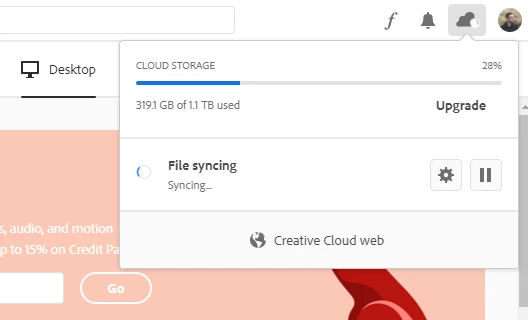
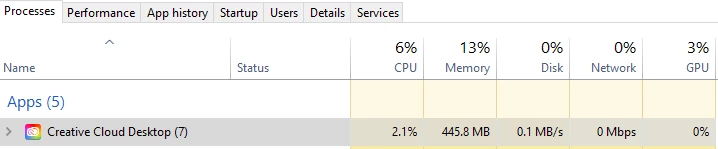
Creative Cloud Desktop (PC) stuck on "Syncing..." but is using 2% CPU and 0% network

  • February 9, 2021
  • 5 replies
  • 1184 views

Out of nowhere, my Creative Cloud is no longer able to sync.  It says "Syncing..." and has said this for hours no matter what I do, but it has stopped syncing as of some time this morning - I believe this was when it detected that several programs have updates.  I updated the programs as well and that didn't solve the problem.

I have tried deleting all of the database files.

I have tried deleting the OOBE folder.

I have tried rebooting, also booting into safe mode, to no avail - same problem.

Tried disabling my firewall and antivirus.

Tried exiting and reopening Creative Cloud.

Tried reinstalling creative cloud.

Tried pausing and unpausing the sync.

Tried just waiting for about 5 hours to see if it'd do anything...  Still just shows "Syncing."
 

This topic has been closed for replies.

5 replies

aeolus_behance
Participant
May 13, 2023

So do we get our money back? I can't even shut down the service, I have to kill it everytime.

kglad
Community Expert
Community Expert
May 13, 2023

@aeolus_behance 


suspend file syncing until you find the file that won't sync.

Nibroc99Productions
Known Participant
February 19, 2021

After much frustration, and having fixed the problem once, it's back again.  I don't know why this is such a major problem!  I fixed the problem (no thanks to Samit on the Adobe help line who moved 320GB of files without my permission to a different hard drive) initially by uninstalling Creative Cloud, backing up my files locally, deleting my entire creative cloud files folder locally, and letting it re-download the synced files from the cloud.  But now, after maybe 4 days, the problem is back.

0% network usage.  0% disk usage.  0% CPU usage.  Creative cloud isn't doing anything.  The icons that show whether individual files are synced or not have disappeared from Explorer again.  Normally there are either green checkmarks or blue arrows showing if a file is syncing or successfully synced - they're gone.  Creative Cloud desktop app just shows "synced 6 of 11 files" and it's said that for the past hour.  The files in question are mere kilobytes each, at least they should be assuming the new files I added are the ones it's trying to sync.


I'm beyond frustrated.  I've gotten no help from Adobe's end.  If anybody has any suggestions, I'll try them.  I want this to be fixed permanently.  I don't know why this has been such a problem as of late.  We at least need a way to see what file(s) are trying to be synced to Adobe's online server, so that we can see what is causing the program to hang like this.


Nibroc99Productions
Known Participant
February 19, 2021

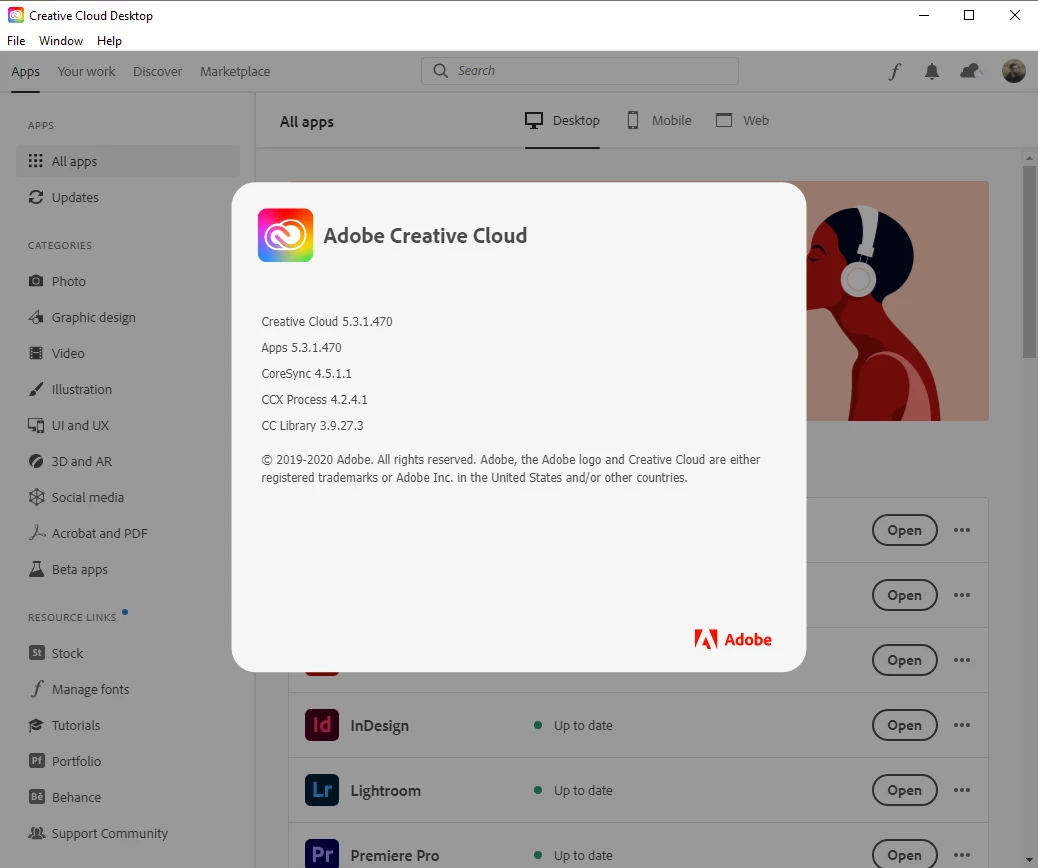
Update:  I tried booting in safe mode with networking, and it said that Creative Cloud had an update but it gave me an error 505.  So, I rebooted into normal mode and tried checking for updates, and it doesn't tell me that there are any new updates for Creative Cloud Desktop.  What is happening with this damn program? lol...

Nibroc99Productions
Known Participant
February 19, 2021

Further update:  It no longer shows a file number; it only says "syncing" again.  Same problem as before.  Wonderful...


Nibroc99Productions
Known Participant
February 10, 2021

Bump...  Problem is still persisting...

Nibroc99Productions
Known Participant
February 9, 2021

One more point to note:  In Explorer, in the creative cloud folder, normally there are checkboxes on all of the successfully synced files' icons.  There are no Creative Cloud status symbols on the file icons anymore.

Nibroc99Productions
Known Participant
February 9, 2021

Would also like to add:  I have a 1.2Gb/s download speed and 500Mb/s upload speed typically.  Wired connection.  The hard drive being used for my storage is dedicated only to Creative Cloud storage and nothing else, and is a fast SSD (Samsung 860 Evo).  Can post my system specs if needed.  I am running the latest version of Windows 10: Version 20H2.