
Photo Hamster
Participant
April 7, 2020
Answered

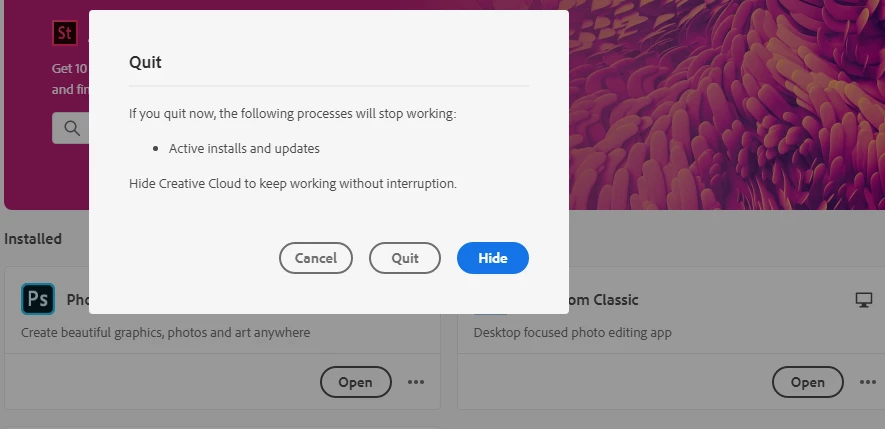
Creative Cloud Desktop thinks there are active installs, when there are not

  • April 7, 2020
  • 2 replies
  • 2350 views

I need help fixing what appears to be an invalid warning from Creative Cloud.  When I attempt to quit Creative Cloud Desktop on Windows 10 (File > Exit Creative Cloud), it gives a warning that there are "Active installs and updates", but the CC app does not show any pending updates.  See screenshot below.  Photoshop opens fine and is at version 21.1.1.  LR Classic opens fine and is at version 9.2, Camera Raw 12.2.  Creative Cloud opens fine and is at version 5.1.0.407.  Thanks


This topic has been closed for replies.
Correct answer Jeffrey_A_Wright

Thanks, Photo_Hamster for the update.  Did you locate and rename the OOBE folder, within the User Library, as discussed in solution two?


If so, then please contact our support team at https://helpx.adobe.com/contact.html so that direct assistance can be provided to resolve the error.

2 replies

Participant
September 17, 2020

This has been happeing to me since a certain CC app update a bit ago. I have confirmed there are no active installs or updates as the CC app states. This seems like a false warning created by adobe to have their software remain open on peoples' desktops. It appears to be comepletely false each time, as I have checked all CC app versions compared to the current releases and versions, all match up and yet it still says there are active installs and updates. We need some actual truth to this.

Jeffrey_A_Wright
Legend
April 7, 2020

Photo_Hamster, please see https://helpx.adobe.com/creative-cloud/kb/aam-lists-removed-apps-date.html for steps you can take if the Creative Cloud desktop app is not showing the correct status of the application.  Please update this public forum discussion, if you have any questions.

Photo Hamster
Participant
April 17, 2020

Thanks.  I performed options 2 and 3 from the link you supplied, and the same issue still exists.  Option 1 did not seem to apply, since all apps are listed as up to date and the error message does not specify what installs it thinks are active.  I'm really hesitant to try option 4 (uninstall all apps and use the CC cleaner to remove all further traces).  That really sounds like the nuclear option, and will take a lot of time.  Worse yet, I don't really want to reconfigure everything from scratch in all my CC apps.  I'd appreciate hearing of any OTHER things I can try.  I don't mind collecting troubleshooting info if you can tell me what you need.  Thanks again.

Jeffrey_A_Wright
Jeffrey_A_WrightCorrect answer
Legend
April 17, 2020

Thanks, Photo_Hamster for the update.  Did you locate and rename the OOBE folder, within the User Library, as discussed in solution two?


If so, then please contact our support team at https://helpx.adobe.com/contact.html so that direct assistance can be provided to resolve the error.