
Participant
July 1, 2013
Answered

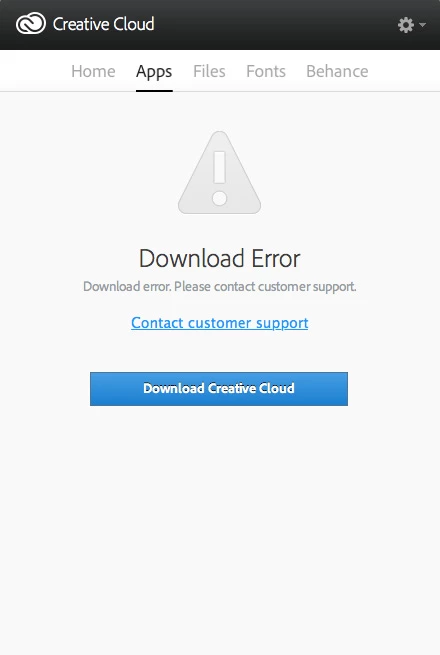
Creative Cloud "Download Error" message

  • July 1, 2013
  • 22 replies
  • 87965 views

When I go to the App section on the creative cloud manager I get the message "Download Error. Please Contact Customer Support."

Could somebody please help me fix this?

I have tried restarting my computer, signing in and out of creative cloud, and clearing the cache.

Thanks
This topic has been closed for replies.
Correct answer Sumit Singh7733893
  • Try to delete AAMupdater folder from

         ~/Library/Application Support/Adobe/

If above doesn't worked then perform below steps

  • Rename the opm.db file under

        ~/Library/Application Support/Adobe/OOBE

22 replies

rosiem30712669
Participant
December 7, 2015

SvenHeise instructions worked like a charm.

Thx you! Rosie

Participant
April 26, 2015

Hello. I tried this, and now it works perfectly fine, but now I can only ''try'' photoshop and lightroom, not download them, but before I had them.

Participant
April 9, 2015

Tried everything in this post. Nothing worked until I used the Cleaner tool. Get it. Run it now!!

philippeh17664524
Participant
April 5, 2015

Hi Everyone,

Thank you all for these useful entries. I wanted to add a useful contribution to this forum in the form of a video tutorial which will help you fix the problem along the same lines discussed above (i.e. renaming the AAMUpdater and OOBE files). I had to then uninstall CC and install it again for the problem to be solved, which put an end to my 24h of anxiety ;-)


Fix Adobe CC (Creative Cloud) - Download Error (Mac)

Participant
January 28, 2015

Hi, just got the CC yesterday and now also having this error. I've tried every single "solution" in here with absolutely no results. Have to log in every time and still have this error. I have Windows 7.


Getting annoyed to point of considering the refund and being done with Adobe forever.

Participant
January 20, 2015

Removing folder worked for me:

  • Try to delete AAMupdater folder from

         ~/Library/Application Support/Adobe/

Only problem is that it now doesn't find ny of my installed programs su guess i have to download and reinstall them again.

Jeffrey_A_Wright
Community Manager
Community Manager
January 20, 2015

Strutsageet from your description it sounds like the Library/Application Support/Adobe/AAMUpdater folder got removed.  This is where the updater payloads are stored.  Only reinstalling will restore them.

The advice in this discussion is to remove the User Library version of the folder. The ~ indicates the User folder.  The same file path can also be expressed as /Users/<UserName>/Library/Application Support/Adobe.  You will need to access the hidden User Library folder to access this location.

ssimmons@thirdmill.org
Participant
January 3, 2015

This worked for me:

Delete AAMupdater folder from ~/Library/Application Support/Adobe/

ricardo.araujo330
Participant
September 23, 2014

I found a very very easy solution... just install the Adobe Application Manager( Adobe - Adobe Application Manager : For Macintosh : Adobe Application Manager : Thank You ), clone and open the adobe creative cloud and the App tab is working now...

Participant
October 4, 2014

I tried everything in the forum with no results. This finally did the trick. Thanks!!!

theVezs
Participating Frequently
September 3, 2014

I cannot delete the folder "AAMupdater". As soon as I restart CC it appears again and gives the same error message.

Participant
August 12, 2014

Schonk72 hit the nail on the head. After a week of calling Adobe, and trying to chat with the useless tech's this solution in fact got my Creative Cloud acting normal again. Like ttturpin said, a lifesaver. Unfortunately I cannot get back the hours lost in trying to solve this issue and had to delay some client deliverables, but this does work. Holding down the Option button reveals the Library. Then following those steps after re-signing in brings everything back up again.

Cheers.

Participating Frequently
September 8, 2014

jasonalehr,

glad you got it working. If you haven't, like my response, as it helps.