NovaWolf28
Participant
January 12, 2016
Answered

Creative Cloud Download Error Under Apps

  • January 12, 2016
  • 3 replies
  • 397 views

Really The Problem is in the title. Here is what it looks like:
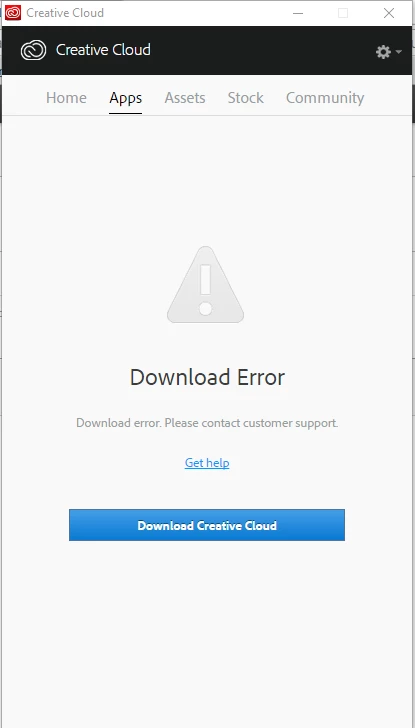
If anyone want's to help, I'd appreciate it.

This topic has been closed for replies.
Correct answer Sheena Kaul

Hi,

Please follow the steps below:

Uninstall Adobe Creative Cloud application from Control Panel.

Step 1 :

Open C:drive and navigate to C:\Program Files (x86)\ " Common Files" \Adobe.

Open Adobe folder and delete folders named Adobe Application Manager and OOBE.

Step 2:

Navigate to C:\Program Files (x86)\Adobe.

Open Adobe folder and if present delete Adobe Creative Cloud folder. [**important]

Step 3 :

Press Windows button (located between Ctrl and Alt buttons) along with R button together at a time , you will get a run command window.

Type in below command and hit 'Enter' key.

appdata

Then navigate to Local>Adobe.

Open Adobe folder and delete folders named AAMUpdater and OOBE.

Step 4 :

Click on the blow link and download Adobe Application manager and install the same :

http://download.adobe.com/pub/adobe/creativesuite/cc/win/ApplicationManager9.0_all.exe

Once the installation is completed, double click on Adobe Application Manager launch icon on Desktop.

It will start update process and gets updated to Creative Cloud application .

Hope that helps!

Regards,

Sheena

3 replies

NovaWolf28
Participant
January 12, 2016

IDK why I didn't tell you this, but I'm running Windows 10 64 bit, and the program worked for me before. I had already tried tried uninstalling and reinstalling the program multiple times and I still got the same error. I just tried reinstalling it with CC Cleaner and got the same error.

Sheena Kaul
Community Manager
Sheena KaulCommunity ManagerCorrect answer
Community Manager
January 12, 2016

Hi,

Please follow the steps below:

Uninstall Adobe Creative Cloud application from Control Panel.

Step 1 :

Open C:drive and navigate to C:\Program Files (x86)\ " Common Files" \Adobe.

Open Adobe folder and delete folders named Adobe Application Manager and OOBE.

Step 2:

Navigate to C:\Program Files (x86)\Adobe.

Open Adobe folder and if present delete Adobe Creative Cloud folder. [**important]

Step 3 :

Press Windows button (located between Ctrl and Alt buttons) along with R button together at a time , you will get a run command window.

Type in below command and hit 'Enter' key.

appdata

Then navigate to Local>Adobe.

Open Adobe folder and delete folders named AAMUpdater and OOBE.

Step 4 :

Click on the blow link and download Adobe Application manager and install the same :

http://download.adobe.com/pub/adobe/creativesuite/cc/win/ApplicationManager9.0_all.exe

Once the installation is completed, double click on Adobe Application Manager launch icon on Desktop.

It will start update process and gets updated to Creative Cloud application .

Hope that helps!

Regards,

Sheena

Sheena Kaul
Community Manager
Community Manager
January 12, 2016
John T Smith
Community Expert
Community Expert
January 12, 2016