
Creative Cloud for Desktop app > Launch at login (solved)
I’ve had an issue with Creative Cloud for Desktop app (using Windows 8.1 Update 1 x64) – regardless of what has been set on my Preferences > General Tab > Launch at login, my app didn’t start at logon (system startup).
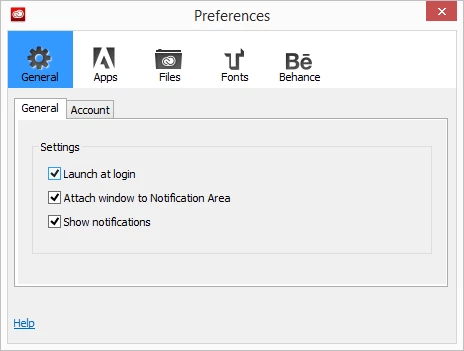
I’ve tried:
- uncheck the ‘Launch at login’ option (Preferences > General Tab). Restart PC. Launch the CC app, check ‘Launch at login’. Restart. Didn’t help.
- uncheck the ‘Launch at login’ option (Preferences > General Tab). Restart PC. Remove the startup Key from registry stored under: [HKEY_LOCAL_MACHINE\SOFTWARE\Wow6432Node\Microsoft\Windows\CurrentVersion\Run]. Restart. Launch the CC app, check ‘Launch at login’. Restart. Didn’t help.
- reinstall Creative Cloud for desktop app. Didn’t help.
- rename the OPM.db file (as described here: http://helpx.adobe.com/creative-cloud/kb/apps-panel-reflect-creative-cloud.html). Didn’t help.
Finally - since the CC app is actually and x86 application - I’ve moved the startup entry from the x64 Run Key [Wow6432Node\Microsoft\Windows\CurrentVersion\Run] into the common x86 [Microsoft\Windows\CurrentVersion\Run].
Simply:
a. Remove:
[HKEY_LOCAL_MACHINE\SOFTWARE\Wow6432Node\Microsoft\Windows\CurrentVersion\Run]
"Adobe Creative Cloud"="\"C:\\Program Files (x86)\\Adobe\\Adobe Creative Cloud\\ACC\\Creative Cloud.exe\" --showwindow=false --onOSstartup=true"
a. Create:
[HKEY_CURRENT_USER\Software\Microsoft\Windows\CurrentVersion\Run]
"Adobe Creative Cloud"="\"C:\\Program Files (x86)\\Adobe\\Adobe Creative Cloud\\ACC\\Creative Cloud.exe\" --showwindow=false --onOSstartup=true"
And you know what? it woooorks!!! Now my app starts with windows!
I'm sharing this in case someone else has run into the same problem.
Best Regards,
Pawel Kuc
<Removed by Moderator>
 AdChoices