
Participant
September 11, 2020
Answered

Creative Cloud is needed to resolve this problem

  • September 11, 2020
  • 1 reply
  • 511 views

I tried Adobe Pro DC on a free trial. It included, apparently, Creative Cloud. After a few days I cancelled my free trial and uninstalled all the s/w. However, every time my computer starts up, I get this little dialog box that says "Adobe Creative Cloud is needed to resolve this problem. However, it is missing or damaged. Please download and install a new copy of Creative Cloud".


I have tried using the Creative Cloud Cleaner tool found elsewhere in this forum, to no avail. I really do not want to d/l CC again. Is there a way to fix this and make that annoying dialog box go away?


Thanks,

Paul
This topic has been closed for replies.
Correct answer Paul5F88

Ok, the best suggestion would be to follow the steps listed in https://helpx.adobe.com/creative-cloud/help/download-install-app.html to install one of the CC apps.  Once reinstalled, you can then follow the steps in https://helpx.adobe.com/creative-cloud/help/uninstall-remove-app.html to remove the apps.


If this process fails, then you can utilize the steps in https://helpx.adobe.com/creative-cloud/kb/creative-cloud-missing-damaged.html to remove the Creative Cloud desktop app.  


The first suggestion requires less manual effort but will utilize data to redownload and install the software.  If this is a concern, then you may want to skip the first suggestion and implement the solutions listed in https://helpx.adobe.com/creative-cloud/kb/creative-cloud-missing-damaged.html.


Here is what I did:

  1. Installed CC desktop
  2. Installed premier rush
  3. Uninstalled premier rush from inside CC per the steps in https://helpx.adobe.com/creative-cloud/help/uninstall-remove-app.html
  4. Then moved on to the steps in https://helpx.adobe.com/creative-cloud/kb/creative-cloud-missing-damaged.html and followed "solution 2" to uninstall CC desktop for Windows
  5. Rebooted computer
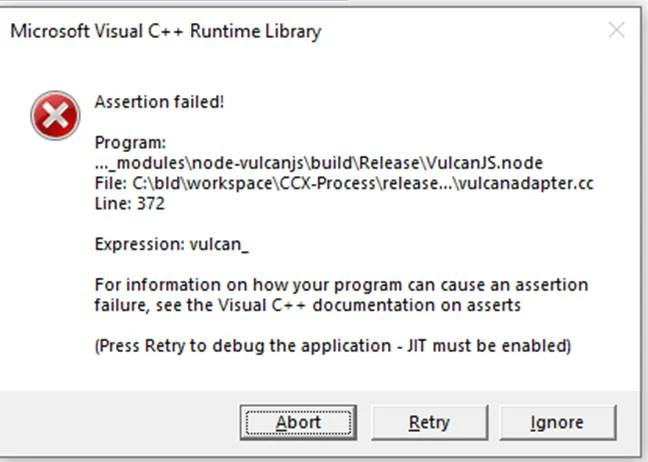
  6. No more CC error dialog box, but instead got the attached Visual C++ Runtime Library error immediately (I did nothing else on my PC)
  7. Followed “solution 3” (from link in #4 above) and followed instructions to run CC Cleaner tool.
  8. Within CC Cleaner, I chose option 3 as instructed but then chose option 5 “clean all” as the written instructions do not match the options available in the tool
  9. So far, it appears to have worked. No more popup error messages.


So far, so good. Thank you for your help!


1 reply

Jeffrey_A_Wright
Community Manager
Community Manager
September 11, 2020

Paul, did you use the process listed in https://helpx.adobe.com/creative-cloud/help/uninstall-remove-app.html to remove Acrobat and the Creative Cloud desktop app?  What operating system were you evaluating Acrobat DC on?

Paul5F88Author
Participant
September 11, 2020

I believe I went to Settings, Apps (in Win10 Pro) and uninstalled it from there. I did this after following the Adobe instructions for how to cancel the free trial, which if I remember correctly did not also include instructions on how to uninstall. Hence I apparently did not follow the instructions you linked to.

Jeffrey_A_Wright
Community Manager
Community Manager
September 11, 2020

Ok, the best suggestion would be to follow the steps listed in https://helpx.adobe.com/creative-cloud/help/download-install-app.html to install one of the CC apps.  Once reinstalled, you can then follow the steps in https://helpx.adobe.com/creative-cloud/help/uninstall-remove-app.html to remove the apps.


If this process fails, then you can utilize the steps in https://helpx.adobe.com/creative-cloud/kb/creative-cloud-missing-damaged.html to remove the Creative Cloud desktop app.  


The first suggestion requires less manual effort but will utilize data to redownload and install the software.  If this is a concern, then you may want to skip the first suggestion and implement the solutions listed in https://helpx.adobe.com/creative-cloud/kb/creative-cloud-missing-damaged.html.