
Participant
July 28, 2018
Answered

Creative Cloud not recognizing with installed Apps

  • July 28, 2018
  • 3 replies
  • 23389 views

Hi there,

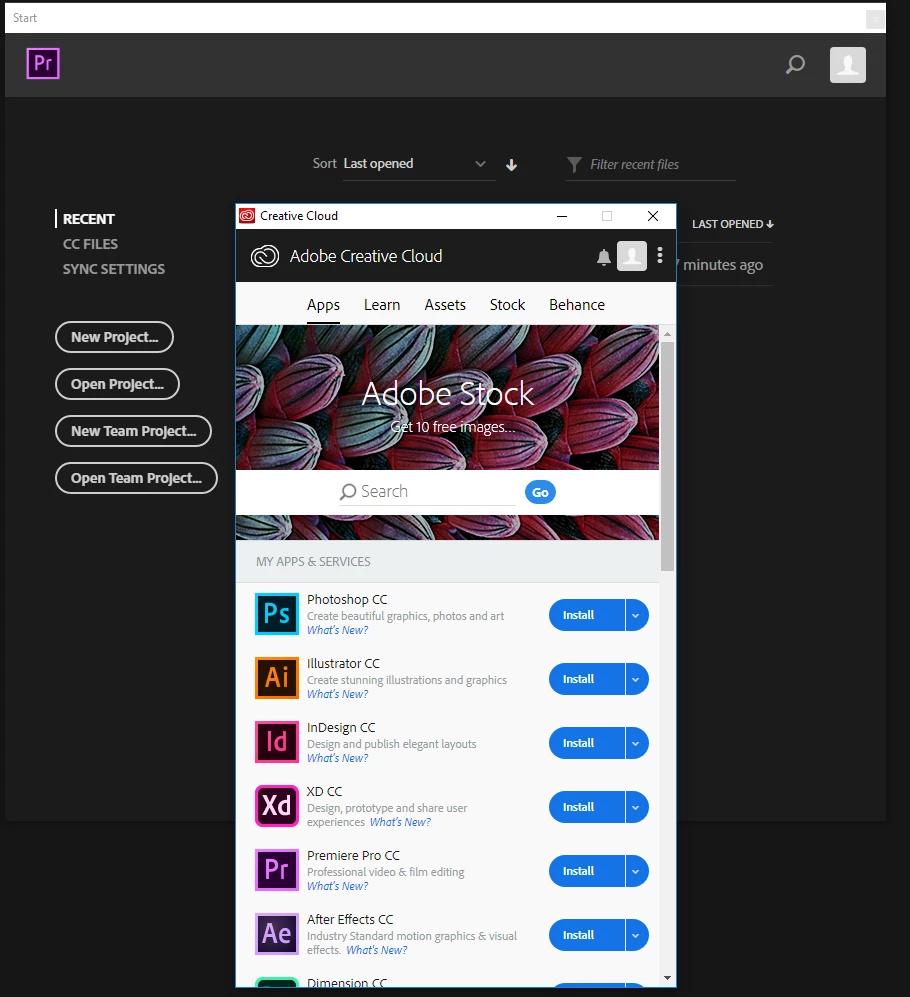
I have reinstalled/updated Windows (from 8.1 to 10), and I have my Adobe Creative Cloud apps installed in a different drive (D:\). I am trying to sync or detect the already installed apps to Cloud desktop app with no avail.

Is there a way for me to link/detect/sync the installed apps (AE,PR,LR,PS), without having to re-install them again and lose all my plugins and custom settings ? I have on going projects.

You can see from the attached screenshot that I have Premier running in the background and the Desktop App not detecting it.

I have tried re-installing the Desktop app and run update from Help> Update in Premier.

Any help will be appreciated. Thanks.
This topic has been closed for replies.
Correct answer kglad

this is the official help page for the problem, https://helpx.adobe.com/manage-account/kb/stop-creative-cloud-trial-mode-after-purchase.html

3 replies

Participant
May 14, 2019

Same issue. Apps on D: drive are not recognized when reinstalling Creative Cloud on C: drive after system restore. I tried the folder permissions suggestion. Tried the language suggestion. Did check my Adobe subscription. None of it worked. Any other suggestion? The current version of Creative Cloud is 4.8.1.435. Thanks.

Participant
January 3, 2020

I just had the same problem. Switching the Install location worked for me.


arij2010
Inspiring
July 30, 2018

Hi,

I think the language is not correct .When you install CC desktop for the first time ,the language is on 'Locale" and it's the same as your OS .Maybe you need to choose "International English " or another English version ...

johank61892052
Participant
April 24, 2019

That was the solution for me! The apps where International English and CC Desktop was North America.

After changing to international English is CC Desktop and restarted the app, my InDesign and Photoshop shows up as installed.

Participant
December 21, 2022

Thank you, this solution solved my problem

kglad
Community Expert
Community Expert
July 28, 2018

change the install drive (to your D:/directory) in the cc app settings to match the drive directory where the apps are currently installed.

Participant
July 28, 2018

Yeah, thats the 1st thing I tried. No success

kglad
Community Expert
Community Expert
August 24, 2024

This worked for everything but Acrobat. I tried 3 times and Acrobat wouldn't install. So, being a computer tech, I theorized that the existing folder might be bugged, as I remembered having trouble with it on the previous Windows install. I Deleted the Acrobat DC folder, hit Retry in the app, and it installed smoothly! 🙂


congrats, and good job!