Participant
March 13, 2018
Answered

Error code P22 (title edited)

  • March 13, 2018
  • 3 replies
  • 18761 views

Hello kglad,

is there also a direct link for downloading the Creative Cloud desktop app? Due to issue P22 I can´t download anything from CC and therefore can´t change the default volume.

Thanks for your help,

caroline

This topic has been closed for replies.
Correct answer Bani Verma

(Branched out as a new discussion)

Hi Caroline,

As you have mentioned you are getting Error P22 when trying to install Adobe Creative Cloud apps on your machine.

You cannot install Adobe products on a volume that uses a case-sensitive file system, such as HSFX (HFS+) or UFS. This limitation applies to both the startup drive as well as the drive onto which the software is installed.

To know more about this see: Adobe error "Case-sensitive drives not supported" or similar install error | Mac OS.

You can install apps on a different drive of your machine however we would suggest you to install your application on the primary drive or C drive only.

You may use the direct download link in the following help document to download and install Creative Cloud desktop app: Download Creative Cloud desktop app.

You can configure the installation destination from within the Creative Cloud app preferences. Please be aware that there will still be shared resources stored to your primary drive, In addition during the install process temporary files will also be created on your primary drive.

Please see the screen shot below for more information:
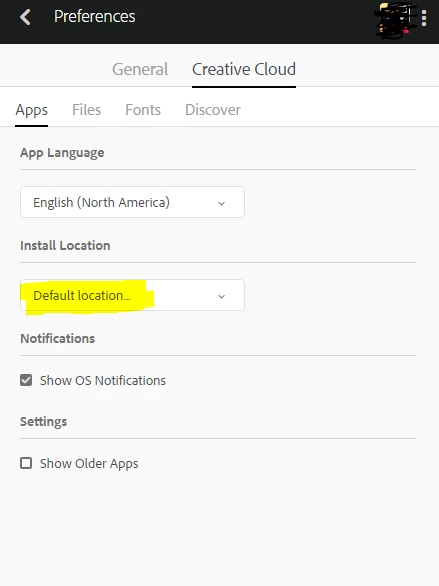
Note: If you have already installed apps then you'll have to uninstall them and make the location changes in Creative Cloud Desktop app, after that reboot the machine and now install your apps again and it should install on new selected location.

Let us know if this helps.

3 replies

Participant
December 5, 2019

Hi, I appreciate  the much info we have here. However, my case may be different in a way that I had a working Cretive Cloud product on my MacBook Pro before a damage to my HDD and was replaced with new one to get this Error P22 at the attemp of reinstalling my products. What I rather need is a way to reconfigure back my system settings from this case-sensitivity issue. I will so much appriciate your reasonable and understandable advise. Thanks!

Participant
November 5, 2018

The current answer from Adobe or others does not help when using macOS Mojave with a root filesystem based on APFS.  Even though the root volume is  case-preserving but not case-sensitive, you will still find Adobe apps failing to either update or install of some other volume on your system is case-sensitive.

This is a constant problem with applications from Adobe that really should have been fixed some twenty or more years ago.

The best option, just don't continue to pay subscription fees to Adobe if they can't fix their software to work with modern file systems.

Participant
November 27, 2019

I am also having this issue with Catalina APFS, will there ever be a resolution?

If i cant use your software why am i paying so much for it?


Bani Verma
Bani VermaCorrect answer
Legend
March 13, 2018

(Branched out as a new discussion)

Hi Caroline,

As you have mentioned you are getting Error P22 when trying to install Adobe Creative Cloud apps on your machine.

You cannot install Adobe products on a volume that uses a case-sensitive file system, such as HSFX (HFS+) or UFS. This limitation applies to both the startup drive as well as the drive onto which the software is installed.

To know more about this see: Adobe error "Case-sensitive drives not supported" or similar install error | Mac OS.

You can install apps on a different drive of your machine however we would suggest you to install your application on the primary drive or C drive only.

You may use the direct download link in the following help document to download and install Creative Cloud desktop app: Download Creative Cloud desktop app.

You can configure the installation destination from within the Creative Cloud app preferences. Please be aware that there will still be shared resources stored to your primary drive, In addition during the install process temporary files will also be created on your primary drive.

Please see the screen shot below for more information:

Note: If you have already installed apps then you'll have to uninstall them and make the location changes in Creative Cloud Desktop app, after that reboot the machine and now install your apps again and it should install on new selected location.

Let us know if this helps.

Participant
April 16, 2018

1st I got a error code: p22 while attempting an install of photoshop on a fresh install of high sierra. Im now getting error code :22 when attempting an install of the adobe cloud app fix you suggest in this post. I must say when navigating through the Adobe site for fixes its like a dog chasing its own tail

Bani Verma
Legend
April 17, 2018

Hi Sylvanimate,

Sorry for the inconvenience caused. Did the steps given above help and is your issue resolved now?

Let us know if you need any more help.