


Participant
May 21, 2025
Question

failed update on Photoshop

  • May 21, 2025
  • 4 replies
  • 240 views

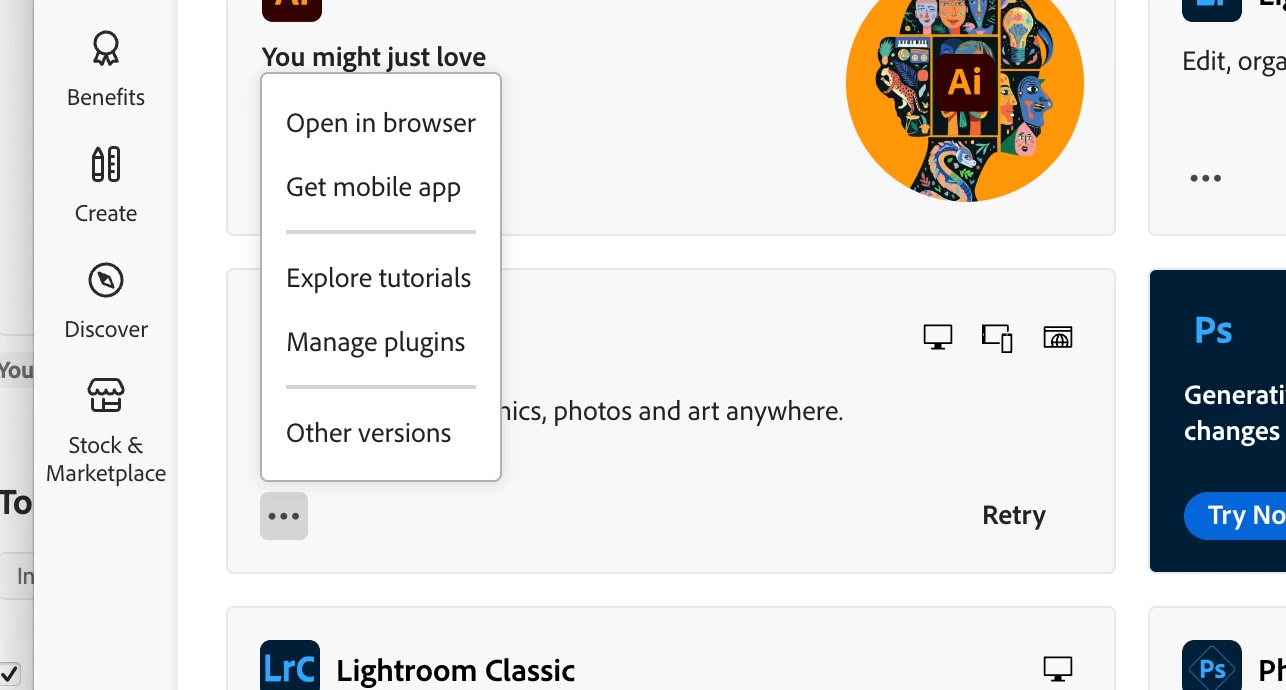
I tried to update to the latest version of PS. I got an error "insufficent disk space" which is understandable.  I want to unstall PS and install on an external HD but there is no option to uninstall the program. How can I uninstall this?
 

4 replies

Nancy OShea
Community Expert
Community Expert
May 25, 2025

Use your operating system's Add/Remove Programs tool from Control Panel Settings.

https://support.microsoft.com/windows/uninstall-or-remove-apps-and-programs-in-windows-4b55f974-2cc6-2d2b-d092-5905080eaf98


That said, you still need ample hard disk space to unpack installers.  Be sure to free up some disk space before you install again.  Refer to Photoshop system requirements.

  • Windows 11 (64-bit) versions 24H2, 23H2; Windows 10 versions 22H2, 21H2;
  • MacOS 15 (Sequoia), 14.7 (Sonoma), 13.6.7 (Ventura).

- https://helpx.adobe.com/creative-cloud/system-requirements.html
- https://helpx.adobe.com/photoshop/system-requirements.html
- https://helpx.adobe.com/photoshop/kb/photoshop-cc-gpu-card-faq.html

Nancy O'Shea— Product User & Community Expert
kglad
Community Expert
Community Expert
May 22, 2025

ie, some ps files will still use the os drive.

Peru Bob
Community Expert
Community Expert
May 22, 2025

If you are that short of free space on the internal drive, you will likely soon experience issues due to insufficient space for system and temp files.

It's time to upgrade to a larger drive.

Community Manager
May 21, 2025

Hi @Thirstyboots,


Thank you for reaching out.

Based on your message, it appears you attempted to update to the latest version of Photoshop but encountered an "insufficient disk space" error. You now wish to uninstall Photoshop and reinstall it on an external hard drive. Please confirm if this is the issue you need assistance with.

To uninstall Adobe apps, please follow the steps below:

On Windows:

  • Go to Control Panel > Programs > Programs and Features

  • Locate Adobe Photoshop in the list

  • Right-click and select Uninstall

On macOS:

  • Navigate to Applications > Adobe Photoshop [version]

  • Open the Uninstall Adobe Photoshop app in that folder

  • Follow the on-screen prompts

You can also use the Creative Cloud Cleaner Tool to uninstall Adobe applications. Instructions are available here:
https://adobe.ly/44JcsfF

Please note: Adobe applications cannot be installed directly on an external drive. However, you can change the default install location to a secondary internal drive (not a removable USB drive). Installing on an external drive may result in failure or reversion to the internal drive.

To change the install location:

  • Open the Creative Cloud Desktop app

  • Click your profile icon (top right) > Preferences

  • Under Install Locations, choose a folder on a secondary internal drive

Once updated, proceed to reinstall Photoshop.

Hope this helps. Please let us know if you need further assistance.

Regards,
^AN