


Inspiring
September 25, 2022
Answered

Getting Error 304 and large number of requests to give the installer permission - Installing PS & CC

  • September 25, 2022
  • 3 replies
  • 3028 views

I've tried everything, even reinstalling the OS mulitple times.

Creative cloud simply will not install properly, saying the sync component did not install.

This is so infuriating. It's a fresh install of Windows 10 Pro, and I've used the inunstaller to uninstall, then reinstall the creative cloud installer over and over. It's been 10 times now.


Things I've tried:

1. Changing permissions on running the installer

2. Uninstalling and reinstalling Creative Cloud (10 times)

3. Restarting the comptuer between uninstall/reinstalls.

4. Reinstalling the OS (three times, tried using Windows home too, but same results)

5. Updating everything.

6. Making a new user, setting thier permissions to administrator, and trying again.


This has taken pretty much all day, and I'm tired and frustrated. What can I do that will solve this issue?


Here's a video of the problem: https://www.dropbox.com/s/lpf1t4io5a5t21t/20220925_143225.mp4?dl=0


Please help!

Thanks!
This topic has been closed for replies.
Correct answer cr80170577

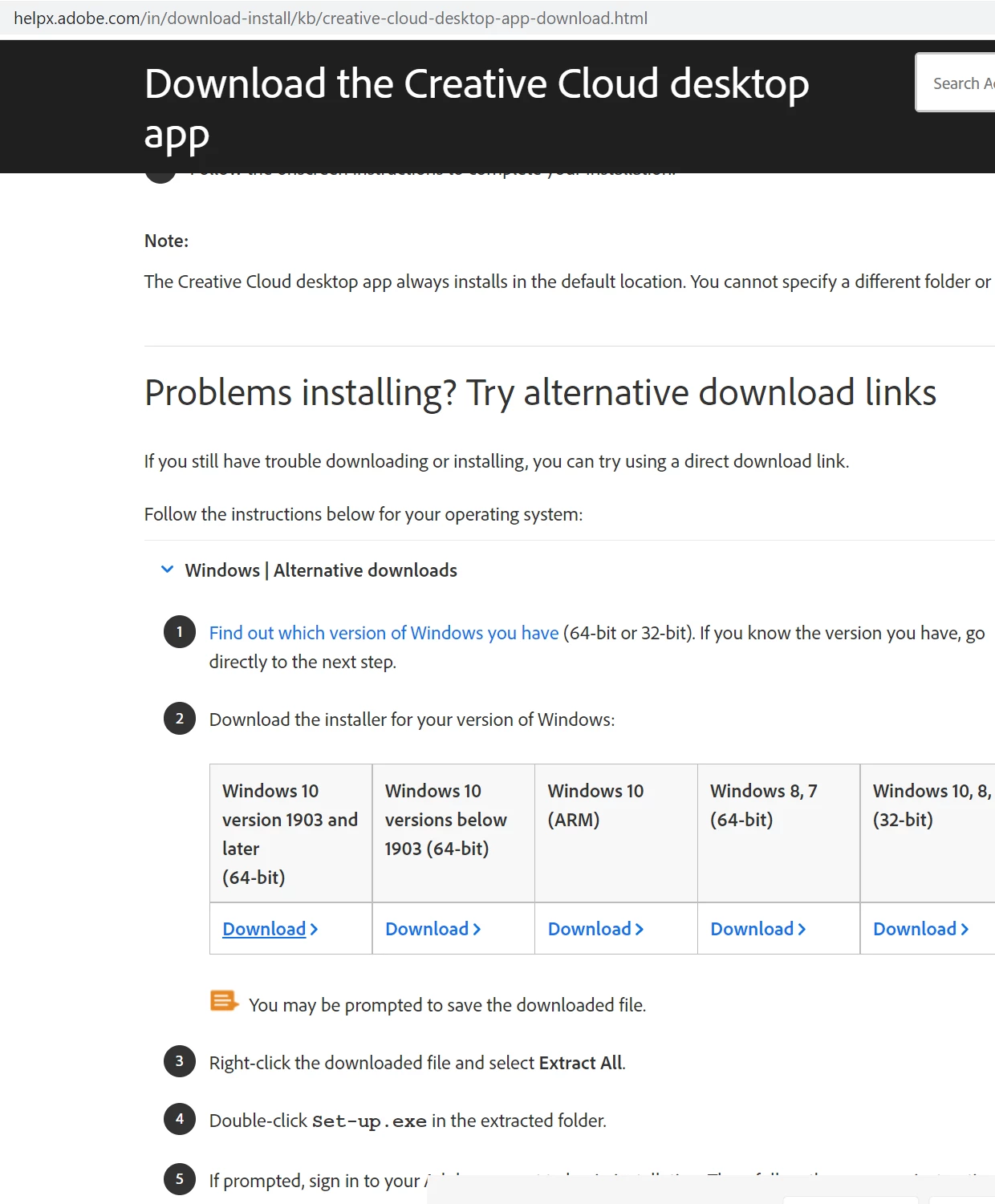
Okay, so I was able to get farther (different error, yay!) by following the links to the alternative downloads, hidden in an expander at the bottom of this page: 

This downloaded a file called ACCCx5_8_0_592 which was about 328 MB, I followed the instructions to unzip it and ran the installer giving it administrator permissions. Then it gave me some error about not being able to access a folder and to dissable antivirus, etc, and try again. It also gave me a chat link, which I pushed rather than continue, because who knows if I'd ever get another opportunity to get help. Connected me up to a help rep who took over my computer and manually installed some certificates, apparently according to this page: Error code 42 or 72 when installing Adobe Creative Cloud

I assume they just skipped to solution two and downloaded and installed the certificates (that appears to be what they were doing). After that, it "just worked"...


Now, call me crazy, but I've installed just about every kind of sortware and OS out there, and this has been *by far* the worst out-of-the-box software experience I've ever had. The rep seems to think it's MS's fault, but giving me a 304 error code all friggin day long, and no indication that it's the certificate that's the issue is, in a word, ridicoulous. I mean, I come from Linux, and we seriously don't have to deal with anything at all this complicated with any software packages. It would be deemed completely unnaceptable by most users. Adobe + MS need to get together and figure this out, because the only thing in the world that keeps me putting up Windows for any length of time is that CC isn't written for Linux. Frankly, I'm very upset with this experience and I truly hope this series of unfortunate events helps someone else stuck with this absolute catastrophe of an install process. 


Thanks @kglad for the help. 

3 replies

Community Manager
September 28, 2022

Hi all,

Our engineering team has identified that Error code 304 indicates that the installation is no longer functional.

Could you test the suggestions listed in this article and let us know they work for you?

https://helpx.adobe.com/creative-cloud/kb/troubleshoot-download-install-logs.html#error304


Thanks,

Shivangi

cr80170577AuthorCorrect answer
Inspiring
September 25, 2022

Okay, so I was able to get farther (different error, yay!) by following the links to the alternative downloads, hidden in an expander at the bottom of this page: 

This downloaded a file called ACCCx5_8_0_592 which was about 328 MB, I followed the instructions to unzip it and ran the installer giving it administrator permissions. Then it gave me some error about not being able to access a folder and to dissable antivirus, etc, and try again. It also gave me a chat link, which I pushed rather than continue, because who knows if I'd ever get another opportunity to get help. Connected me up to a help rep who took over my computer and manually installed some certificates, apparently according to this page: Error code 42 or 72 when installing Adobe Creative Cloud

I assume they just skipped to solution two and downloaded and installed the certificates (that appears to be what they were doing). After that, it "just worked"...


Now, call me crazy, but I've installed just about every kind of sortware and OS out there, and this has been *by far* the worst out-of-the-box software experience I've ever had. The rep seems to think it's MS's fault, but giving me a 304 error code all friggin day long, and no indication that it's the certificate that's the issue is, in a word, ridicoulous. I mean, I come from Linux, and we seriously don't have to deal with anything at all this complicated with any software packages. It would be deemed completely unnaceptable by most users. Adobe + MS need to get together and figure this out, because the only thing in the world that keeps me putting up Windows for any length of time is that CC isn't written for Linux. Frankly, I'm very upset with this experience and I truly hope this series of unfortunate events helps someone else stuck with this absolute catastrophe of an install process. 


Thanks @kglad for the help. 

Participant
September 25, 2022

Hi,same problem!

Do you have solved?

Inspiring
September 25, 2022

Hi. Yes - make sure windows is updated fully, and do these steps from kglad's answer:

1. uninstall the cc desktop app,  use the correct uninstaller from https://helpx.adobe.com/creative-cloud/help/uninstall-creative-cloud-desktop-app.html#sa_src=web-mes...


2. clean your computer per http://www.adobe.com/support/contact/cscleanertool.html


3. restart your computer (if you ignore subtlies like this, you'll probably cause more problems)


Then go to the bottom of the page under:

Problems installing? Try alternative download links

I installed the first one there, which is for some reason different than the one listed earlier up the help page.

After I did that, I got an error 42 which recommended that I dissable my antivirus software (I don't have any installed). A rep over the phone then took over my machine and installed these two certificates (solution 2) to fix that problem: https://helpx.adobe.com/uk/creative-cloud/kb/Error-code-42-or-72-when-installing-or-updating-Creative-Cloud-desktop-app.html


In the end, I didn't solve it. I had to give complete control of my computer to a representative to fix it. This is what they told me they did to fix it. I'm sorely tempted to whip out a fresh HD and repeat this invernal process and Youtube it so people don't spend all day trying to solve this nonsense manually.

kglad
Community Expert
Community Expert
September 25, 2022

the first problem i see in your video is you're using an out-of-date installer.


so, first make sure your win 10 os is up-to-date


then, if the target computer is one where you have already had botched (or successful) installs:


1. uninstall the cc desktop app,  use the correct uninstaller from https://helpx.adobe.com/creative-cloud/help/uninstall-creative-cloud-desktop-app.html#sa_src=web-messaging


2. clean your computer per http://www.adobe.com/support/contact/cscleanertool.html


3. restart your computer (if you ignore subtlies like this, you'll probably cause more problems)


4.  use the correct, Windows 10 version 1903 and later (64-bit), i hope, link at page bottom here, https://helpx.adobe.com/in/download-install/kb/creative-cloud-desktop-app-download.html to download the current cc desktop app installer


5. follow the direction at the link in 4 to install you cc desktop app, but before of double clicking set-up.exe, right click it and click run as administrator


6. if you see a problem after installing, restart your computer.


7. if you see a problem after installing (especially the sync issue error shown in your video), reset the cc desktop app: make sure it's in the foreground, then press:

Win: Ctrl + Alt + R
Mac: Cmd + Opt + R

Inspiring
September 25, 2022

Hi. I followed these steps exactly, making sure Windows was up to date (it's now OS Build 19044.2075, as you can ses here:)

I also used the links provided, installed and ran the log collector as described in the preperation to install the cleaner, and then ran the cleaner, choosing the option 1 to clean "All" as described in the instructions specifically for sync errors. I then restarted. Then did the right-click and run as admin to the installer, which got rid of the prompts to let the installer do what it wanted to the computer, but didn't solve the problem when it reached the end of the install, as you can see in this video, ther results are the same:

https://www.dropbox.com/s/rddmmdgpb57qplw/20220925_200607.mp4?dl=0 


I tried then to restart once more, and try again. That failed in the same way upon restart as you can see from this video: 

https://www.dropbox.com/s/pw7gev8gl8oyh0h/20220925_201523.mp4?dl=0


Inspiring
September 25, 2022

Forgot to mention, also tried this, with the same result:

7. if you see a problem after installing (especially the sync issue error shown in your video), reset the cc desktop app: make sure it's in the foreground, then press:

Win: Ctrl + Alt + R