Inspiring
August 6, 2020
Answered

I can't launch any application

  • August 6, 2020
  • 7 replies
  • 811 views

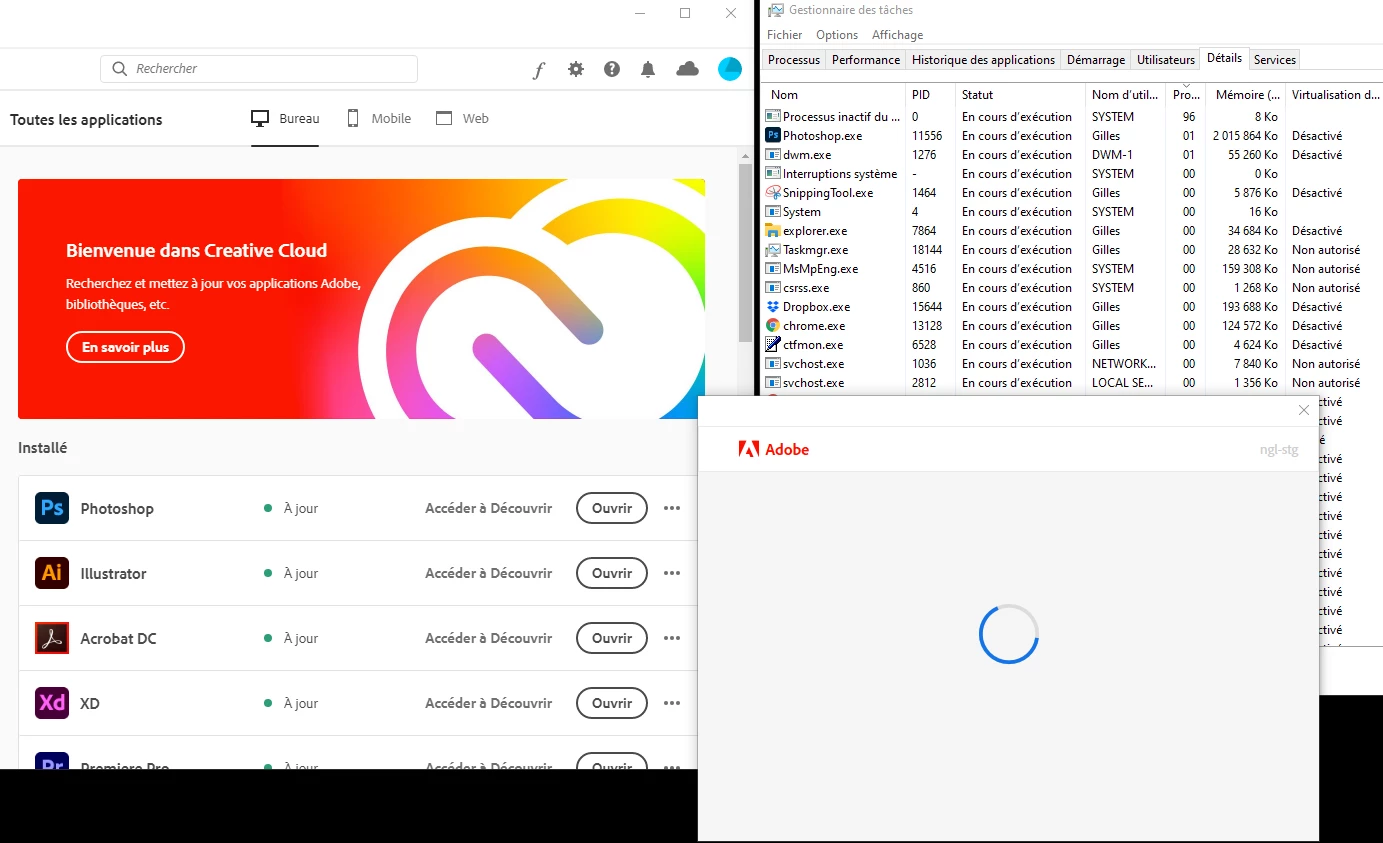
Today when I launch an application I've a window that opens and gets stuck like this.

Yes I did a reboot.

Yes Creative Cloud and Applications are updated.

Yes I signed out of Creative Cloud, quit Creative Cloud app, relaunched it and signed again. It changes nothing...


Any idea how to fix that situation?


This topic has been closed for replies.
Correct answer gillesb93274023

Problem solved!

The solution was given by the Chat Support


1) Uninstall all Adobe software from your computer
https://helpx.adobe.com/fr/creative-cloud/kb/uninstall-or-remove-creative-cloud-apps-while-offline.html


Last uninstall the Creative Cloud Desktop Manager

https://helpx.adobe.com/fr/creative-cloud/help/uninstall-creative-cloud-desktop-app.html


Restart your computer


Run Creative Cloud cleaner (Adobe's software), downloadable from https://helpx.adobe.com/fr/photoshop-elements/kb/elements-installation-error-CC-cleaner-tool.html


Restart your computer


2) Bring up Windows hidden files: http://is.gd/windows_hidden


3) Delete the following folders :
C:\Program Files (x86)\Common Files\Adobe\OOBE
C:\Program Files (x86)\Common Files\Adobe\SLCache
C:\ProgramData\Adobe\SLStore
C:\Programmes\Common Files\Adobe\OOBE (If present)
C:\Programmes\Common Files\Adobe\AAMUpdaterInventory (If present)
C:\Users\%user%\AppData\Local\Adobe\OOBE
C:\Users\\%user%AppData\Local\Adobe\AAMUpdater\1.0


NB: if the file is in use and cannot be deleted, restart the machine in Safe Mode to delete the folders.
Go to http://support.microsoft.com/kb/929135/fr
Click on "Contents" then on "Procedure to start in Safe Mode".


4) Empty the Trash (very important)


5) Check the write permissions on the following folders:

C:\Program Files (x86)\Common Files\Adobe
C:\Users\%user%\AppData\Local\Adobe\


Right-click on these folders and go to "Properties"

At the bottom of the "General" tab, opposite "Attributes", uncheck the "Read Only" checkbox

Click "Apply"

If you are asked what to do with the sub-folders, select "Apply to all sub-folders".

Click on "Ok"


6) Login with Chrome to your account at Adobe.com, go to your applications and restart the Creative Cloud download.




7 replies

Participant
June 16, 2023

Listen this is not Creative Cloud

I am talking about Adobe Acrobat DC

Dont you understand English

I said Please Immediately Refund my Money and I will retry my way

kglad
Community Expert
Community Expert
June 16, 2023

@defaultx6edqt14gske 


who are you addressing?

Participant
June 16, 2023

Just refund me back. 

I will retry

Vinay

gillesb93274023AuthorCorrect answer
Inspiring
August 6, 2020

Problem solved!

The solution was given by the Chat Support


1) Uninstall all Adobe software from your computer
https://helpx.adobe.com/fr/creative-cloud/kb/uninstall-or-remove-creative-cloud-apps-while-offline.html


Last uninstall the Creative Cloud Desktop Manager

https://helpx.adobe.com/fr/creative-cloud/help/uninstall-creative-cloud-desktop-app.html


Restart your computer


Run Creative Cloud cleaner (Adobe's software), downloadable from https://helpx.adobe.com/fr/photoshop-elements/kb/elements-installation-error-CC-cleaner-tool.html


Restart your computer


2) Bring up Windows hidden files: http://is.gd/windows_hidden


3) Delete the following folders :
C:\Program Files (x86)\Common Files\Adobe\OOBE
C:\Program Files (x86)\Common Files\Adobe\SLCache
C:\ProgramData\Adobe\SLStore
C:\Programmes\Common Files\Adobe\OOBE (If present)
C:\Programmes\Common Files\Adobe\AAMUpdaterInventory (If present)
C:\Users\%user%\AppData\Local\Adobe\OOBE
C:\Users\\%user%AppData\Local\Adobe\AAMUpdater\1.0


NB: if the file is in use and cannot be deleted, restart the machine in Safe Mode to delete the folders.
Go to http://support.microsoft.com/kb/929135/fr
Click on "Contents" then on "Procedure to start in Safe Mode".


4) Empty the Trash (very important)


5) Check the write permissions on the following folders:

C:\Program Files (x86)\Common Files\Adobe
C:\Users\%user%\AppData\Local\Adobe\


Right-click on these folders and go to "Properties"

At the bottom of the "General" tab, opposite "Attributes", uncheck the "Read Only" checkbox

Click "Apply"

If you are asked what to do with the sub-folders, select "Apply to all sub-folders".

Click on "Ok"


6) Login with Chrome to your account at Adobe.com, go to your applications and restart the Creative Cloud download.



Participant
June 16, 2023

My Program is not listed. It is Adobe Acrobat DC


Inspiring
August 6, 2020

So... After contacting the support by Chat I followed this procedure:
https://helpx.adobe.com/creative-cloud/kb/cc-cleaner-tool-installation-problems.html


Uninstall everything, clean everything then I made a new install of Creative Cloud and Photoshop but the problem persists and remains the same. Always this damned Adobe window with a loader in the middle endlessly spinning... I'm desperate.


Participant
August 6, 2020

Yeah, I have the exact same problem here. Tried a full re-install but had no luck. Any help would be apreciated! 

omnia360
Inspiring
August 6, 2020

Same problem here! Any help would be apreciated!
I tried everything on this page without succes: https://helpx.adobe.com/manage-account/kb/troubleshoot-creative-cloud-sign-out-sign-in.html

jonathany82043818
Participant
August 6, 2020

I'm having exactly the same problem right now.