Participant
June 18, 2015
Question

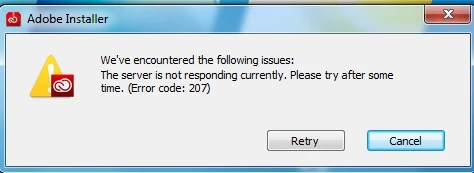
I cannot get Creative Cloud desktop app to install. I keep getting error message 207.

  • June 18, 2015
  • 3 replies
  • 1226 views

This topic has been closed for replies.

3 replies

Sheena Kaul
Legend
June 18, 2015

Hi Ian,

Please refer to the help document below:

Error downloading or updating Adobe Creative Cloud apps

Regards,

Sheena

Govardhan.V
Participating Frequently
June 18, 2015

Try with the steps mentioned in the above link.

  • Disable Anti-Virus and Firewall .
  • Make sure that under LAN settings window " Automatically detect settings"  is the only checkbox ticked, no other should be ticked.

  • If you are using Wireless/ Wifi Internet , try with Ethernet wired Internet connection .

If all attempts fails , you may try with direct installer file


Step 1)

Click on the below link and open Photoshop Elements download link.

Do not close the page , simply keep it open.

Download Photoshop Elements products | 13, 12, 11, 10

Then click on below link and download direct Installer file  mentioned in step 2.

It will directly starts installation process right away.

Step 2)

http://trials2.adobe.com/AdobeProducts/KCCC/1/win32/ACCCx3_1_1_110.zip

Extract Zip first, then run Setup.exe file.

Participant
June 18, 2015

I tried everything like you said but when I try to change LAN settings to "Automatically detect settings" it just defaults back to "Use a proxy server for your LAN". And the two links you sent near the end are of no use. The first is for Photoshop Elements. And the second one doesn't work at all.
Govardhan.V
Participating Frequently
June 18, 2015

Did you downloaded ACCCx3_1_1_110 . zip file ?

If you do not open Photoshop Elements page , you will get access denied error ,

We are not downloading anything from that page. we need to keep it open in browser.

Then click on below link :

http://trials2.adobe.com/AdobeProducts/KCCC/1/win32/ACCCx3_1_1_110.zip

Then download ACCCx3_1_1_110 . zip file .

Govardhan.V
Participating Frequently
June 18, 2015