Participant
November 30, 2018
Answered

I cant install Adobe CS6 Standard?
  • November 30, 2018
  • 1 reply
  • 2510 views

No solution whatsoever and Adobe no longer does support for these products. Please help. I need to fix ASAP.

This topic has been closed for replies.
Correct answer kglad

Try this it worked for me.

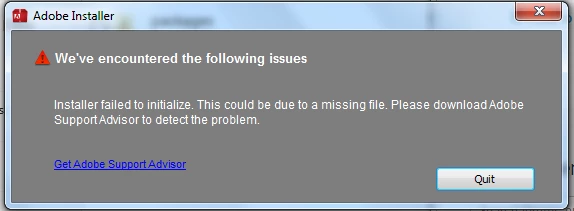
“Installer Failed to Initialize” error, or installer failing to run. Some Adobe installers may fail to launch silently, or with the error “We’ve encountered the following issue. Installer failed to initialize. This could be due to a missing file. Please download Adobe Support Advisor to detect the problem.”

Installer Failed to Initialize” error.

Unfortunately, Adobe Support Advisor no longer exists, but there is an immediate workaround that should get the installer going:

  1. Right-click (or Control-click) the installer and choose Show Package Contents.
  2. In the Install window that opens in the Finder, go to the Contents/MacOS folder, and in there, double-click Install. That will open the Terminal application, some lines of code will automatically run, and the actual Installer should successfully launch.

hi,

sierra (os 10.12), high sierra (os 10.13) and mojave (10.14) are not compatible with older software, but adobe's posted a work-around:  https://helpx.adobe.com/creative-cloud/kb/install-creative-suite-mac-os-sierra.html

1 reply

kglad
Community Expert
Community Expert
November 30, 2018

start at the top and work your way down applying applicable fixes until your problem is resolved.

if cc (win):  https://helpx.adobe.com/creative-cloud/kb/creative-cloud-desktop-application-failed.html

if osx 10.12 (sierra) or 10.13 (high sierra), https://helpx.adobe.com/creative-cloud/kb/install-creative-suite-mac-os-sierra.html

if, your error is:

"Installer failed to initialize. File not found." or "Installer failed to initialize. This could be due to missing files."

first, rename OOBE Folder to OOBE.old.

to find OOBE:

64 bit win OS: Program Files x86\Common Files\Adobe\OOBE

32 bit win OS: Program Files \Common Files\Adobe\OOBE

mac os: HD>library>application support>adobe>caps

mac os: USER>library>application support>adobe>OOB

if that fails or isn't the exact error you see, uninstall, clean (http://www.adobe.com/support/contact/cscleanertool.html) and reinstall.

if you're using a dvd to install:

copy the disc contents to a desktop directory and install from that directory.

if you're using a mac:

1. Try to Create a new user account in Mac with Administrator Priviledges.

2. Login to the New user, Navigate to Mac HD> Application> Utilities> Adobe Installer folder, Locate products like Adobe Reader, Adobe Flash, Adobe Air and un-install them

3. Navigate to User Library> Application Support> Adobe and move Adobe to Trash.

4. Navigate to Mac HD> Library> Application Support> Adobe and move Adobe to Trash.

5. Start the installation again.

if everything applicable above fails, check your installation logs:

http://helpx.adobe.com/photoshop-elements/kb/troubleshoot-install-using-logs-elements.html

Participating Frequently
December 2, 2018

I presume the solutions hold true for CS6 Design & Web Premium? I've twice installed PS (64), AI (64), Dreamweaver and ID from an external DVD/CD player to a brand new Surface Pro 6/Windows 10.  The result is that certain parts of the programs did not install and I have an error report of what they were.

I don't quite understand why the suite I bought outright should suddenly stop working, since the terms and conditions didn't put an end date on the product's term of usability. If it's no longer supported, the last updates issued should be available for all time, shouldn't they?

gregoryc22709076
Participant
December 2, 2018

Try this it worked for me.

“Installer Failed to Initialize” error, or installer failing to run. Some Adobe installers may fail to launch silently, or with the error “We’ve encountered the following issue. Installer failed to initialize. This could be due to a missing file. Please download Adobe Support Advisor to detect the problem.”

Installer Failed to Initialize” error.

Unfortunately, Adobe Support Advisor no longer exists, but there is an immediate workaround that should get the installer going:

  1. Right-click (or Control-click) the installer and choose Show Package Contents.
  2. In the Install window that opens in the Finder, go to the Contents/MacOS folder, and in there, double-click Install. That will open the Terminal application, some lines of code will automatically run, and the actual Installer should successfully launch.