Participating Frequently
February 10, 2016
Answered

I installed Adobe Cloud and when I open it, a doted circle keeps running and I do not see how to install any applications. I have reinstalled Adobe Cloud twice and it happens again.

  • February 10, 2016
  • 1 reply
  • 404 views

I installed Adobe Cloud and when I open it, a doted circle keeps running and I do not see how to install any applications. I have reinstalled Adobe Cloud twice and it happens again.

Can you help me?

This topic has been closed for replies.
Correct answer Govardhan.V

I don't see any Adobe related entries.
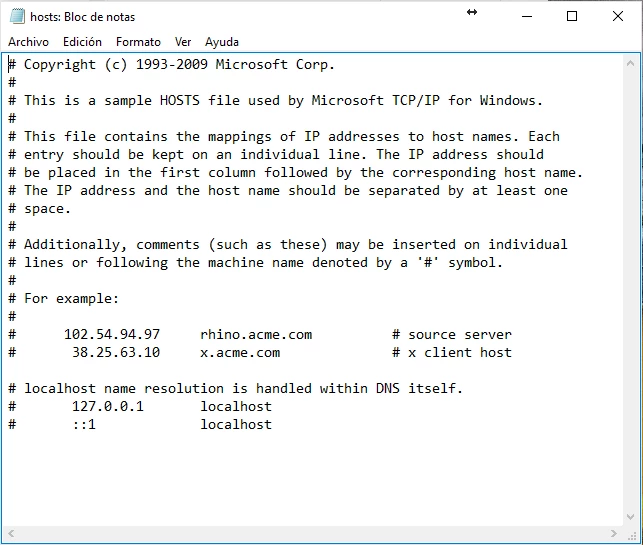

Try below steps once :

Uninstall Adobe Creative Cloud .

Creative Cloud Help | Uninstall the Creative Cloud desktop app

Step 1 :

Open C:drive and navigate to C:\Program Files (x86)\ " Common Files" \Adobe.

Open Adobe folder and delete folders named Adobe Application Manager and OOBE.

Step 2:

Navigate to C:\Program Files (x86)\Adobe.

Open Adobe folder and if present delete Adobe Creative Cloud folder. [**important]

Unable to delete??? rename it to Adobe Creative Cloud-old.

Step 3 :

Press Windows button (located between Ctrl and Alt buttons) along with R button together at a time , you will get a run command window.

Type in below command and hit 'Enter' key.

appdata

Then navigate to Local>Adobe.

Open Adobe folder and delete folders named AAMUpdater and OOBE.

Disable Firewall Temporarily.  [ Optional ]

Step 4 :

Make sure Adobe Creative Cloud is not listed under Control Panel > Program and Features. list.

Then download and install Adobe Creative Cloud application and check.

https://ccmdls.adobe.com/AdobeProducts/KCCC/1/win32/CreativeCloudSet-Up.exe

Note:

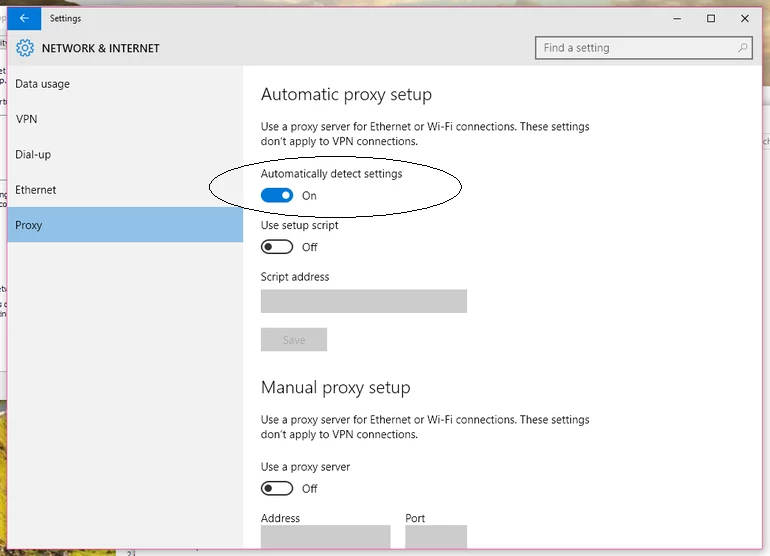
For Personal Internet connection only, make sure , Automatic Proxy settings detect is ON.
1 reply

hans-g.
Legend
February 10, 2016

Hello,

Adobe has prepared this hint at https://helpx.adobe.com/creative-cloud/kb/files-panel-spinner.html >>>

Solution    

Try the solutions below to troubleshoot the issue.

Solution 1

Hold down Ctrl key while pressing 'Quit' button under Preferences. This step kills all the CCDA-related processes together such as Adobe Desktop Service, CoreSync, etc.

Solution 2

Uninstall the Creative Cloud Desktop Application using the uninstaller available at

https://helpx.adobe.com/creative-cloud/help/uninstall-creative-cloud-desktop-app.html, and then reinstall.

Note:

No restart of Windows or MAC is required.

Hans-Günter

mneiraeAuthor
Participating Frequently
February 10, 2016

Thank you Hans, but I had no luck.

I've done both solutions and the spinning progress wheel is still there.

Kind regards

Govardhan.V
Participating Frequently
February 10, 2016

Windows or Mac ?