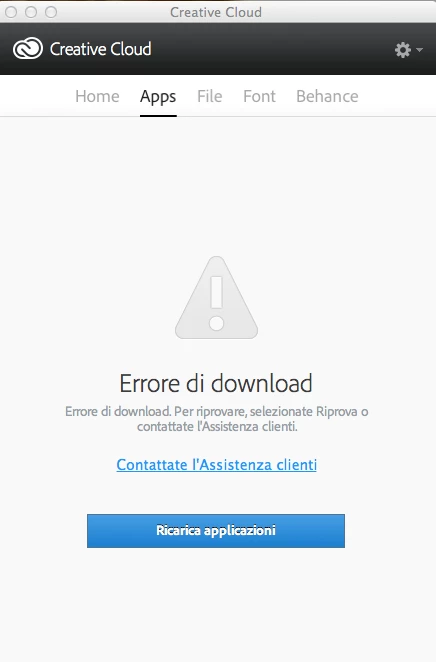
I was experiencing the same problem, with the Download Error message on CC App tab. I contacted support and the issue is solved (on a Mac Book Pro running OS X 10.8.5). The steps I followed are:
Close Creative Cloud Application (up right corner, click on the cog menu and then "Quit Creative Cloud").
From Finder, click Go > Go to Folder.
Type ~/Library/Application support/Adobe and hit return.
Rename the folders 'AAMUpdater' and 'OOBE' to 'AAMUpdaterOLD' and 'OOBEOLD'.
From the Finder, click Go > Go to Folder.
Type /Library/Application support/Adobe and hit return.
Rename AAMupdater, AAMupadaterInventory folders to AAMupdaterOLD, AAMupadaterInventoryOLD.
Launch your Creative cloud desktop.
Introduce your CC credentials.
Select install/update applications.
Hopefully it will work for you. If it does, then you can remove the folders that you renamed as <something>OLD.
I assume that for Windows users it should be possible to do something similiar. If someone is able to reproduce it please post it here for further reference.
 AdChoices