June 18, 2013
Answered

New Creative Cloud App unusable: it's blank!

  • June 18, 2013
  • 14 replies
  • 81087 views

This is what I get with the new Creative Cloud App:
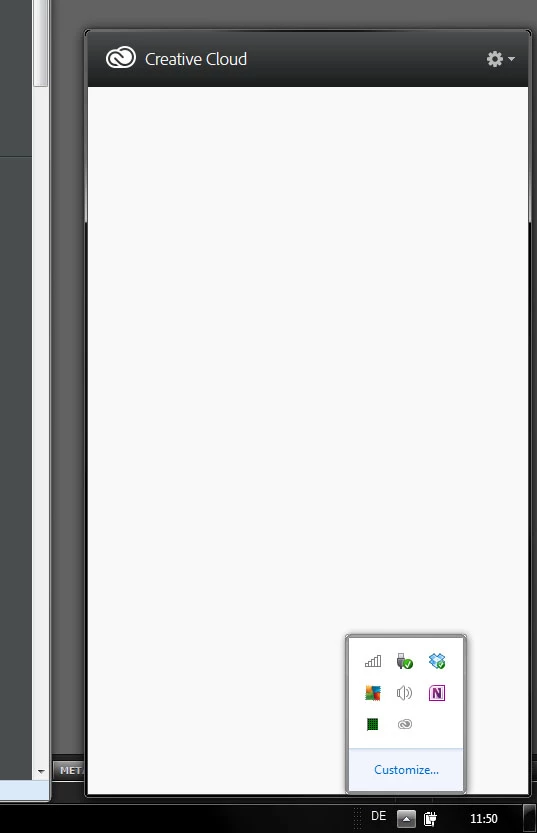
How am I supposed to use it?

This topic has been closed for replies.
Correct answer Manish-Sharma

Hi Andreball,

Can you try quitting the Creative Cloud desktop apps from Task bar and then re-lanching it ?

Also, Are you using any font management software on your machine ?

Can you provide the screen shot for the content in below folder :-

C:\Program files (X86)\Adobe\Adobe Creative Cloud

Thanks,

Manish Sharma

14 replies

Participant
June 9, 2015

Solved my problem on Mas OSX Yosemite: On-line Chat, he stayed with me the whole way!

Vishwanath P: Hello. Welcome to Adobe Technical Support.

Vishwanath P: Hi David.

Vishwanath P: I understand that you are viewing a blank screen when you launch the Creative Cloud Desktop Application, is that correct?

David Alosi: I have removed the opm.db from my user library. This has been going on for 2 weeks. When I am in Photoshop, The help menu says I am signed in. I have a full CC account.

David Alosi: YE, it is a blank screen

Vishwanath P: Thank you for the confirmation. I will be glad to help you with the issue.

Vishwanath P: In this case we will have to remove certain corrupt Adobe files and folders and re install the application after that.

Vishwanath P: I will provide you the steps to remove all the corrupt Adobe folders.

Vishwanath P: Please open the Activity monitor by clicking on the spotlight (magnifying glass) on the top right corner of your screen and type Activity monitor.

Vishwanath P: Please end all the Adobe process including Coresync, Adobe Ipc Broker, Adobe Creative Cloud, Adobe Desktop Service if you find any of these process in the Activity Monitor.

David Alosi: Creative CLoud and Adobe Desktop Service, and Adobe CEF Helper, Core Sync,

Vishwanath P: Yes, please end Coresync, Adobe Desktop Service and then end the rest of the Adobe process.

David Alosi: OK

info: Your chat transcript will be sent to xxxxxxxx at the end of your chat.

David Alosi: Done

Vishwanath P: Please close the Activity Monitor.

Vishwanath P: Please click on Finder and then you will find the Go > Go to Folder in the top menu bar of your screen.

David Alosi: Done

Vishwanath P: Please type ~/library (with the ~ symbol) in the Go to Folder and navigate to Application Support > Adobe and try to locate the OOBE and AAM Updater folders.

David Alosi: I Found them

Vishwanath P: Please trash the OOBE and AAM Updater folders.

David Alosi: Done

Vishwanath P: Please navigate back to Go > Go to Folder again.

Vishwanath P: Please type /Library (without the ~ symbol) in the Go to Folder and navigate to Application Support > Adobe and try to locate OOBE and Adobe Application Manager folders.

David Alosi: Found Them

Vishwanath P: Please trash the OOBE and Adobe Application Manager folders.

David Alosi: Ther are two AAM folders, AAMUpdater, AAM UpdaterInventory.

Vishwanath P: Please trash only AAM Updater folder.

David Alosi: Done

Vishwanath P: Please click on GO and navigate to Applications > Utilities and trash the Adobe Application Manager folder and Adobe Creative Cloud folders.

David Alosi: Done

Vishwanath P: Now I will provide you with the link to download Cleaner Tool that will help you to remove the corrupt Adobe folders.

Vishwanath P: Please click on the link

Vishwanath P: Please click on the above link and download the application.

Vishwanath P: Once the application is launched do not click on "Clean All" option, I will provide you with the steps to run the application.

Vishwanath P: Let me know once the application is launched.

David Alosi: Launched

Vishwanath P: Please select Adobe Application Manager for MAC OS X and click on "clean selected" and remove the application using the cleaner tool.

David Alosi: DOne

Vishwanath P: Now please close the Cleaner Tool window and I will provide you with the link to download the Creative Cloud Desktop Application.

Vishwanath P: Please click on the link to download the Creative Cloud Desktop Application.

Vishwanath P: Please click on the above link and let me know once the application has downloaded and the installation begins so that I will be able to make a note that there are no errors during the installation.

Vishwanath P: May I know if the installation started?

David Alosi: Yes and it is installed

Vishwanath P: Please sign in and check if the blank screen issue is resolved.

David Alosi: Yes it is resolved

Vishwanath P: Awesome!!

Vishwanath P: I am glad we were able to resolve the issue.

Vishwanath P: Is there anything else I can help you with?

David Alosi: Thank You for your Help. I hope it stays fixed!

Vishwanath P: You're most Welcome.

Vishwanath P: It was a pleasure chatting with you today.

Vishwanath P: Have a Wonderful Day!

Vishwanath P: Thank you for contacting Adobe. Good Bye.

elio_freire
Participating Frequently
February 26, 2015

Solution 1: Remove the opm.db file, restart your computer, and relaunch the Creative Cloud app

Quit the Creative Cloud Desktop application from the gear icon in the upper-right corner.

Browse to the following location based on your operating system to locate and delete the opm.db file.


Mac OS: /Users/<user folder>/Library/Application Support/Adobe/OOBE

Windows: C:\Users\<user folder>\AppData\Local\Adobe\OOBE

Restart the computer and launch the Creative Cloud Desktop application again.

Solution 2: Delete the contents of the OOBE folder and relaunch the Creative Cloud app

Quit the Creative Cloud app from the gear icon in the upper-right corner.

Browse to the following location based on your operating system

Mac OS: /Users/<user folder>/Library/Application Support/Adobe/OOBE

Windows: C:\Users\<user folder>\AppData\Local\Adobe\OOBE

Delete the entire contents of the OOBE folder.

Note: This folder is the one containing the opm.db file from solution 1.

Restart the computer and launch the Creative Cloud Desktop application again.

Note: The app can take slightly longer than usual to load with this solution, as content in the OOBE folder is rebuilt after launch.


If this Solutions do not work it can be also related to your drivers/system. Check the date of the last update done in the drivers and system of your computer. In case your drivers and system is all fine follow other solution, that for sure will work:

Solution 3: Delete manually all Adobe programs and folders, without no exception the following folders:

/Applications/Adobe*

/Applications/.AdobePatchFiles

/Applications/Utilities/Adobe*

/Library/Application Support/Adobe*

/Library/Application Support/FLEXnet Publisher/

/Library/Preferences/com.adobe*

/Library/Preferences/FLEXnet Publisher/

/Users/[user]/Library/Application Support/Adobe*

/Users/[user]/Library/Caches/Adobe*

/Users/[user]/Library/Caches/com.adobe*

/Users/[user]/Library/Preferences/Adobe*

/Users/[user]/Library/Preferences/com.adobe*

3.1. Is necessary that you reboot your computer.

3.2. Run in your computer the Adobe CC cleaner tool (step number 3 of the following link:)

Use the CC Cleaner Tool to solve installation problems | CC, CS3-CS6

3.3. Is necessary that you reboot your computer.

3.4. Now download, Adobe creative cloud, from the following link:

Creative Cloud Help | Creative Cloud for desktop

3.5. Is necessary that you reboot your computer.

3.6. Open the Download you Made "Adobe Creative Cloud" and you should be able to begin.

I hope I've helped You with my answer.

Regards

Élio Freire

friedspamenator
Participant
November 26, 2014

Quick and dirty solution to get you into the Creative Cloud console on Windows 7

  1. Kill creative cloud in task manager (Ctrl+Alt+Del, start task manager, right click and end all adobe processes)
  2. Delete file: C:\Users\YOUR_USER_NAME\AppData\Local\Adobe\OOBE\opm.db
  3. Right Click: C:\Program Files (x86)\Adobe\Adobe Creative Cloud\ACC\Creative Cloud.exe
  4. Select "Properties"
  5. Select "Compatibility" tab
  6. Check "Run in 256 colors"
  7. Apply
  8. Run Creative Cloud
  9. Login
  10. Quit Creative Cloud
  11. Remove check for "Run in 256 colors"
  12. Run Creative Cloud

This is an issue with intel/amd hybrid setup. 

GoSeeLove
Participant
December 1, 2014

After 8 uninstall/reinstall cycles, this finally fixed my problem. Thank you so much

!
Participant
November 25, 2014

Thank you to all the people who commented here. I have been having the same issue with blank desktop app using windows 8.

I tried uninstalling and reinstalling with no luck then uninstalled again but this time deleted all the adobe folders in the hidden AppData folders in my user account and the app came back,

unfortunately I don't want to have to do this if it happens again so will try to isolate offending files next time and post the solution.

if your user account is on your C: drive then AppData will be at C:users\youraccountname\AppData

delete adobe folders in :Local LocalLow and Roaming

Participant
October 18, 2014

Removing the OOBE database file did it for me as well!  Huge, huge thanks Jeff A Wright!

Participant
October 13, 2014

Hey there,

I had the same issue (except in my case, CC was black). I found it it was related to my system being "hybrid graphics". Creative Cloud spawns an Internet Explorer process (iexplore.exe) which is unhappy when running on the AMD (high performance) graphics here. Once I configured Creative Cloud to use the Intel (power saving) graphics, it worked.

YMMV, but if you've got Intel + AMD or Nvidia, make sure to check it! You don't need high performance for the CC launcher.

ZS_DISPLAY_NAME
Participant
October 18, 2014

Thanks a lot, LennertVA! Your suggestion fixed my problem

matiasdaneri
Participant
October 11, 2014

I had the same problem...i fix it uninstalling it, and then installing it...:D

(sorry for my inglesh)

cborowicz
Participating Frequently
October 7, 2014

In windows I got my blank screen to go away by quitting the app and killing the Creative cloud update process. restarted fine after that.

TheresaHertz
Participating Frequently
September 18, 2014

I have the same problem.

I have been on how many forums, sites, and ADOBE sites, and I still can NOT fix the problem of the blank Creative Cloud window for my apps. This is just disappointing...since I've moved to CC, I can't get extensions to work, exchange to work, Kuler to work, and NOW I can't even get to the damn apps window. I am beyond frustrated and sick of digging through these wasteful forums. Wish you were more helpful, Adobe, for how much expense is involved with your products. I can't even do my job. This is just exhausting.

Participant
August 19, 2014

New Creative Cloud App unusable: it's blank!

solution two DID NOT work for me.

I tried solution number two, and it did not help. then I looked at all other solutions and tried them except for the last three (which look complicated) I've been on the phone with a rep who also could not solve the problem after an hour of phone support.

I get the same blank screen as the one up top. I have rebooted, restarted, tried in safe mode, re-installed.. the whole 9.. no luck.

Jeffrey_A_Wright
Community Manager
Community Manager
August 19, 2014

ReneeRomeo are you referring to solution 3 and 4 in CC desktop lists applications as "Up to Date" when not installed?  This discussion was originally started on June 18, 2013.  If the existing solutions are not working then I would recommend starting a new discussion with the specific errors you are experiencing.

SCI_TX
Participant
August 31, 2014

Holy lack of helpfulness batman!

Jeff, did you just tell the customer who started a discussion on official adobe forums in the "Downloading, Installing, Setting Up > Discussions" forums, asking for help about a topic very specifically related to the topic of the forum, to create a third discussion because the second discussion being referenced here by Staff is not up to date - no wonder this guy is pissed off. You probably lose tens or even hundreds of customers like us who would visit a single page like this and immediately discount Adobe service as marginal and a pain to endure. Why would anyone reading this ever join this forum or try to start a discussion with this type of response. I did to look out for your customer.

He/She wants a solution to a problem which is clearly identified and for which backup documentation he already supplied. Renee just said "i'm ready to cry in the corner of my office" and you tell him that he needs to start another discussion about it instead of trying to do some research and see what the real problem might be that causes this thread to have so quite a few views.

Step your game up forum staff please!!!!

People who are writing here need the solution, not bull shit redirects. Forums are supposed to be a place to cut the bs and solve problems.

GG