
Participant
March 17, 2018
Answered

Paid Subscription Says Trial Period Expired

  • March 17, 2018
  • 1 reply
  • 5800 views

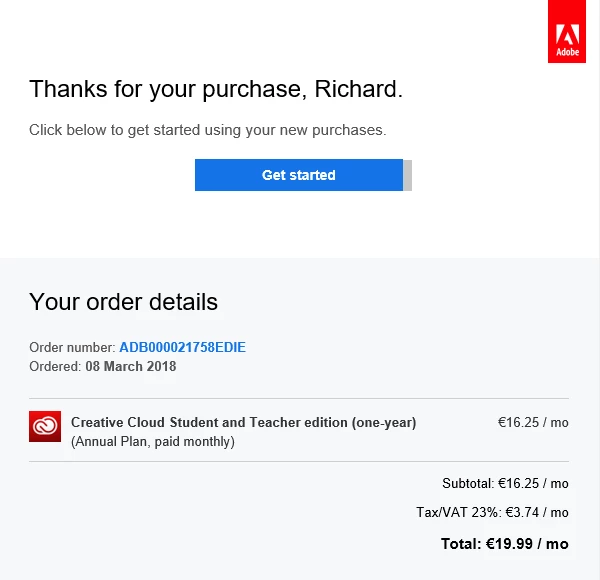
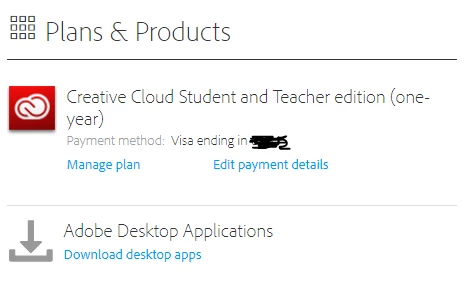
Over a fortnight ago I installed the Creative Cloud and a number of different weekly trials for various apps. When the trials ran out, I then purchased a 12 month subscription, the student / teacher plan. Everything was running smoothly up until this evening when I went to launch Lightroom and received an error saying "Your trial period has expired." I suddenly can't use any apps anymore as they all read "Trial Expired / Buy Now" despite the fact that I have an active subscription. I tried signing out of the Creative Cloud app, uninstalling / re-installing everything AND running the cleaner tool. Absolutely nothing works, I can't understand it. Please help, I need to get this resolved ASAP.
This topic has been closed for replies.
Correct answer AxelMatt

Please try the steps below:

  • Sign out from the Adobe Creative Cloud desktop application (Sign in and sign out to activate Creative Cloud apps)
  • Browse to the location: [System Drive]:\ProgramData\Adobe
  • Rename the 'SLStore' folder to 'SLStore_old'
  • Browse to the location: [System Drive]:\Program Files (x86)\Common Files\Adobe
  • Rename the 'SLCache' folder to 'SLCache_old'
  • Sign in to the Adobe CC desktop app

You can also take a look here:

Stop Adobe Creative Cloud from opening in trial mode after purchase

1 reply

AxelMatt
Community Expert
AxelMattCommunity ExpertCorrect answer
Community Expert
March 17, 2018

Please try the steps below:

  • Sign out from the Adobe Creative Cloud desktop application (Sign in and sign out to activate Creative Cloud apps)
  • Browse to the location: [System Drive]:\ProgramData\Adobe
  • Rename the 'SLStore' folder to 'SLStore_old'
  • Browse to the location: [System Drive]:\Program Files (x86)\Common Files\Adobe
  • Rename the 'SLCache' folder to 'SLCache_old'
  • Sign in to the Adobe CC desktop app

You can also take a look here:

Stop Adobe Creative Cloud from opening in trial mode after purchase

My System: Intel i7-8700K - 64GB RAM - NVidia Geforce RTX 3060 - Windows 11 Pro 25H2 -- LR-Classic 15 - Photoshop 27 - Nik Collection 8 - PureRAW 6 - Topaz Photo AI
Participant
March 17, 2018

Thanks for the reply. I followed the steps you listed above but for some reason there is no 'SLStore' or 'SLCache' folders located anywhere within the main Adobe folder. I also tried everything in the link posted, still no luck.

Govardhan.V
Participating Frequently
March 17, 2018

If you are using Windows OS , make sure Hidden Items view is enabled. Then inside C:drive look for Program data folder.

You may also try below steps:

Close all Adobe apps and make sure no Adobe processes are running in Task Manager.

1) Make sure that Hosts file does not contains Adobe URL entries with Loop back address 127.0.0.1 .

2)

Press Windows button (located between Ctrl and Alt buttons) along with R button together at a time , you will get a run command window.

Type in below command and hit 'Enter' key.

Appdata

It will open Appdata folder.

Then navigate to Local>Adobe>OOBE. Open OOBE folder and delete " Opm.db" file.

Once you had deleted Opm.db file , Sign in to Adobe Creative Cloud app using Valid Email ID and check.