In_out
Participant
October 12, 2022
Answered

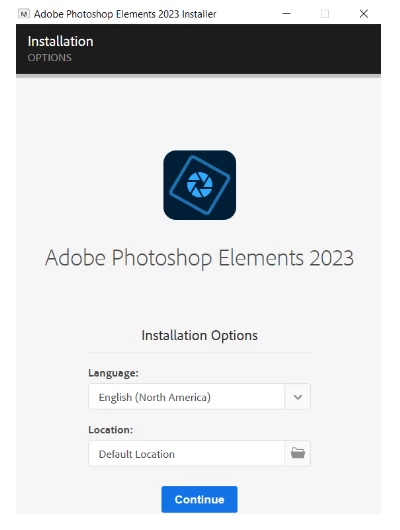
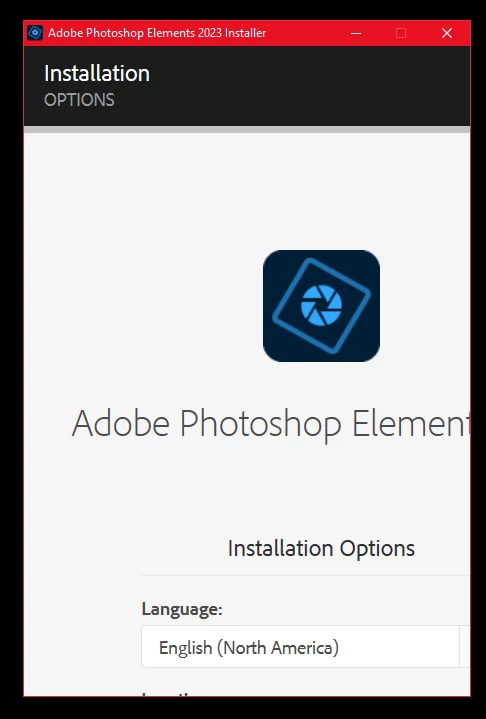
Photoshop Elements 2023 Trial Installer app text is too large to click continue.

  • October 12, 2022
  • 2 replies
  • 614 views

I cannot see or press the Continue Button on my Windows 10 Pro computer. CANNOT INSTALL ELEMENTS 2023. 

I have tried everything I could think of, and nothing has worked, including resizing the screen resolution.

This topic has been closed for replies.
Correct answer In_out

use a browser that allows popups and cookies and contact adobe support by clicking here, https://helpx.adobe.com/contact.html?rghtup=autoOpen
in the chat field (lower right), type AGENT
be patient, it can take quite a while to reach a human

p.s you can also use phone (but chat is usually quicker), https://helpx.adobe.com/contact/phone.html

p.p.s. you can also use twitter to tweet @AdobeCare

p.p.p.s. if you're contacted by anyone (via email or private message), it's much more likely to be a scammer than an adobe representative. ie, double check for an employee badge if contacted in the forums and look for an adobe.com domain in the email address if you click reply to an email. then check again and be very suspicious. any other method of contacting (or offering to contact you) is almost certainly a scam, https://community.adobe.com/t5/using-the-community-discussions/staying-safe-in-the-adobe-support-community/td-p/12919684/redirect_from_archived_page/true


Thanks for the info and effort, kglad. 


Just before seeing this message a user, (tourerjim), on PhotoshopElementsAndMore.com told me to try is: 

"Have you clicked in the language bar and then tried tab down to see if that works"


It worked! 


So that this doesn't happen again in the future, with anybody else, Adobe should allow the Install App to be resized.


2 replies

kglad
Community Expert
Community Expert
October 12, 2022

right click your desktop background > click display settings > set to 100%:


In_out
In_outAuthor
Participant
October 14, 2022

The text is already at 100%. Same in the Ease of Acess menu, normal text and cursor size. 


Also see my respondence to Mylenium.


kglad
Community Expert
Community Expert
October 14, 2022

use a browser that allows popups and cookies and contact adobe support by clicking here, https://helpx.adobe.com/contact.html?rghtup=autoOpen
in the chat field (lower right), type AGENT
be patient, it can take quite a while to reach a human

p.s you can also use phone (but chat is usually quicker), https://helpx.adobe.com/contact/phone.html

p.p.s. you can also use twitter to tweet @AdobeCare

p.p.p.s. if you're contacted by anyone (via email or private message), it's much more likely to be a scammer than an adobe representative. ie, double check for an employee badge if contacted in the forums and look for an adobe.com domain in the email address if you click reply to an email. then check again and be very suspicious. any other method of contacting (or offering to contact you) is almost certainly a scam, https://community.adobe.com/t5/using-the-community-discussions/staying-safe-in-the-adobe-support-community/td-p/12919684/redirect_from_archived_page/true

Mylenium
Legend
October 12, 2022

Check your system's display settings and in particular the DPI setting and/or the accessibilty options for screen scaling. Installer screens not displaying correctly might indicate a conflict there.


Mylenium

In_out
In_outAuthor
Participant
October 14, 2022

Display settings, DPI setting, and Ease of Access settings have all been checked or reset to normal. 

I also switched from a 1440p monitor to a 1080p. And turned off my mild Ram overclock.

NO LUCK. 

If only the Install App could resized the problem would be an easy fix.