Participant
June 21, 2015
Answered

Problems updating and uninstalling Creative Cloud

  • June 21, 2015
  • 2 replies
  • 3501 views

Hello,

I am running on an iMac with OS 10.10.3 and have had a subscription to Creative Cloud for about a year and a half. I am currently trying to upgrade to CC 2015, but the initial app update stalls at 42%. Doesn't matter which one I try first, they all stall.

I have tried the whole sign-out and restart with no luck.

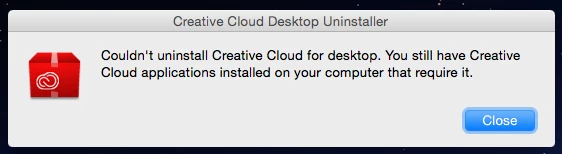
I then tried to uninstall using the "Uninstall Adobe Creative Cloud" option under the creative cloud dropdown in applications. When I try this, I receive the following message: "Couldn't uninstall Creative Cloud for desktop. You still have Creative Cloud applications installed on your computer that require it."
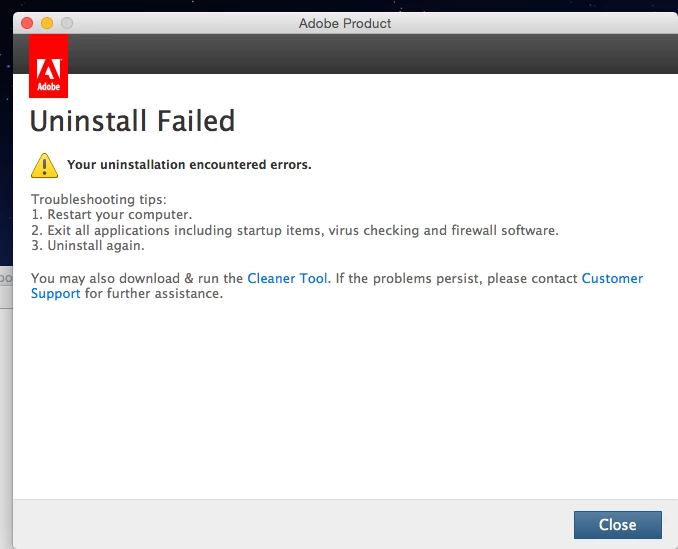
That led me to try to uninstall individual programs, to which I received this error: "Uninstall failed. Your uninstallation encountered errors." with directions to restart and try again. This did not work either.
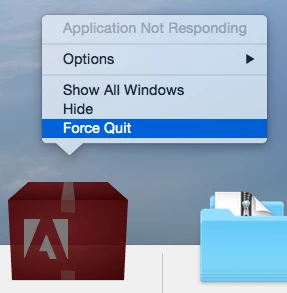
Next I tried to run Adobe Creative Cloud Cleaner Tool, which I never got to even run in the first place.
Finally I tried to start the computer in safe mode and update the apps that way. Unfortunately, that did not work either.

Aside from wiping the hard drive, I am unsure what to try next.

This topic has been closed for replies.
Correct answer jumpnshout5

Hmm , Cleaner tool not responding??

We will enable Root account and try to troubleshoot :

OS X Mavericks: Enable and disable the root user

(Applies for Yosemite as well)

How to Login to Root Account :

  1. If you are logging in from a list of usernames with pictures, click Other.
  2. In the Name field, type: root
  3. In the Password field, type the password you defined when setting up the root user account.

Once you had logged in to Root user account .

Follow Same steps again mentioned above and check.

It should run Cleaner tool fine in Root account .


Thanks again for all your help.

Unfortunately, even as the root user, I was unable to get the cleaner tool to run.

I ended up formatting my startup disk and re-installing from scratch and everything seems to be working now.

2 replies

nilbus
Participant
December 17, 2017

Better than all these solutions, use the the provided uninstallers. Don't manually put anything in the trash. This method will

For example, if you have Illustrator and Photoshop installed, in Finder, open Applications > Utilities > Adobe Installers, and run the Illustrator uninstaller and the Photoshop uninstaller. Once all the creative cloud apps have been uninstalled by their installers, then run the Creative Cloud uninstaller. If each creative cloud app's uninstaller has run successfully, then Creative Cloud uninstaller should also succeed.

Govardhan.V
Participating Frequently
June 21, 2015

Try below steps once :

Step 1)

Click on the Finder and look for the options listed next to Apple Icon located at the top left corner of the Desktop screen and click on "Go" menu button and select "Utilities" option.

(Applications>Utiliites)

Locate Adobe Creative Cloud and Adobe Application Manager folder under Utilities window and trash both folders.

Step 2)

Trash Adobe Creative Cloud from Applications well.

Step 3)

1) Right click on Finder icon and  select "Go-ToFolder " option.

2) You will get a text box, type-in below command and then hit 'Return' key.( Do not miss ~ symbol)

~/library

3)Then navigate to Application Support>Adobe.

Open Adobe folder and trash folders named AAMUpdater and OOBE.

Step 4)

1) Right click on Finder icon and  select "Go-To" Folder option.

2) You will get a text box, type-in below command and then hit 'Return' key.

/library

3)Then navigate to Application Support>Adobe.

Open Adobe folder and trash folders named AAMUpdater ,Adobe Application Manager and OOBE.

Step 5)

Click on the below link and download & run Adobe Cleaner tool :

Select the option "Adobe Application Manager for Mac OS X 10.6" and then click on "Clean up Selected" .

https://helpx.adobe.com/content/help/en/creative-suite/kb/cs5-cleaner-tool-installation-pr oblems/_jcr_content/main-pars/accordion_container_1/accordion-par/accordion-item-1/accord i on-item-par/procedure/proc_par/step_3/step_par/download/file.res/AdobeCreativeCloudCleane r Tool.zip

Step 6)

Click on the below link and download Creative Cloud setup file and use the same to install the Creative Cloud Desktop application

https://ccmdls.adobe.com/AdobeProducts/KCCC/1/osx10/CreativeCloudInstaller.dmg

Participant
June 21, 2015

Thank you so much for your help. I have made it to step 5, but am still having troubles...

Unfortunately, I am still having issues with the cleaner tool not responding. I have made multiple attempts to get it running but after a few minutes of bouncing in the dock, it stops moving and stops responding.

Govardhan.V
Participating Frequently
June 22, 2015

Hmm , Cleaner tool not responding??

We will enable Root account and try to troubleshoot :

OS X Mavericks: Enable and disable the root user

(Applies for Yosemite as well)

How to Login to Root Account :

  1. If you are logging in from a list of usernames with pictures, click Other.
  2. In the Name field, type: root
  3. In the Password field, type the password you defined when setting up the root user account.

Once you had logged in to Root user account .

Follow Same steps again mentioned above and check.

It should run Cleaner tool fine in Root account .